My project vaults are clean. Each one has a clear purpose, a handful of folders, and notes that actually belong where I put them.
My personal vault is a different story.
Folders multiplied over time.
A “Research” folder.
A “Resources” folder.
An “Ideas” folder.
A “Misc” folder
that became a graveyard. Notes landed in whichever folder felt right in the moment, which meant nothing felt right consistently.
I’d open the vault, drop something in, and move on – knowing I’d never find it again with any confidence.
The problem wasn’t that I had too many notes.
It was that the folder structure had no rules, only vibes. And a structure without rules isn’t a structure – it’s just labeled chaos.
Here’s what actually works.
The Short Answer: Here’s the Structure
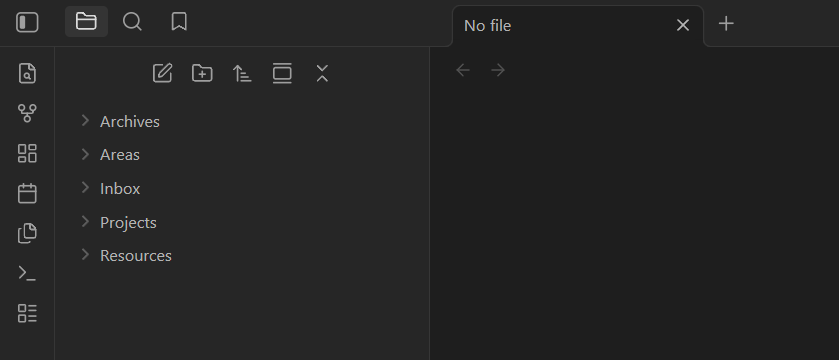
A simple, maintainable Obsidian vault needs five folders:
📁 Inbox
📁 Projects
📁 Areas
📁 Resources
📁 Archive
Inbox is where everything lands first – no sorting required at the moment of capture.
Projects holds active work with a clear finish line.
Areas holds ongoing responsibilities with no end date (health, finances, a client relationship).
Resources is for reference material you’ll return to – not your thoughts, just source content.
Archive is for anything finished, paused, or no longer active. Notes stay in plain markdown throughout. You move a note by dragging it. That’s the whole system.
Why Most Obsidian Vaults Fall Apart
The default move when starting an Obsidian vault is to create folders that mirror how your brain is currently thinking.
So you make a “Work” folder, a “Personal” folder, a “Books” folder, maybe a “Ideas” folder. It holds for a few weeks.
Then a note doesn’t fit neatly into any of them.
You make a new folder. Then another. Then you have twelve folders and no clear rule for which one a note belongs in, so every capture becomes a small decision – and small decisions at the moment of capture kill the habit.
The core insight is this: folders in Obsidian answer where does this belong, not how does this connect.
If you’re using folders to capture relationships between ideas, you’re doing the job that links do better. Folders are containers.
Links are the connective tissue.
Keep the containers few and obvious. Let links handle everything else.
What Each Folder Actually Does
Inbox
This folder exists so you never have to make a decision when you’re capturing something quickly. A URL you want to read later, a rough idea, a meeting note you’ll clean up – everything lands here first.
The rule: process Inbox regularly (once a day, once a week – pick one). Move each note to where it belongs or delete it. If Inbox becomes a permanent home for anything, the system breaks.
Think of it the way you think about automating the boring, repetitive parts of a workflow – the capture step should be zero friction, and the sorting step should happen on its own schedule, not in the moment.
Projects
Active work with a specific end state. A client website you’re building. An article you’re writing. A launch you’re preparing for. Each project gets its own subfolder inside Projects.
The test: does this have a finish line? If yes – Projects. If it’s an ongoing part of your life with no finish line, it’s an Area.
When a project ends, the whole subfolder moves to Archive. Clean, fast, no decisions.
Areas
Ongoing responsibilities. Health, finances, a relationship you’re maintaining, a skill you’re developing. Areas don’t finish – they just continue or they don’t.
These notes tend to grow slowly and get referenced often. A note on your workout routine, your budget structure, a client relationship log.
The key difference from Projects: you’re not trying to complete an Area, you’re trying to maintain a standard.
Resources
Reference material you didn’t write. Book notes. Saved articles. Research you pulled for a project. Interesting frameworks someone else articulated.
Resources is a library, not a thinking space.
Your own analysis and reactions to that material belongs in a note linked from Resources – not inside the Resource note itself.
Keeping that distinction clean means Resources stays useful instead of becoming a pile of half-processed reading.
Archive
Anything that was active but isn’t anymore.
Finished projects, old Areas you’ve deprioritized, Resources you no longer need.
Archive exists so you can move things out of your working folders without deleting them – because you’ll occasionally want them back.
Search works fine across Archive. You don’t need to organize inside it.
Folders vs. Tags: Where Each One Belongs
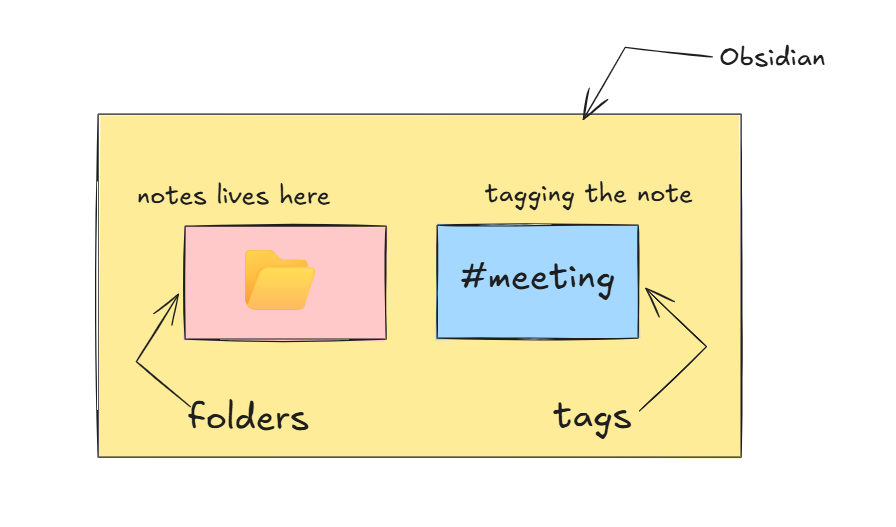
A folder answers: where does this note live?
A tag answers: what kind of note is this?
A meeting note from a client project lives in Projects/ClientName.
It might have the tags #meeting and #action-items.
The folder tells you where to find it in the file tree. The tags let you pull up every meeting note across all projects in a search.
The practical rule: use folders for location, tags for cross-cutting properties. Tags that duplicate your folder structure (like #projects or #archive) are noise – they don’t add information that the folder doesn’t already give you.
Where this matters most: status and type. Tags like #draft, #waiting, #review cut across all your folders in a way that a folder never could. That’s where tags earn their place.
When to Use Links Instead of Folders
If you catch yourself wanting to put a note in two folders at once – stop. That’s a sign the note should be in one folder and linked from another.
Obsidian’s whole value proposition is that notes can connect to anything, regardless of where they’re stored.
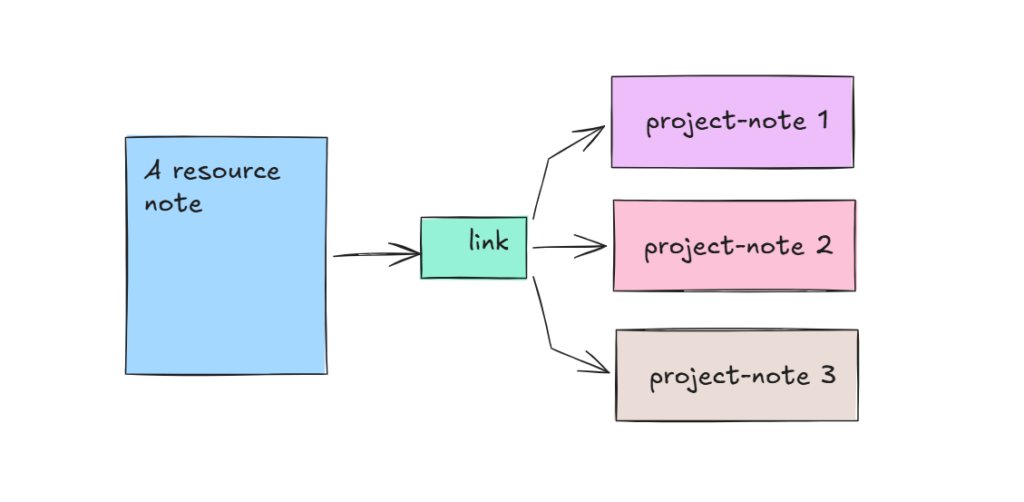
A Resources note about a writing framework can be linked from three different Project notes, an Areas note on your creative practice, and a journal entry.
You don’t need copies of it in three folders. You need one note and three links.
The mental model: if you have more than three levels of folder nesting anywhere in your vault, you’re using folders to do a job that links do better.
How to Move an Existing Messy Vault Into This Structure
If you already have a vault with dozens of folders and notes scattered everywhere, don’t reorganize everything at once. That’s how you spend a Saturday moving files and gain nothing.
- Create the five folders: Inbox, Projects, Areas, Resources, Archive.
- Enable Settings > Files & Links > Automatically update internal links. This makes Obsidian update wikilinks when you move files. Do this before you move anything.
- Pick one category to sort first – Projects is usually the clearest. Move everything that’s active project work into
Projects/. Create a subfolder per project. - Leave everything else in the old folder structure for now. Add the old folders inside Archive if it helps mentally.
- As you open notes over the next few weeks, move them to the right place. Don’t force it all at once.
One thing to watch: Obsidian updates [[wikilinks]] automatically, but not standard markdown links written as [text](path). If your notes use both formats, check for broken links after any large moves.
New notes go into Inbox first, always. The structure stabilizes itself once capture is consistent.
Leave a Reply