Tag: n8n

  • How to Install n8n Locally (Windows + Mac In 2026)

    How to Install n8n Locally (Windows + Mac In 2026)

    Installing n8n locally is one of the best decisions you can make for workflow automation.

    Why? Because unlike cloud platforms that charge $20-50/month and limit your workflows, running n8n on your computer is completely free. No restrictions on workflows, no execution limits, and your data never leaves your machine.

    But here’s what nobody tells you: the installation process can be confusing. Should you use npm, or docker? What happens when you close the terminal? Where are your workflows even saved?

    I hope this helps you out.

    NPM

    • Quickest setup, users already familiar with Node.js.
    • Prerequisites – Node.js and npm installed.
    • Data persistence – Easy, data is saved locally by default.
    • Recommended Ram – Minimum 4GB+

    Docker

    • More robust, production-like setup, better isolation.
    • Docker Desktop installed.
    • Requires setting up a persistent volume (covered below).
    • 8GB+ (Docker takes resources)

    I’ve been there. I spent hours figuring this out so you don’t have to.

    This guide covers everything you need to install n8n locally – whether you’re on Windows, Mac, or Linux. I’ve included screenshots for every step, troubleshooting for common errors, and honest advice about which installation method actually makes sense for you.

    What you’ll get:

    • Two installation methods explained (npm, Docker)
    • Complete step-by-step instructions with screenshots
    • Troubleshooting for the errors you’ll actually encounter
    • Tips for keeping your installation secure and backed up

    No technical jargon. No skipped steps. Just a straightforward guide to getting n8n running on your computer. Thank me later.

    Ready? Let’s install n8n.

    Installing n8n locally with NPM

    For those who know what NPM is? that’s great. but for those who don’t know? NPM stands for Node Package Manager which is opensource package manager for Node.js

    Step 0: Installing Warp Terminal (Optional)

    This is an optional method, and this is how I actually work though, Install warp (It’s free), and use warp as your terminal.

    The reason I say install warp is perhaps windows users would have hard time terminal issues, sometimes leading PowerShell security issues. The above step is totally optional though.

    Step 1: Verify Node Installation

    Open up your terminal or use warp, and type node -v and npm -v you can check it out the below gif.

    Most probably you won’t have installed the node.js. Let’s go with the step 2

    Step 2: Install Node.js

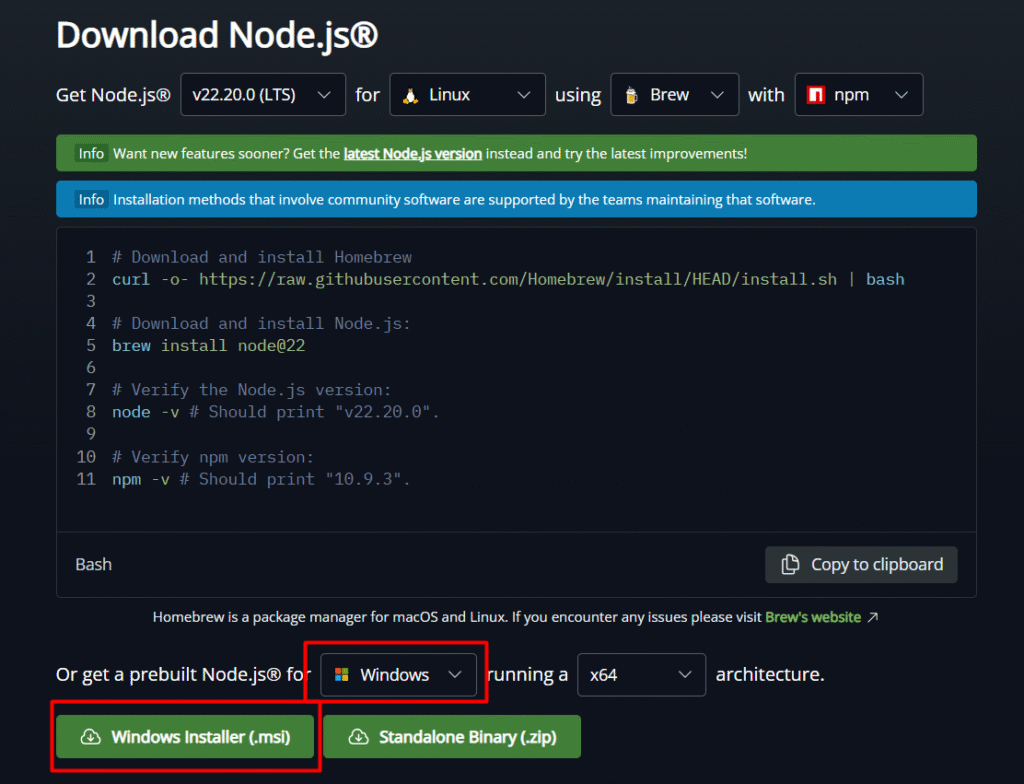
    • Go to Node JS official site, and click on download LTS version
    • Based on the Operating system preference download the installer whether you got Linux or MacOS.
    • Install Node.js

    Step 3: Re-verify Node.js installation

    • make sure to run this command on your terminal node -v then you will see your Node.js version.

    Step 4: Installing n8n

    • go to warp or terminal, type npm install -g n8n.
    • Installation takes 3 – 5 mins approximately.
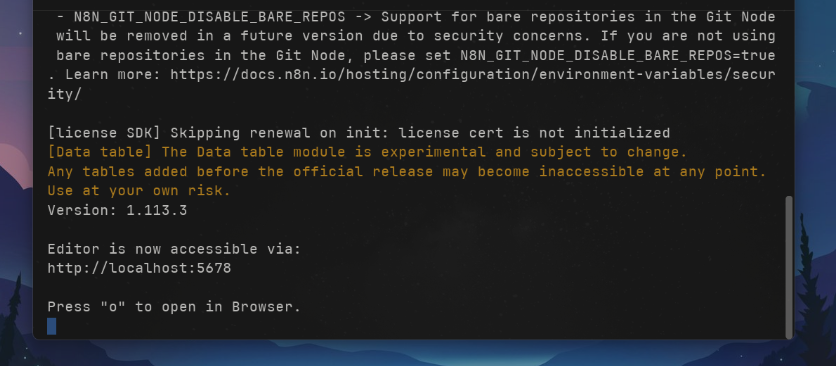
    • After installation, Go to your terminal and type n8n to open.
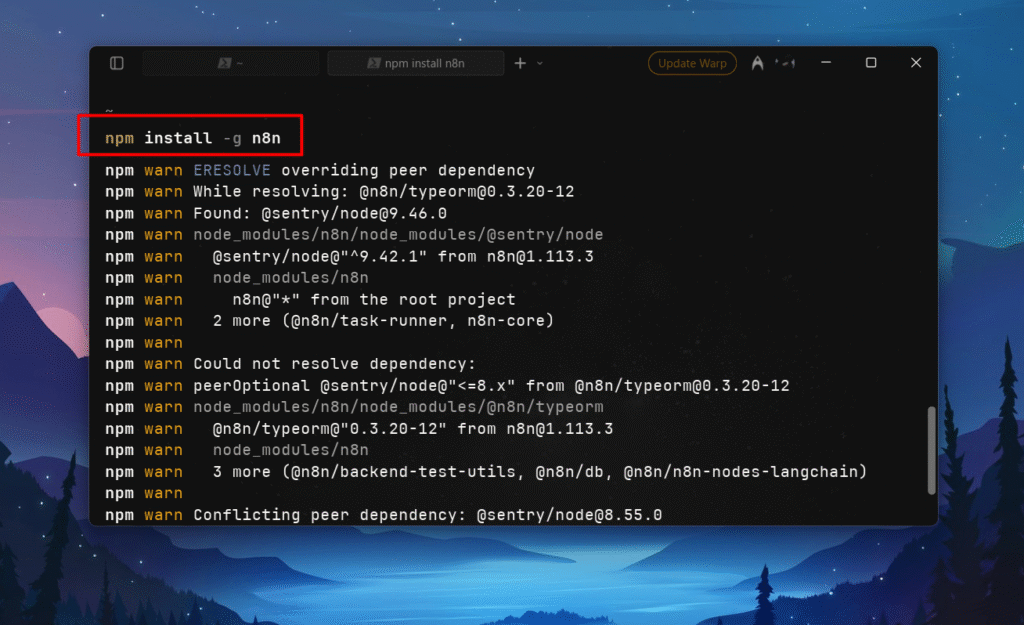
    • Now n8n is accessible via http://localhost:5678 or you can press “o” to open in your browser.
    • After that make sure register an account, and verify it with your email-address.
    • then you’re done.

    Alright here’s the tips,

    • To terminate the n8n from running, then you press ctrl + c on the terminal or warp, this will terminates and closes n8n for you.
    • If you want to run n8n again, then go to terminal > type n8n.
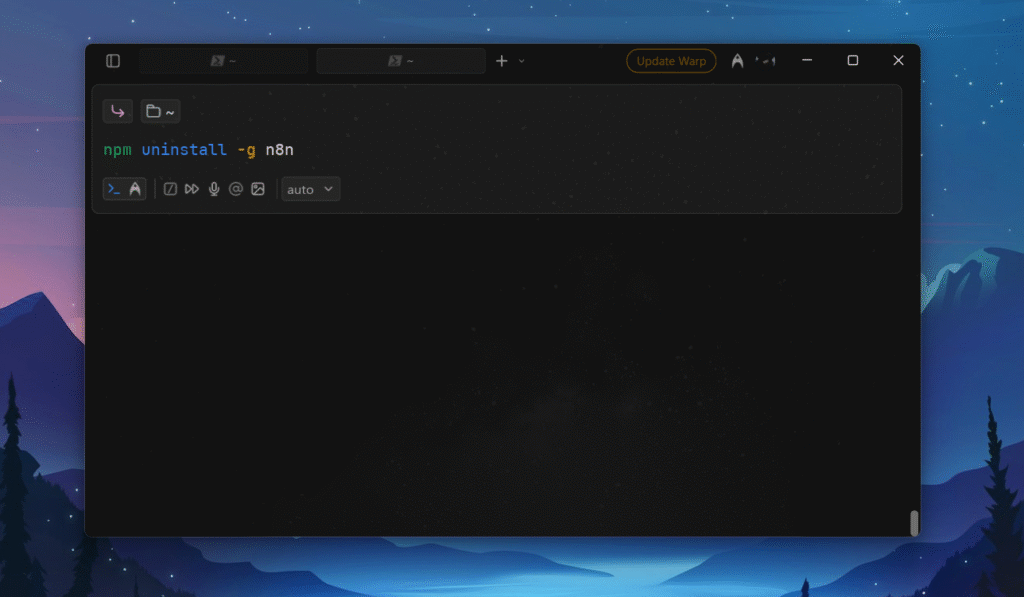
    • Maybe, you wanted to uninstall the n8n? write this command in your terminal / warp npm uninstall -g n8n
    Installing n8n Locally With Docker

    Docker is like a virtual container that packages an app and everything it needs to run into one neat box, so it works the same way on any computer. basically packaging the whole n8n into one container (Think it as a box), then you can use it on your computer. that is what it is.

    For Docker, At least you need 4 GB of RAM (but, 8GB is recommended) I do have 20GB of RAM, and yet 3 GB taken for container. Most of the time it container stables around 1.7 – 2.0 GB of RAM.

    Step 1: Install Docker
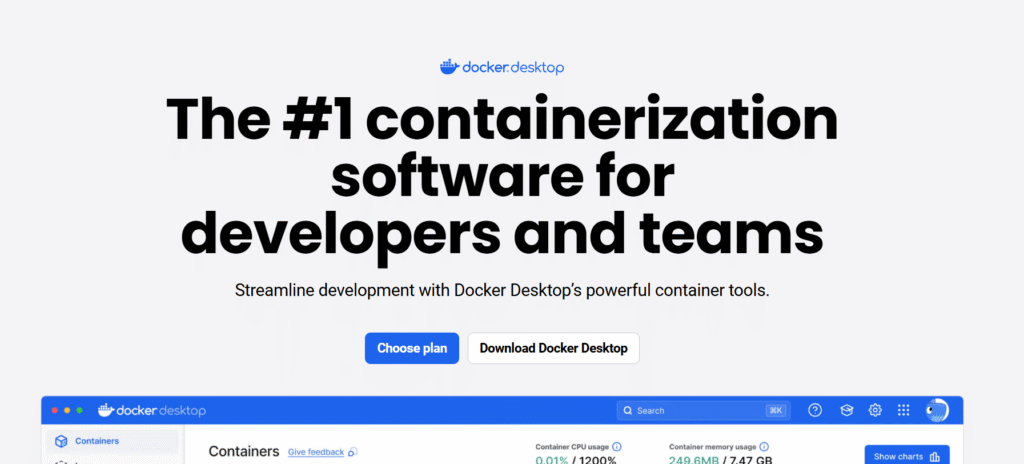
    • Go to docker desktop link here, and click on Download Docker Desktop.
    • Choose your operating system – Windows, Mac, Linux.
    • You will get around approximately ~517 MB to download.
    • Once download is completed, then install it on your directory.

    Step 2: Creating Volumes on Docker Desktop

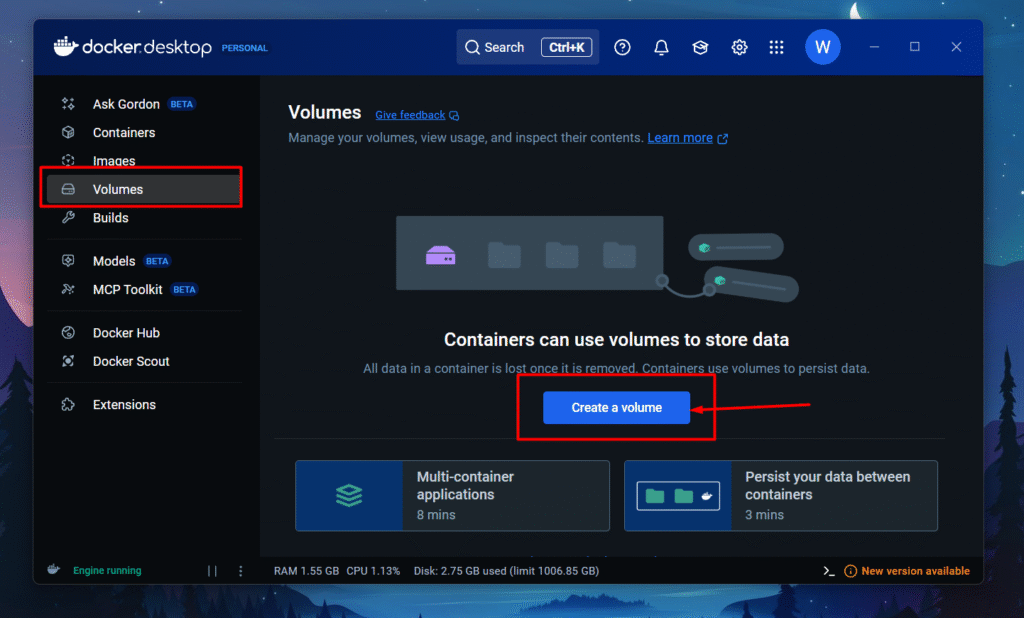
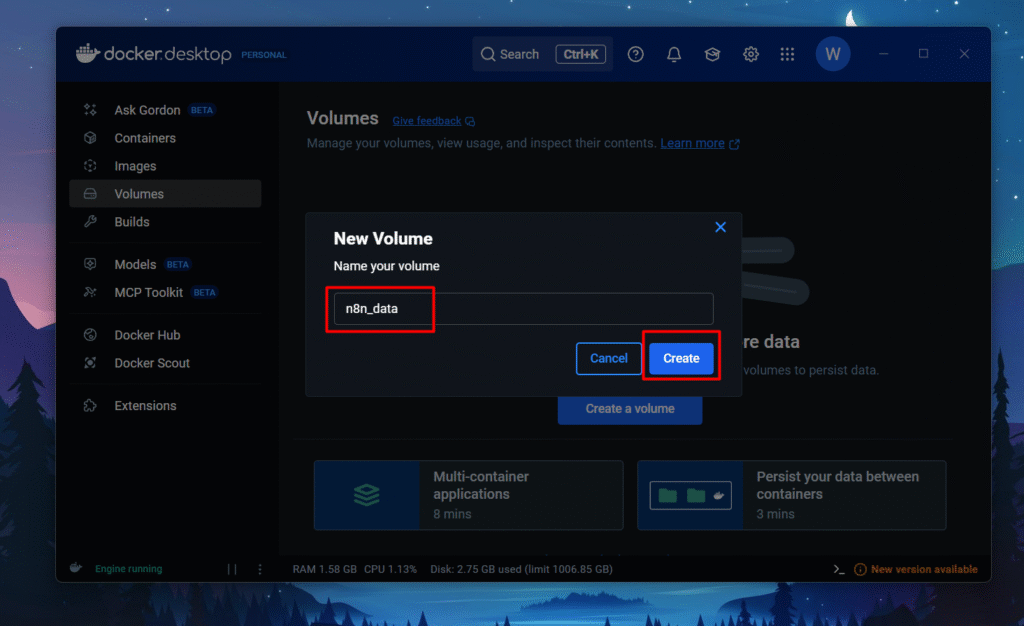
    This is an essential step in install n8n, you can still directly install without volume on docker but data won’t persist. Think it like as a folder that stores all your credentials/workflows.

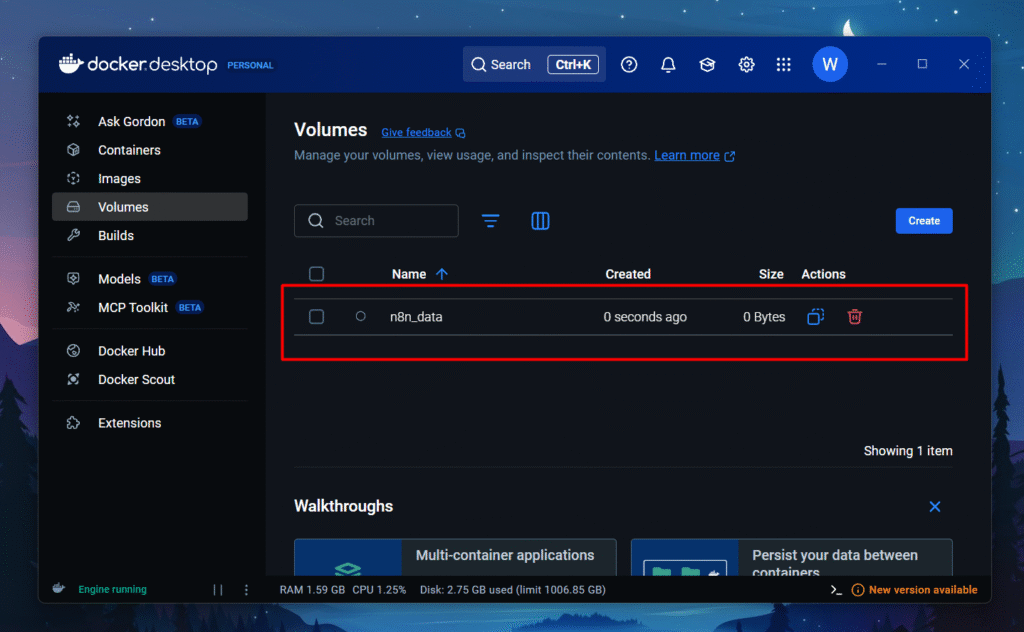
    • Go to Volumes > Create a volume
    • Name your volume as n8n-data and hit create

    Step 3: Installing n8n Image on Docker Desktop

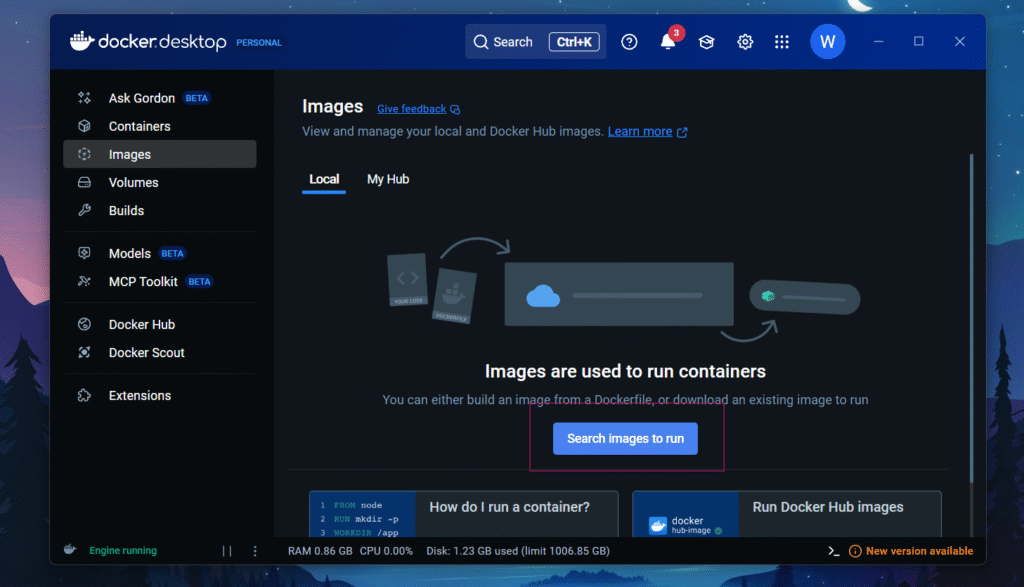
    • Go to Images > Search images to run
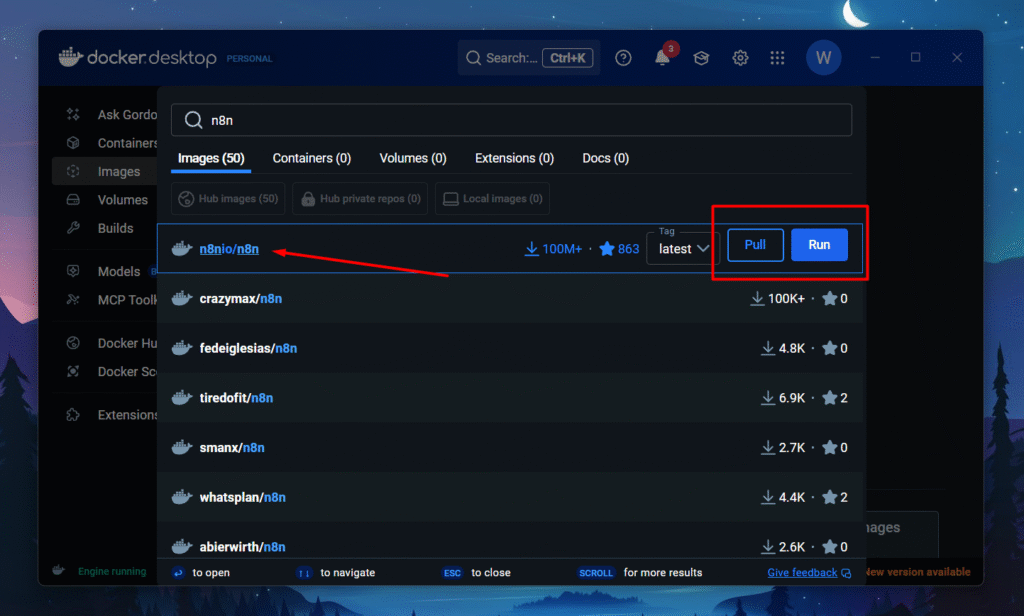
    • Search for n8nio/n8n (which comes under n8n’s domain and also has 100M+ downloads)
    • Click on Pull

    Step 4: Configuring n8n Image & Settings on Docker

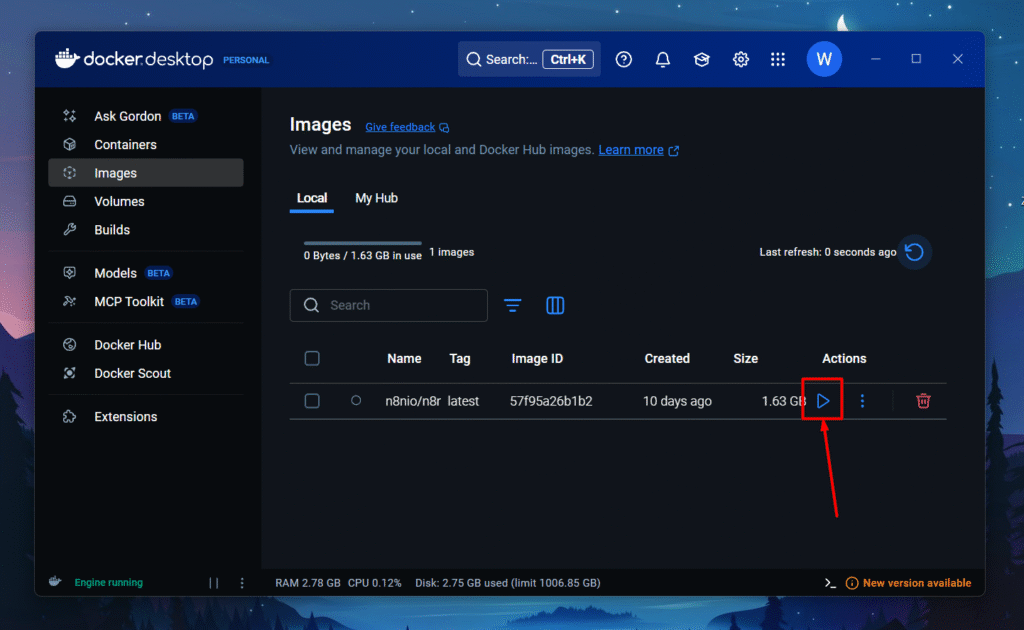
    • Click on the Play button
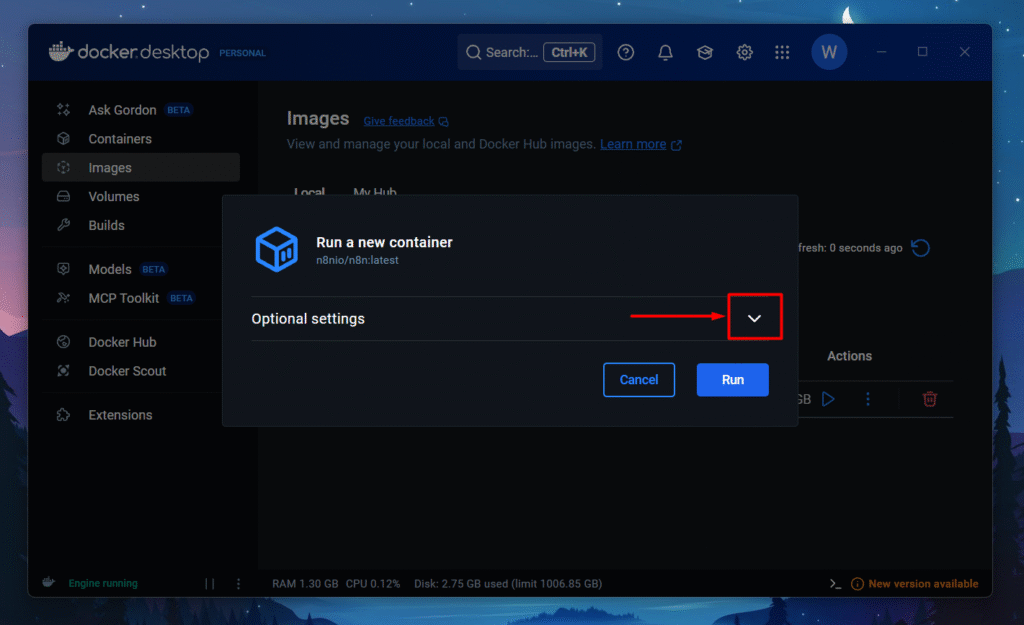
    • Drop down optional settings
    • Container Name, you can give any name you like this hello_docker or a random name will be generated.
    • Ports – Enter Host Port -> 5678
    • Volumes
      • Host path : n8n_data
      • Container path : /home/node/.n8n
    • Now drop down to Environment variables.
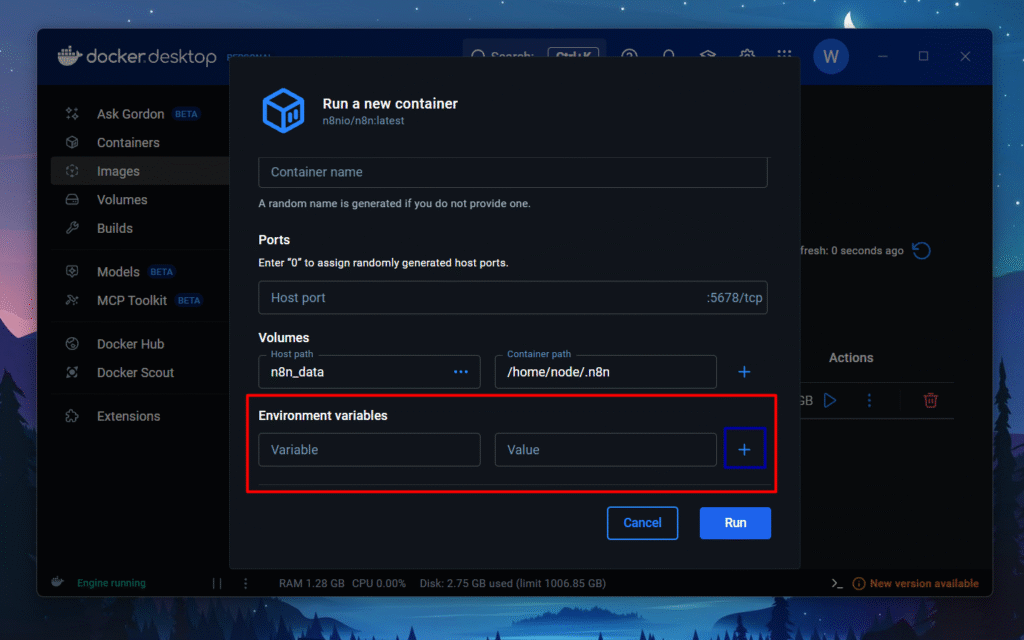
    • In Environment variables, you need to add 4 variables, so press + icon to create 3 more Environment variables.
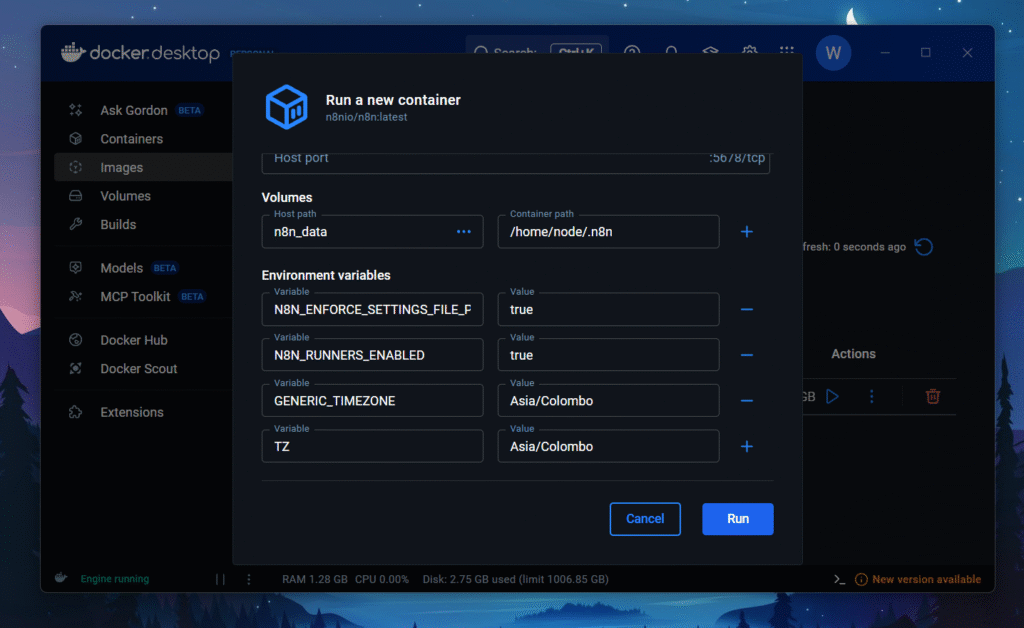
    • N8N_ENFORCE_SETTINGS_FILE_PERMISSIONS = true
    • N8N_RUNNERS_ENABLED = true
    • GENERIC_TIMEZONE = Asia/Colombo
    • TZ = Asia/Colombo
    • Make sure to recheck everything is correct.
    • Click on Run

    Listen to this carefully, The generic time-zone, and TZ actual my timezone, You’ve to replace that value with your timezone. You can find your local timezone here.
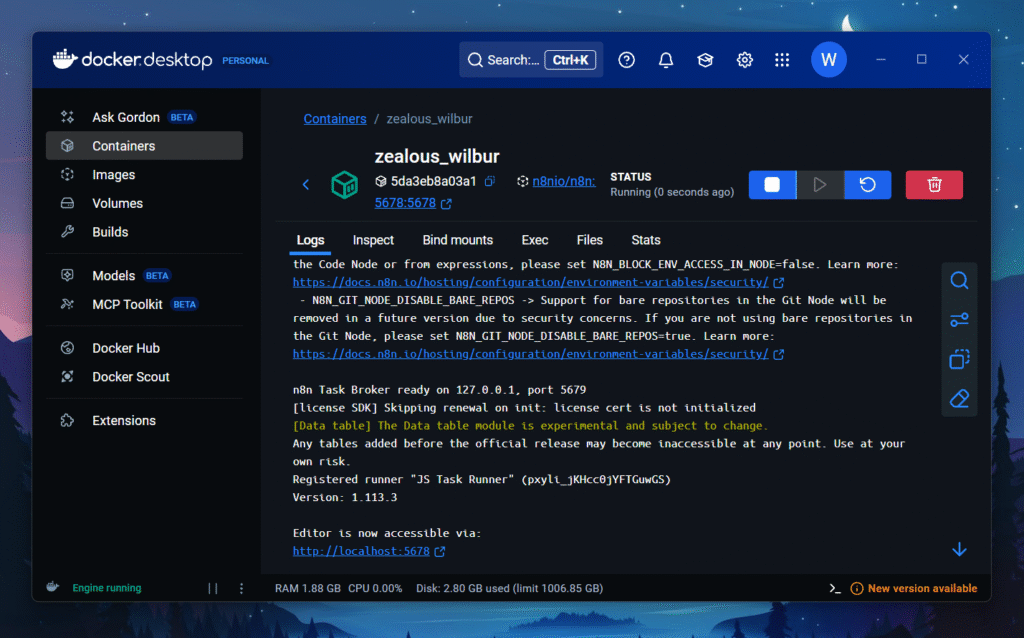
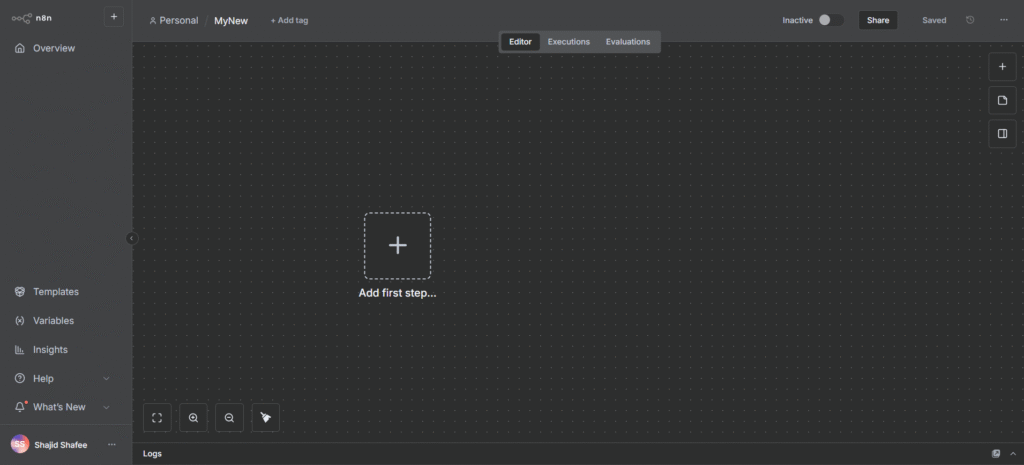
    • This is the interface you will get once the container starts to run.
    • Editor now accessible via http://localhost:5678

    Step 5: Configuring Your n8n Account

    • Enter your information such as email, password, first name and all.
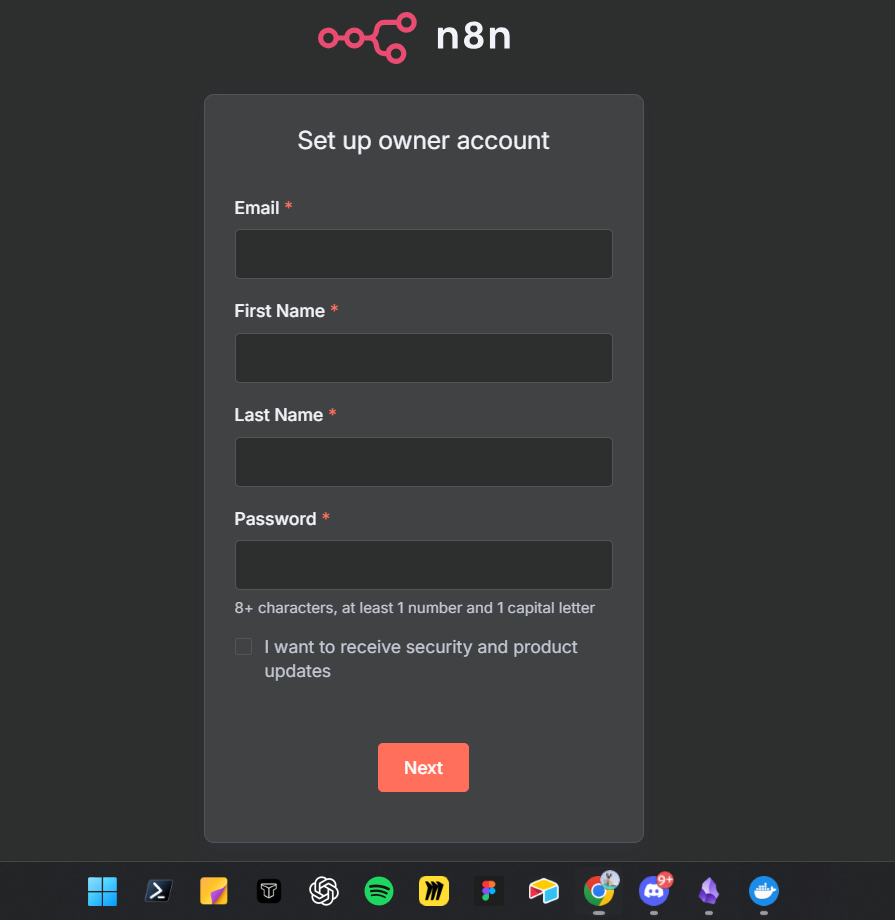
    • Once you registering, then n8n will start sending a n8n license key to unlock selected paid features.
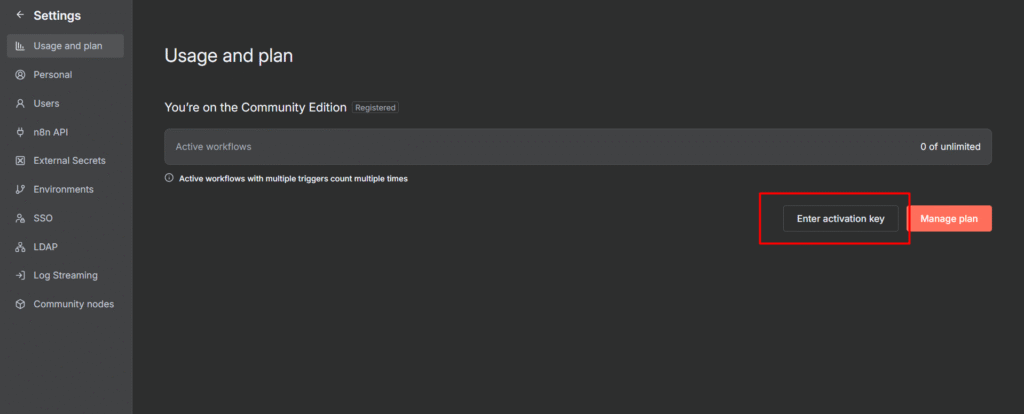
    • Once you retrieved the license key, go to Settings > Usage and Plan > Enter Activation Key > Paste the activation key.
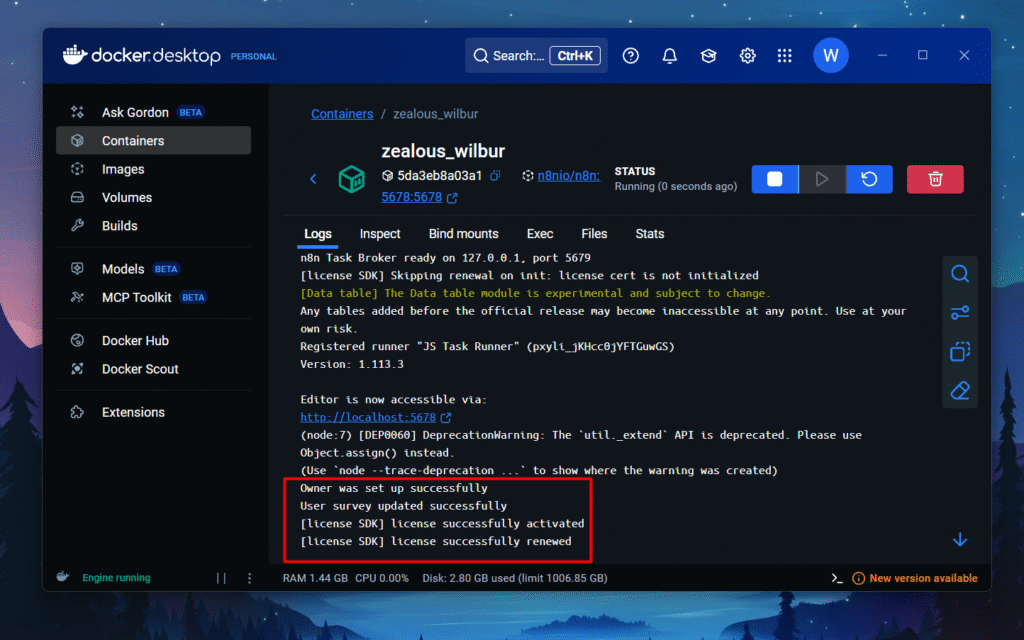
    • you can see in docker container, mine is zealous_wilbur wherein license successfully activated in logs.
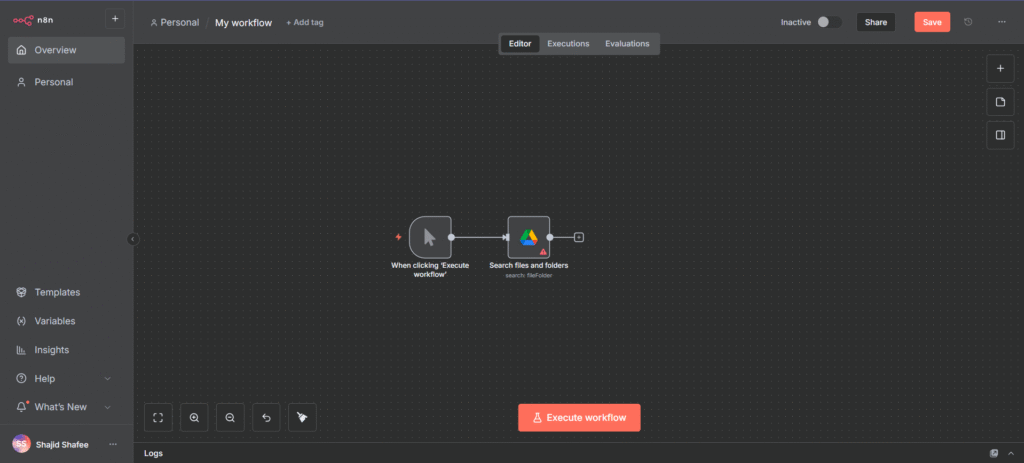
    Yaay! finally installed on docker. Congratulations, that’s a solid wild ride. Now you know, how to access your n8n locally. Yes, I sense some questions coming out from your mind. I totally get it. I try to answer them below as a references for you, or else click here to post the question on our reddit-community.

    Step 6: How to Stop n8n Container

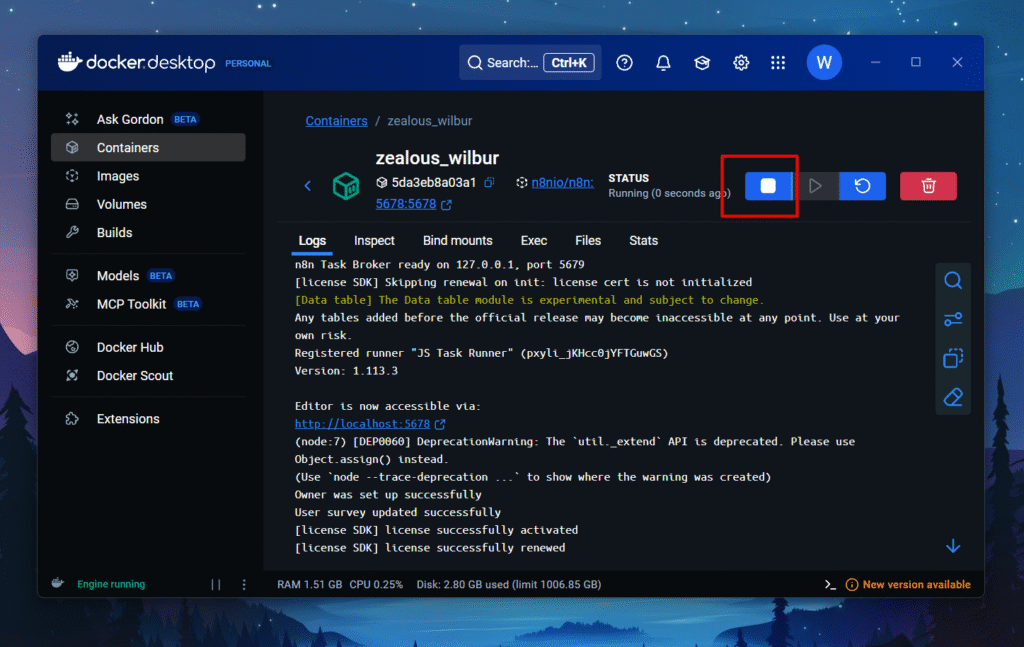
    • that’s pretty straightforward click on the Stop Icon in the container, and before stopping, make sure save your workflows.

    The best practice: Save your workflow often, even when you made a small changes.
    Essential Docker Commands for n8n

    This is pretty much fun using docker with your terminal / warp because that gives you different vibe, and yeah in background a tech wiz soundtrack. that’s make you one.

    docker ps -a
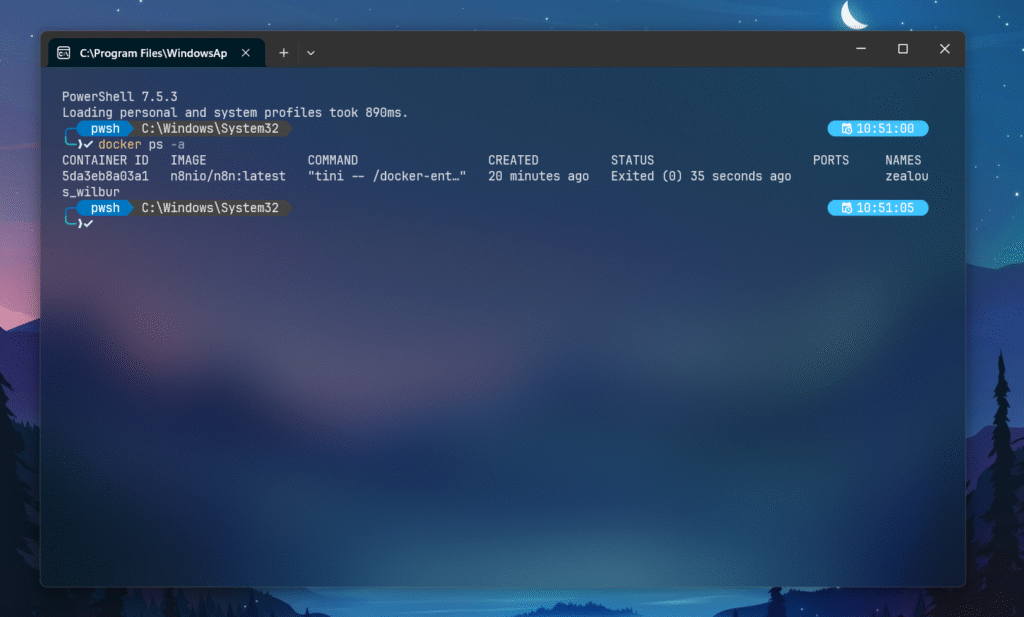
    • docker ps only shows the running containers, and -a option include all the containers that exited, stopped or paused. that’s why you can see the zealous_wilbur has been exited 35 seconds ago.
    • docker stop <container id> – This will stop the specific container that matches the ID.
    • docker rm <container id> – this command will remove the container

    My Thoughts

    Take a moment appreciate yourself, you’ve came this far, You’re now running n8n locally. This means you have got no execution limits, and full control over your data, The hardest part is over, Now is the time to head back to http://localhost:5678 and start building automations.

    If you’d any issue with the content, click here to comment on our reddit-post. This will help me to understand the issue and tackle by myself.

  • n8n credentials and service guide

    n8n credentials and service guide

    Credentials are similar to permission slips that let n8n access your accounts, and without any provided credentials, nodes can’t actually do anything with external services. so basically you’ve to set them up at first then we can create workflow with app nodes easily.

    • You’ve learned workflows and nodes, but now comes the real struggle, connecting to actual services.
    • Every external service (Gmail, Slack, Sheets) needs authentication
    • This guide shows you exactly how to connect the most popular services step by step.
    • By the end, you’ll have Gmail connected and ready to automate.

    Why n8n needs credentials?

    • Services need to verify it’s really you making requests
    • Protects your data from unauthorized access
    • Each service has different security requirements

    Prerequisites

    Before you start setting up credentials in n8n, make sure you have,

    1. A Google Account
      • You’ll need a Gmail account to access Google Cloud Console also known as GCC.
      • Use a dedicated account for automation if you’re working on business projects.
    2. An n8n Instance
      • Self-hosted n8n running locally typically (http://localhost:5678)
      • or n8n Cloud account
      • Make sure you can access your n8n dashboard
    3. Basic Understanding

    Google Cloud Console Setup (One Time + OAuth Consent Screen)

    This is a very crucial step, you’ll only need to do this once for all google services (Gmail, sheets, maps, and etc)

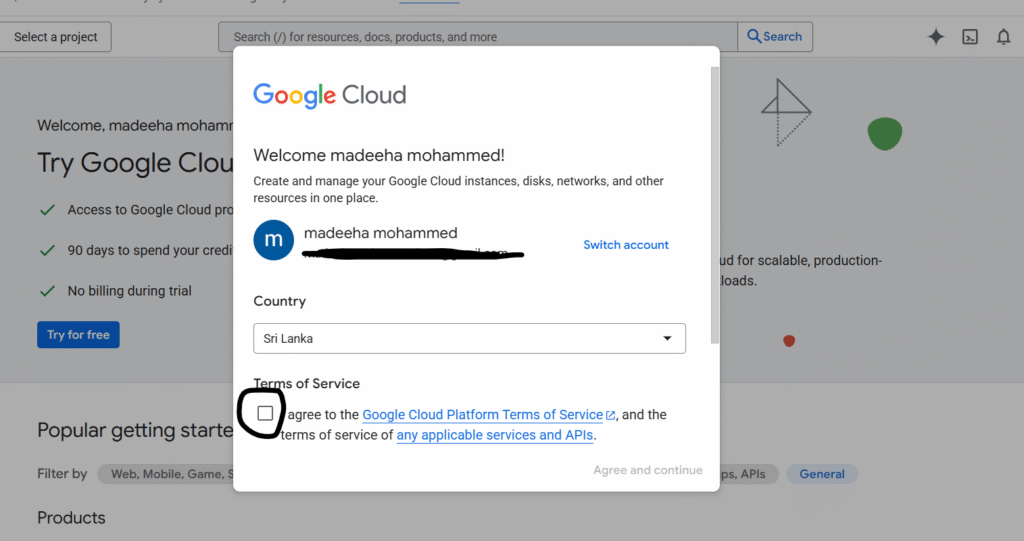
    Step 1 – Access Google Cloud Console

    • Go to https://console.cloud.google.com/
    • Sign in with your Google account
    • Accept the Terms of Service and continue

    Step 2: Create a New Project

    create a project in google cloud console
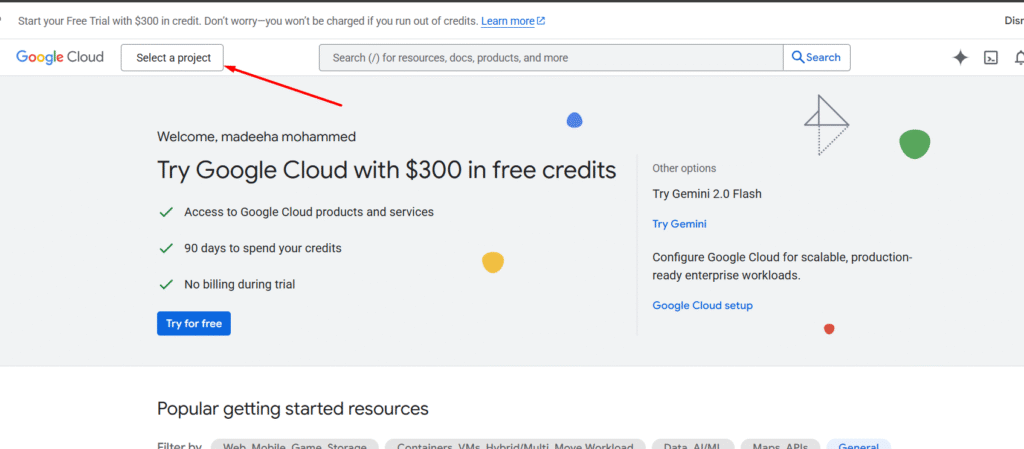
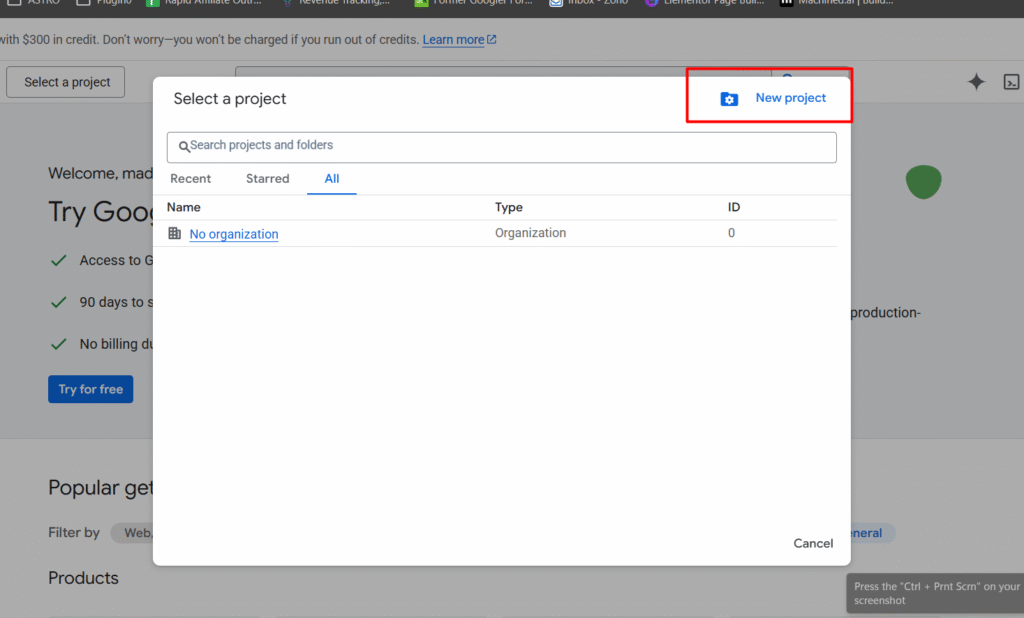
    • Click on the “Select a Project” button next to “Google Cloud”
    • Click on New project
    • Enter a project name, and click on create.
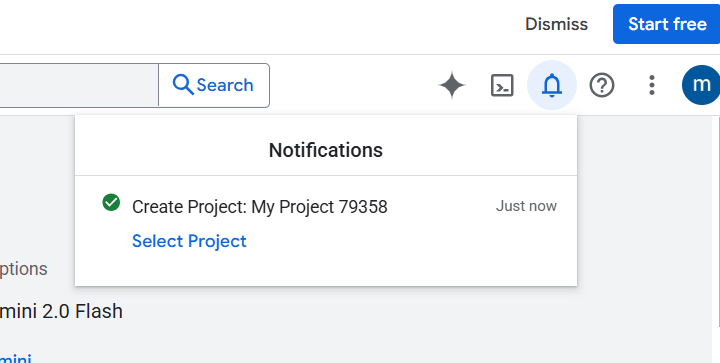
    • You’ll receive a notification that project has been created
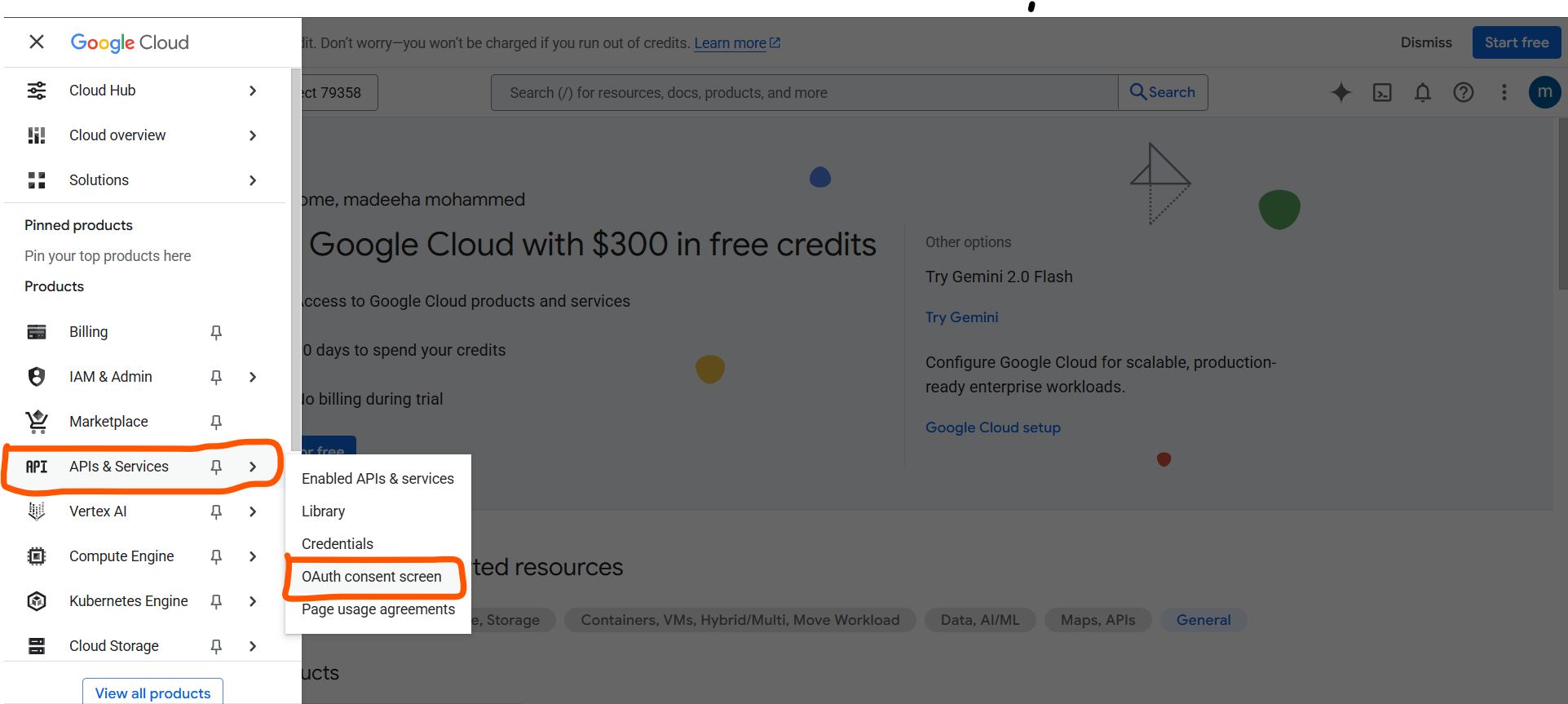
    • Go to APIs & Services > OAuth consent screen
    • Click on Get Started
    • Provide any app name you prefer.
    • User support email: click on the drop down and select your gmail address
    • Click on next
    • Audience: Select external. If you have a workspace account then you can select on internal
    • Contact Information: Add your email address.
    • Finish the setup by agreeing to the user data policy.

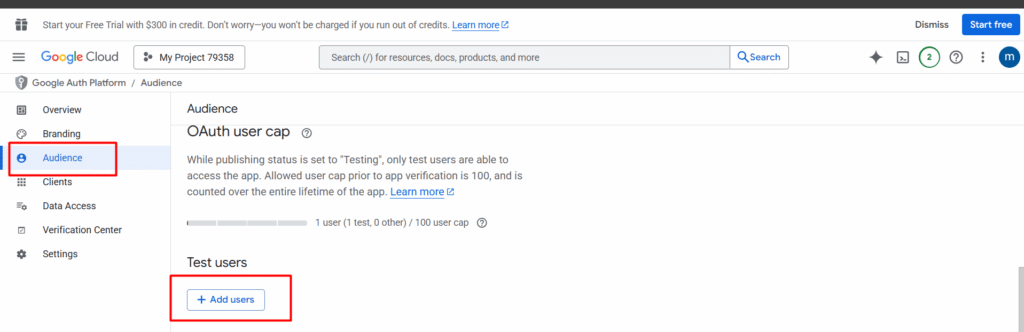
    Step 3: Add Test Users

    • Click Add users, and add your email address right there.

    Step 4: Let’s Create an OAuth Client

    • Go to Clients > Create a Client
    • Select Application Type as Web Application
    • Name your web client, Like “n8n client”
    • For Authorized Redirect URIs: http://localhost:5678/rest/oauth2-credential/callback – Add this URL
    • Click Create.
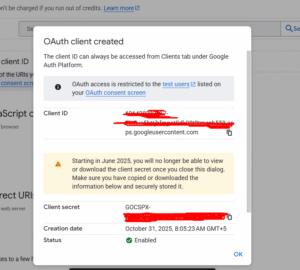
    • A modal appears with Client ID and Client Secret, make sure to copy those values and save it on your desktop.
    oauth client sample

    Alright, it’s time to add these credentials to n8n.

    Gmail Credential Setup

    Step 1: Enabling the Gmail API

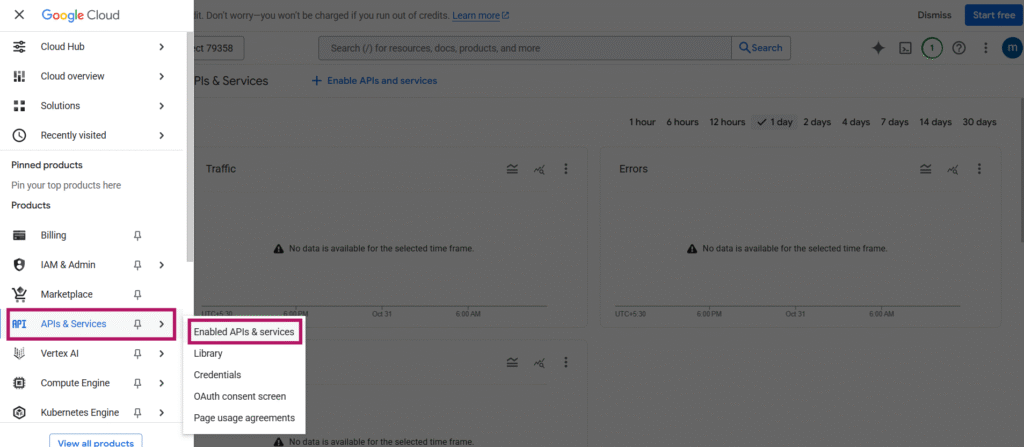
    • Go to Google Cloud Console > APIs & Services > Enabled APIs & Services
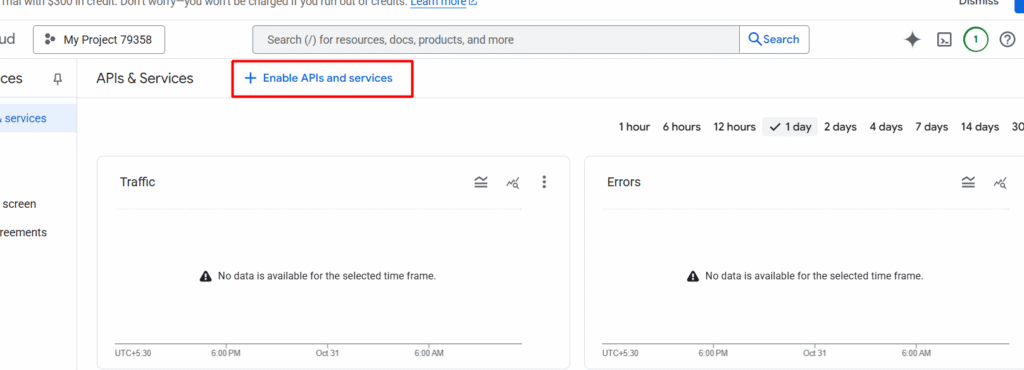
    • Make sure to click on the Enable APIs and services
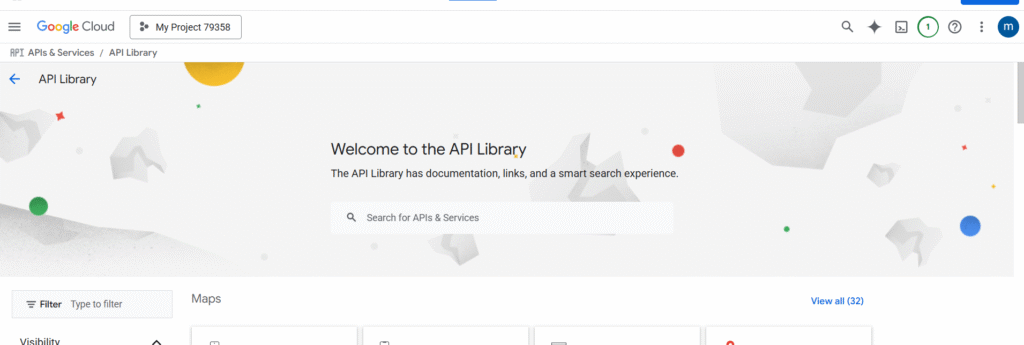
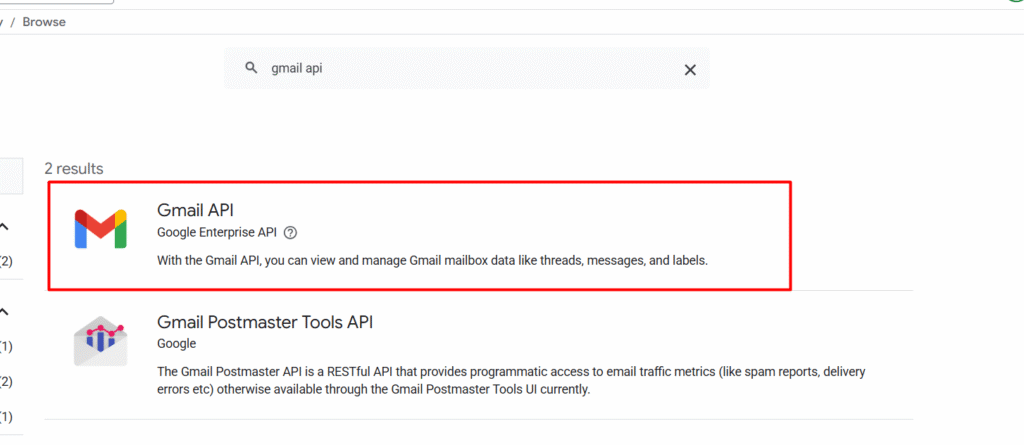
    • Search for Gmail API
    • Select the first result which is Gmail API by Google Enterprise API.
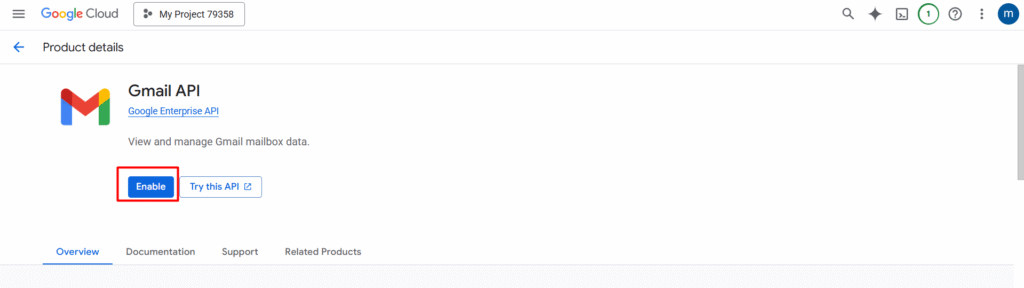
    • Click on Enable the API.
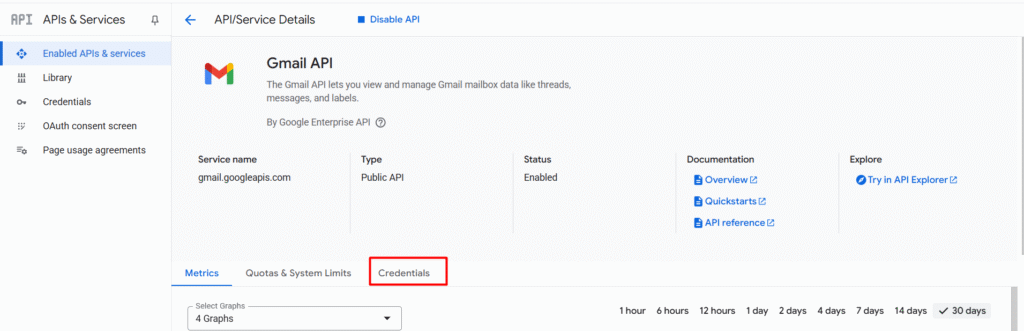
    • Go to Credentials section on the navigation
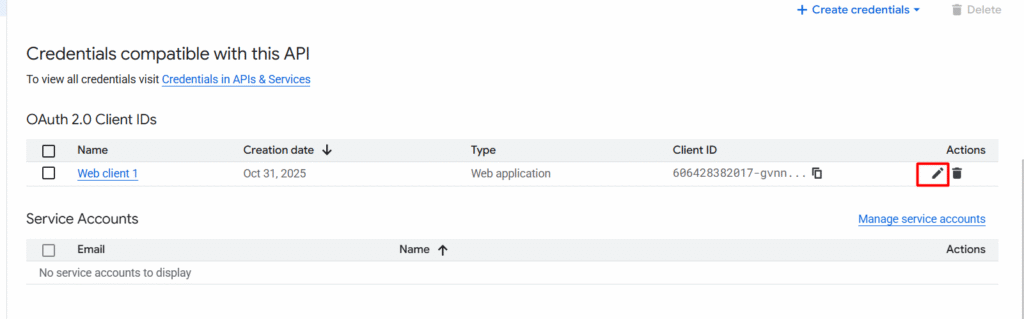
    • In the credentials section, you can see that previously created OAuth 2.0 client ID while we creating the OAuth consent. Now click on the pencil icon to edit, then you will see the Client ID and the secret.
    • Make sure to copy the both ID and secret.

    Step 2: Adding the Credentials on n8n

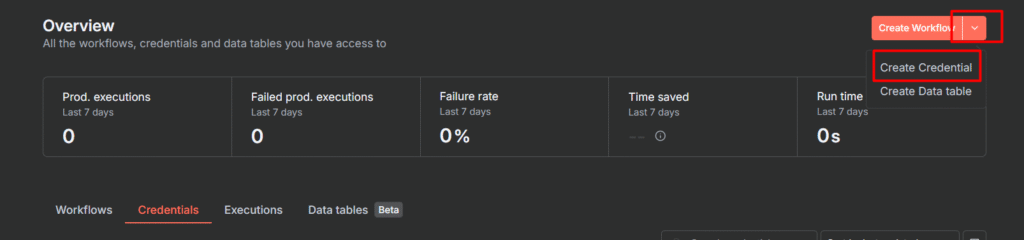
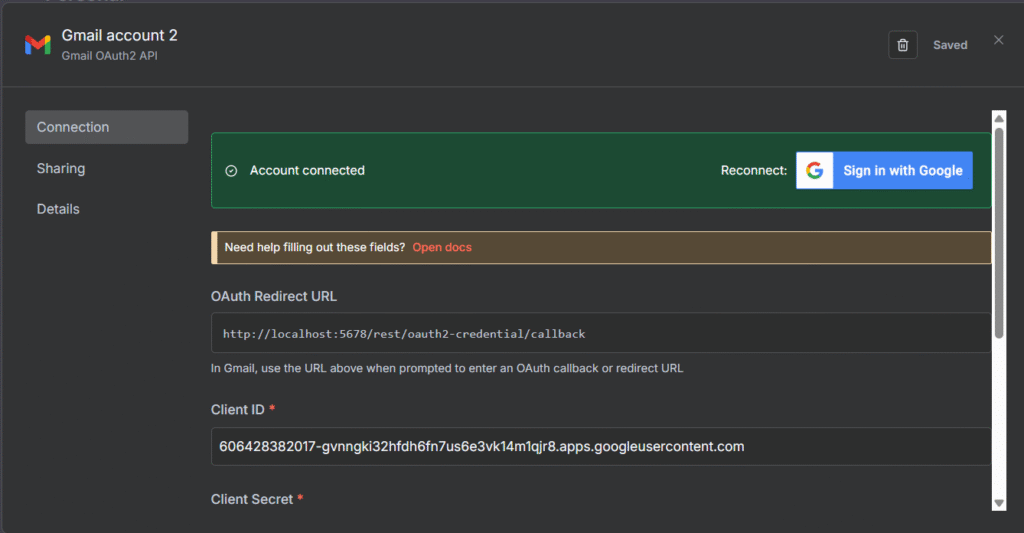
    • Go to your n8n dashboard > credentials section or Click on the dropdown and select Create credential
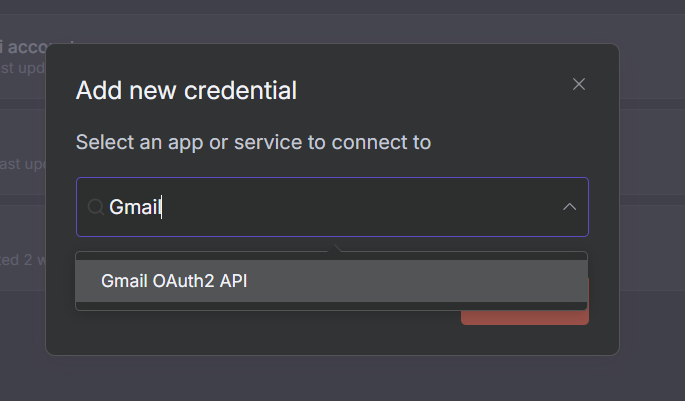
    • Search for Gmail, and select Gmail OAuth2 API.
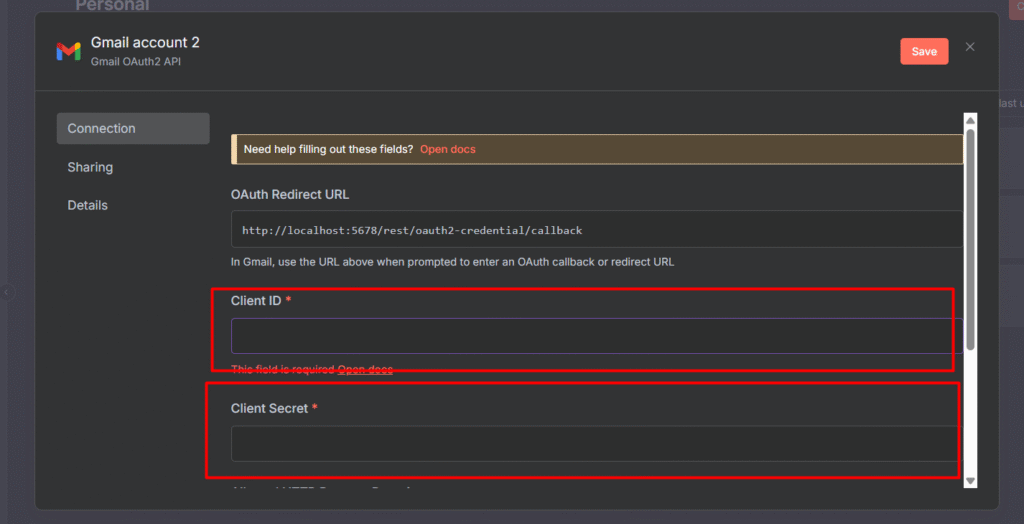
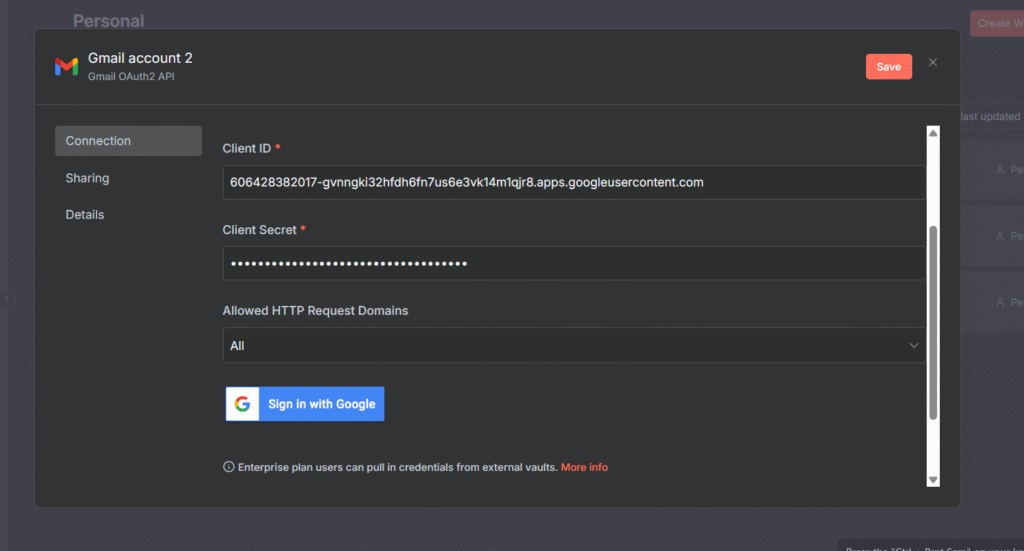
    • Paste the Client ID and Client Secret
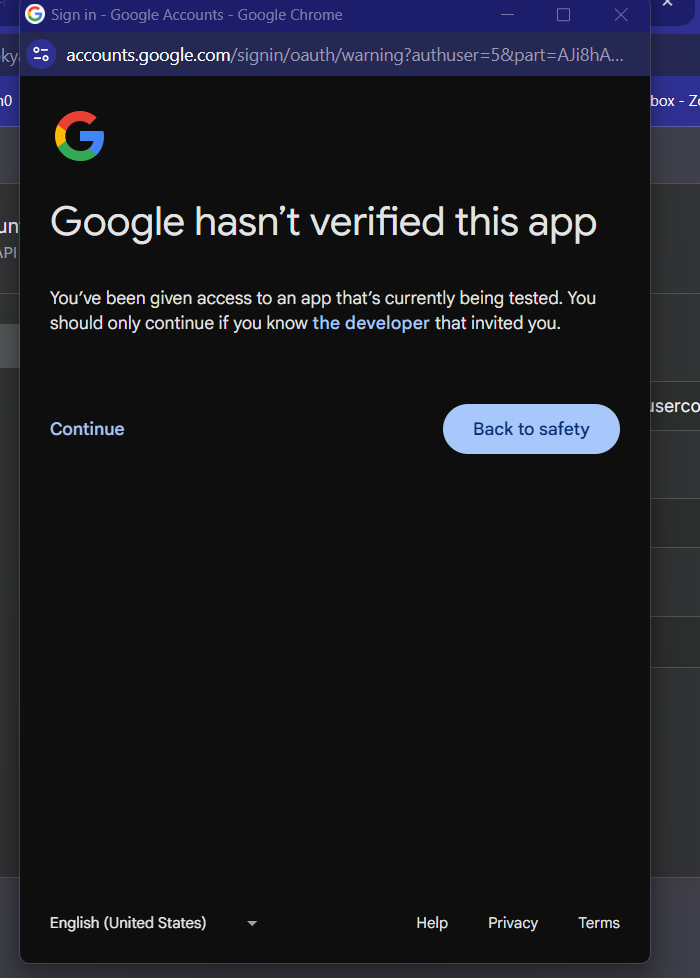
    • Once you paste the ID and secret, then make sure to Sign in with Google. (sign-in with your gmail account that you have assigned as a test-user)
    • Click on continue
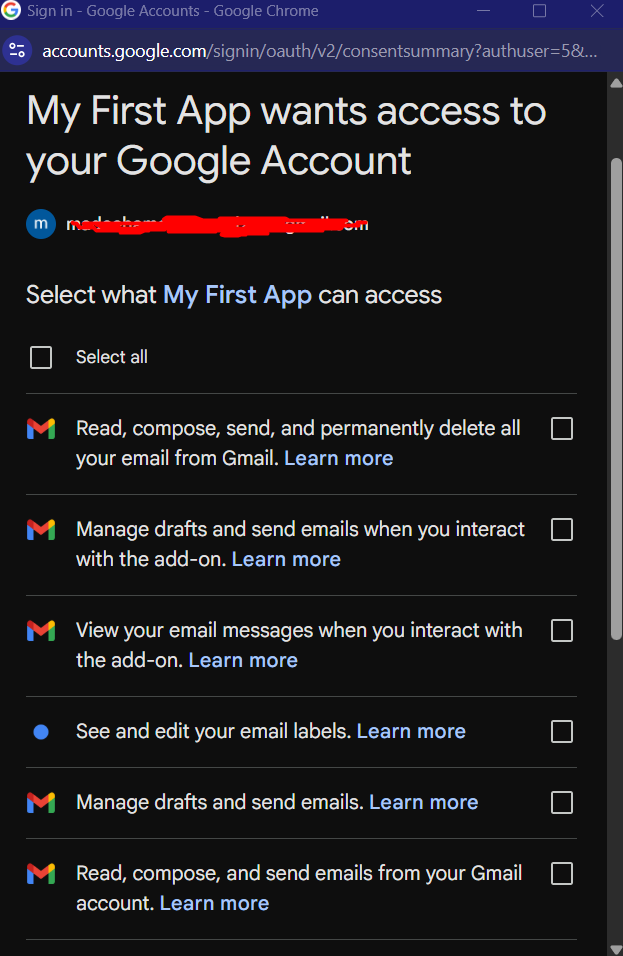
    • Now select all the access and continue, and you will receive a pop-up window says credentials successful.
    • Even in your credentials are connected. so we can test it out whether everything is working fine.

    Testing Gmail Connection

    Let’s verify everything works by sending a test email.

    Create a Test Workflow

    • In your n8n dashboard, click Create workflow
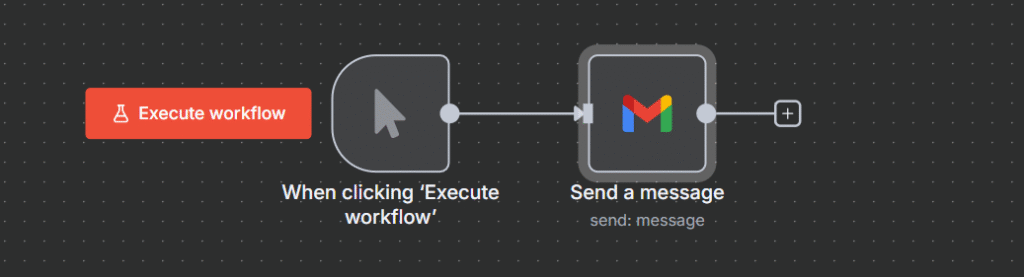
    • Add a manual trigger node (this lets you start the workflow manually)
    • Add a Gmail node.
    • Connect the Manual trigger to Gmail node

    Configure Gmail Node

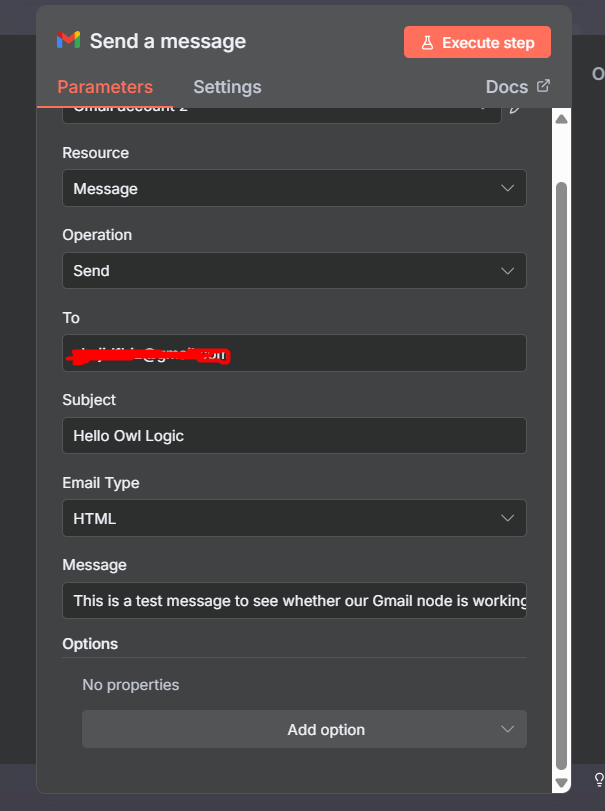
    • In the Gmail node, select “Send a message” action.
    • Fill in the fields
      • To: your own email address or any other email address owned by you for testing.
      • Subject: “Test from n8n”
      • Message: This is a test email from my n8n workflow!

    Execute & Verify

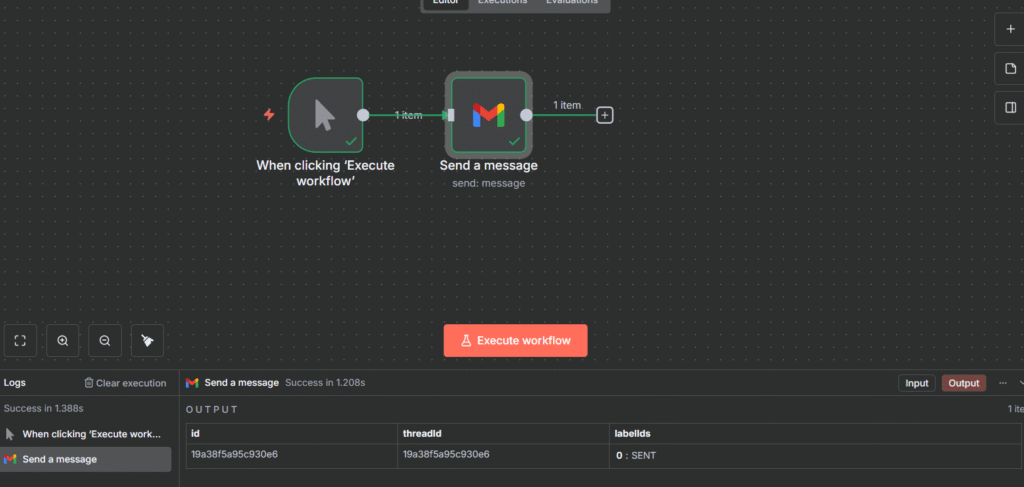
    • Click the Execute workflow
    • Check the output – you should see labelIds:["sent"]
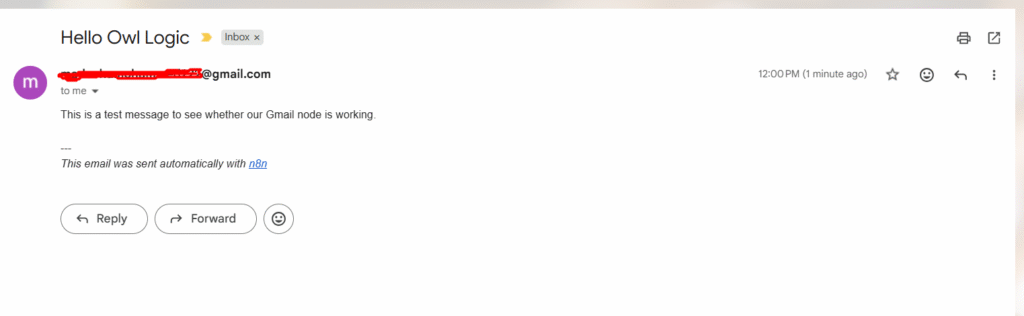
    • Open your Gmail inbox.
    • Look for the test email

    Final Thoughts

    Congratulations! You’ve successfully set up Gmail credentials in n8n, and sent your first automated email. Here’s what you accomplished.

    • Configured Google Cloud Console – Created a project and set up OAuth consent screen (one-time setup for all Google services)
    • Generated OAuth Credentials – Created Client ID and Client Secret for secure authentication
    • Enabled Gmail API – Activated the Gmail API in Google Cloud Console
    • Connected n8n to Gmail – Added credentials and authorized n8n to access your Gmail account
    • Tested the Connection – Created and executed a workflow that sent a test email

    You’ve cleared the biggest hurdle in n8n automation. From here, the possibilities are endless.

  • n8n Self hosted vs Cloud (When to choose) Beginner’s Guide

    n8n Self hosted vs Cloud (When to choose) Beginner’s Guide

    n8n is a powerful workflow automation tool that lets you connect different apps and services without writing complex code, and it’s simply a no-code platform. Think of it like a bridge between your favorite tools like slack, google sheet and etc.

    When something happens in in one app, n8n can automatically trigger action in another.

    Alright, What makes n8n unique? I say it’s flexibility, you can either use their cloud service or host it yourself (self-hosted) on your own server or local server.

    Let’s get to the point.

    What is n8n Cloud?

    Cloud n8n is the easiest way to get started. Simply create an account at n8n, and you’re ready to build automations within minutes. n8n handles all the technical stuffs and heavy liftings such as server maintenance, security updates, backups and scaling. You just need to focus on creating a workflow. that’s literally great isn’t it?

    Click Here to Start with n8n Cloud

    What is Self-hosted n8n?

    Self-hosted n8n means you download the opensource software and run it on your own server. This could be AWS, Hostinger, Digital Ocean or even your local computer. You’re in complete control over your data, customization and scaling – but you’re responsible for keeping everything running smoothly, that’s all on you.

    Alright, that’s great, now you know that what is what? and I hope you understood the difference between self-hosted and n8n cloud. Let’s see the comparisons, This is where we actually testing out the water in terms of everything.

    Detailed Comparison Between Self Hosted & Cloud

    Aspects😶‍🌫️ Cloud🖥️ Self-hosted
    CostSubscription-based, starts free then scales with usageFree software, but you pay for server hosting + maintenance time
    Setup & Ease use2 minutes to start, zero technical knowledge neededRequires server setup, Docker knowledge helpful, 30-60 minute initial setup
    MaintenanceHandled by n8n teamYou handle updates, backups, security patches
    Data Privacy & SecurityData stored on n8n’s serversComplete data ownership, runs behind your firewall
    CustomizationStandard features onlyFull access to customize, add custom nodes
    ScalabilityAutomatic scaling handled by n8nYou manage server resources and scaling
    SupportEmail support, communityCommunity-only (free), or enterprise support (paid)

    When to Choose n8n Cloud?

    Cloud n8n is maybe perfect choice for many users and organizations. I also starts with a n8n cloud and obtained the first 14 days free trial. Well, here are the key scenarios where the cloud may come in handy for you. Just try to put yourself in these below buckets?

    1. You’re New to Automation and Wants to Start Quickly

    If you’re just beginning your automation journey, cloud n8n removes all the technical barriers. There is no need to understand servers, hosting and deployment process. Simply visit this n8n, as I stated above, register it and then start your workflow simple as that.

    The cloud platform also provides a gentler learning curve because you only need to think about creating an automation.

    2. You Have a Small Team Without IT Resources

    Not every business has a dedicated IT department or tech wiz. If you’re team consists primarily of marketers, growth specialists, sales people, customer support agent, or other non-technical roles, ahem. then Cloud is the best bet for you.

    3. You Want a Predictable Monthly Costs

    Cloud n8n operates a transparent execution-based pricing model, making it easy for you to forecast a predictable monthly automation cost. Unlike other automation sites that charge per tasks or operations.

    n8n charges based on the complete workflow execution which means one workflow run counts as execution regardless of how many step it contains (or nodes).

    Aye, now I hope you could easily put yourself in these above buckets, and let’s head to the n8n cloud pricing model.

    Current n8n Pricing Model (2025)

    n8n generously offers 14-days free trial with no credit card required, so you can test the platform risk free. After that you can consider these plans.

    Starter Plan: $20/month

    • 2,500 workflow executions per month.
    • Unlimited workflows, users and steps
    • Perfect for individual and small teams getting started
    • Email support included.

    Pro Plan: Starting at $50/month

    • 10,000 workflow executions per month (scales up to 50,000 executions for $120/month)
    • Everything in Starter Plan.
    • Best for growing teams with moderate automation needs

    Enterprise Plan: Custom Pricing

    • Unlimited exeuction.
    • 365 days of insights.
    • Dedicated support with SLAs
    • Custom integrations
    • Advanced Security Features
    • For large organizations with mission critical workflows.

    I should appreciate n8n because of their transparency and no hidden costs, Your monthly bill is actually straightforward, no surprise charges for infrastructure, maintenance, security patches, or SSL certificates. Everything is included in the subscription.

    Let’s say you’re a small marketing agency running

    • 3 workflows that sync leads from your website to CRM (Triggered ~50 times/day) = 1500 executions/month.
    • 2 daily scheduled workflows for social media reports = 60 executions/month
    • 1 workflow that processes customer feedback form (~15 per day) = 450 executions/month

    Total: ~2010 executions/month = This fits comfortably within the starter plan at $20/month. You know your exact cost, and as your agency grows, you can easily track when it’s time to Upgrade to PRO.

    When to Choose Self-hosted?

    Self-hosted n8n gives you complete ownership and control over your automation infrastructure. While it requires technical knowledge to configure it. Here’s when self-hosted makes most sense.

    1. You Need Complete Data Control and Privacy

    in Self-hosted, your data never leaves your infrastructure whether it in a dedicated server or your local computer. so basically, Every workflow executions, every piece of customer information stays with you and your infrastructure.

    2. You’re In a Regulated Industry

    Regulated industries like Healthcare, finance and government sectors often have strict compliance requirements that makes self-hosting not just a preferrable option but mandatory.

    3. You Have a Technical Experts In-House

    Ideally, you have someone on your team who comfortable with DevOps such as maintaining the server, monitoring, docker containerization, troubleshooting technical issues.

    For companies building technical teams, self-host n8n can also serve a valuable learning experience. Your team gets hand-on experience with modern automation platform, and infrastructure management – Skills that benefits your organization beyond.

    4. Community Support

    While you won’t have a dedicated professional support on the free community, n8n has an active community forum with over 45k members, ready to help you troubleshoot issues and share solutions. If you need a guaranteed support, the self-hosted Business and Enterprise plan offers SLAs and direct access to n8n’s team.

    5. You’re Running High-Volume of Workflows (Cost-effective at Scale)

    Here’s where the economy of self-hosted shines, At low volumes, cloud n8n is often cheaper – but as your automation scales, self-hosting becomes significantly more cost-effective.

    Let’s compare them with actual VPS from Hostinger

    • Starter Plan: 2,500 executions/month = $20/month
    • Cloud Pro Plan: 10,000 executions/month = $50/month
    • Cloud Pro Plan: 50,000 executions/month = $120/month

    Self hosted on Hostinger VPS – Hostinger offers VPS hosting specifically optimized for n8n starting at $4.99/month that makes easy n8n installation with pre-configured Ubuntu template and docker setup that just takes you few clicks.

    • KVM 1 – $4.99/month (1 vCPU, 4GB RAM, 50GB NVMe) – Good for light workflows
    • KVM 2 – $6.99/month (2 vCPU, 8GB RAM, 100GB NVMe) – Recommend starting point for all users
    • KVM 3 – $9.99/month (4 vCPU, 16GB RAM, 200GB NVMe) – For complex workflows.

    Alright let’s look at the practical examples, because I always wanted to give you some extra clarification. Let’s split up to 3 scenarios

    10k executions/mo50k executions/mo200k executions/mo
    Cloud PlanCloud Pro PlanCloud Pro PlanEnterprise Plan
    Cloud Cost$50/mo$120/mo$500+/mo
    Self-host PlanHostinger KVM 2Hostinger KVM 2Hostinger KVM 2
    Self-host cost$6.99/mo$6.99/mo$9.99/mo
    Monthly Savings$43/mo$113/mo$490/mo
    Yearly Savings$516/year$1356/year$5880+/year

    Maybe you would think like this? Can I use n8n + Hostinger directly without going to n8n cloud. YES! you can do this as well. For an instance, assume that you have already a KVM1 server.

    • Hostinger KVM 1 : $4.99/month = unlimited executions
    • n8n Cloud: $20/month = only 2,500 executions

    Even with just 1,000 executions/month, You’re saving $15/month ($180/year) with Hostinger.

    My Honest Recommendation for Small Workflows

    Choose Hostinger if,

    • You’re comfortable with basic tech (or willing to learn)
    • You want to save money in long-term
    • You might scale up later.
    • You have few hours to set it up properly.
    • Your workflows might grow beyond 2,500 executions

    Choose n8n cloud if,

    • You’re completely non tech-related.
    • You need automation TODAY (urgency matters)
    • Your value simplicity over savings
    • You don’t want maintenance responsibility
    • You’re under 2,500 executions and will stay right there.

    ASK Yourself – “Is Savings $180/year worth spending 2-3 hours on initial setup?

    My Final Thoughts

    Choose n8n Cloud if you want zero setup, have limited technical skills, or run under 10,000 executions monthly—pay $20-50/month for complete peace of mind. Choose self-hosted (Hostinger) if you’re comfortable with basic tech and want unlimited executions for under $10/month, especially beyond 10,000 runs where savings multiply. Not sure? Start with cloud’s free trial to learn n8n, then migrate to self-hosted once comfortable. Either way, you’re getting one of the most cost-effective automation platforms available.