Blog

  • How to Build a Follow-up Email Sequence in n8n (Workflow)

    How to Build a Follow-up Email Sequence in n8n (Workflow)

    This tutorial shows you how to build an automated 3-email follow-up sequence in n8n that handles all of that for you. The workflow checks your contacts list daily, sends the right email to each person based on timing, and stops automatically when someone replies. (Workflow included)

    Real use cases: People who downloads your ebook, new lead onboarding, anything where you need to stay in touch without manually tracking 50+ conversations.

    Why n8n instead of Mailchimp or Hubspot?

    FREE. Unlimited contacts. You own the data. No monthly fees that scale with your list size. You need a paid subscription in HubSpot to enable automated nurturing email sequences. n8n costs $0 if you self-host, or $20/month for unlimited everything on n8n cloud.

    But, still there are some downsides as well.

    What you need to follow this tutorial?

    I’ll show you how to build the simplest version first, a 3 email sequence that actually works. then I’ll explain how to add reply detection and scaling things up.

    The Email Sequence Strategy (Before You Build)

    Most people jump straight into building workflows and wonder why their sequence feels wrong. The timing is off, or they send too many emails, or not enough.

    You should need to decide first before you add your first node.

    How Many Emails Should You Send?

    Three emails is the sweet spot for most follow-up sequences based on my marketing experience.

    • Email #1: Initial contact or First feedback email(reminds them who you are, offer value)
    • Email #2: Follow-up (adds context, share resources or case study)
    • Email #3: Final check-in (gentle nudge, easy opt-out)

    Why nore more? Industry data shows 80% of responses come from the first three emails. Email 4 and 5 mostly annoy people who’ve already decided not to respond.

    Long-term nurturing sequences (educational content over weeks/months). But that’s a different workflow. For follow-ups after a meeting or demo, stick with three or anyways you can try out your own phase, maybe more than 3 could work for you too. Alright, let’s stick to the plan.

    The Workflow Structure (High Level Overview)

    Before configuring individual nodes, understand how the pieces going to connect. Let’s start the plan.

    Planning our Email sequence workflow in n8n

    The objective: I want to send emails for those who downloaded my marketing e-book

    Right now, I’ve their details such as email, full name.

    Your email sequence workflows has 6 core nodes

    1. Manual trigger (for testing) / Schedule trigger
    2. Google Sheets (Read)
    3. Switch Node
    4. Set Node
    5. AI Agent (Gemini Chat Model)
    6. Code Node
    7. Set Node
    8. Gmail Node
    9. Switch Node
    10. Google Sheets (Update)

    Building the Workflow

    This is where everything comes together. By the end of this section you’ll have a working workflow that reads your contact list, decide which follow-up email to send, generates it with AI, send it via Gmail, and updates your sheet automatically.

    Let’s build it step by step.

    Step 1: Add The Trigger

    For now, use a Manual Trigger while building and testing, We’ll switch this to a schedule trigger later when everything works perfectly.

    Step 2: Get User’s Data

    Connect Google Sheets to the trigger

    Add a Google Sheets node and connect it to the trigger.

    Configurations

    Google sheets node configs
    • Resource: Sheet data
    • Operation: Read (Get Rows)
    • Document: Select your email Follow-up sequence sheet
    • Sheet: Sheet1 (for me)

    When you execute this node you should see all your user details flowing through separate items.

    Email lists in google spreadsheet

    One thing to check: Make sure every row in your sheet has a valid email address in the Users Email column. A single empty row will crash the Gmail node later. If you have blank rows, delete them now.

    Step 3: The Switch Node

    connecting switch node to the google sheets

    This is the brain of the workflow. The Switch node looks at each column and decides which email they need next.

    Read More: How to Build Conditional Logics in n8n (IF / Switch)

    Add a Switch node. set Mode to Rules.

    Add 3 Rules.

    Mapping from google sheets to switch

    Well, basically, you need to create 3 separate Routing Rules for separate follow ups.

    Logics

    • If Follow Up is false means we have to send them the follow-up email
    • If Follow Up is true means we have sent them the follow-up email
    Tagging the follow-ups column to n8n
    • What you’ve to do is, for 3 routes you have to assign those follow ups column appropriately.

    Step 4: Set Node (One Per Route)

    Each Switch route needs to know which email it’s sending. Add a SET node on each of 3 routes.

    • Make sure add a SET node to it’s Switch follow-up route
    • Now add these configurations to SET nodes individually
    • This is for Follow Up #1
      • followUpNumber – 1
      • followUpGoal – Confirm they received the ebook and invite questions
      • columnsToUpdate – Follow Up #1
    • This is for Follow Up #2
      • followUpNumber – 2
      • followUpGoal – Check if they started reading, share one key insight
      • columnsToUpdate – Follow Up #2
    • This is for Follow Up #3
      • followUpNumber – 3
      • followUpGoal – Ask for one-line feedback on the ebook
      • columnsToUpdate – Follow Up #3

    Make sure to know this, you can add whatever here on the followUpGoal for all these 3 SET nodes. It’s all about giving an additional contexts. You maybe have a different goal, add that goal in one liner.

    Step 5: The AI Agent

    Add an AI Agent node. Connect Google Gemini Chat Model to it’s Chat Model input.

    Now add this system prompt to AI Agent node.

    You are an email writer for Shajid from The Owl Logic (theowllogic.com), 
    a blog focused on n8n automation and workflow development.
    
    Shajid recently launched an ebook about n8n automation. The recipient 
    downloaded this ebook and you are writing a follow-up email on his behalf.
    
    ## Recipient Details:
    - Name: {{ $('Get Customer Data').item.json.Name }}
    - Company: {{ $('Get Customer Data').item.json.Company }}
    
    ## Which Email to Write:
    - Follow Up Number: {{ $json['followUpNumber:'] }}
    - Goal: {{$json.followUpGoal}}
    - Column to Update: {{$json.columnToUpdate}}
    
    ## Email Instructions Based on Follow Up Number:
    
    If followUpNumber = 1:
    - Subject: "Your n8n Automation Ebook is Ready, {{ $('Get Customer Data').item.json.Name }}"
    - Goal: Confirm delivery, tell them what's inside, invite questions
    - Tone: Warm welcome, excited but not salesy
    
    If followUpNumber = 2:
    - Subject: "Did you get a chance to read it, {{ $('Get Customer Data').item.json.Name }}?"
    - Goal: Check if they started reading, share ONE specific insight 
      from the ebook to spark curiosity, re-share download link
    - Tone: Casual check-in, friendly nudge
    
    If followUpNumber = 3:
    - Subject: "Quick question about the ebook, {{ $('Get Customer Data').item.json.Name }}"
    - Goal: Ask for one-line feedback, mention you're building more 
      resources and their input shapes what gets built next
    - Tone: Direct, honest, respectful of their time
    
    ## Rules for ALL emails:
    - Max 150 words
    - Write in first person as Shajid
    - Conversational, not corporate
    - No emojis
    - No marketing language or hype words
    - No phrases like "I hope this email finds you well"
    - Sound like a real person writing to one person
    - End with: "- Shajid"
    
    ## Output Format:
    Return ONLY this JSON structure, nothing else:
    
    {
      "subject": "email subject here",
      "body": "email body here",
      "columnToUpdate": "{{$json.columnToUpdate}}"
    }

    You can simply have it in your own way though based on your requirement, for this tutorial, try to copy me until you succeed, after that you can be able to make your own follow-up sequence.

    For the prompt (user message)

    Write follow-up email {{ $json.columnToUpdate }} for:
    
    Name: {{ $('Get Customer Data').item.json.Name }}
    Company: {{ $('Get Customer Data').item.json.Company }}
    Goal: {{$json.followUpGoal}}
    Column to Update: {{$json.columnToUpdate}}
    
    Return the JSON output only.
    • We are asking Gemini to write follow-up email {{ $json.columnToUpdate }} for: which means we are passing down the follow up number whether 1,2,3 – so basically we

    Watch this video below for understanding them perfectly.

    Step 6: The Code Node to Parse JSON

    Adding code node after AI Agent to sanitize it's data structure

    AI Agent returns everything as one string. This Code node breaks it into a separate fields.

    const results = [];
    
    for (const item of $input.all()) {
      // Safety check - skip items without output
      if (!item.json.output) {
        results.push({ json: { ...item.json, error: 'No output from AI Agent' } });
        continue;
      }
    
      try {
        const raw = item.json.output;
        
        // Clean markdown code blocks if present
        const cleaned = raw
          .replace(/```json\n?/g, '')
          .replace(/```\n?/g, '')
          .trim();
    
        const parsed = JSON.parse(cleaned);
    
        results.push({
          json: {
            ...item.json,
            subject: parsed.subject || 'Follow up from Shajid',
            body: parsed.body || '',
            columnToUpdate: parsed.columnToUpdate || item.json.columnToUpdate
          }
        });
    
      } catch (e) {
        // If JSON parse fails, log which item failed and why
        results.push({
          json: {
            ...item.json,
            error: `Parse failed: ${e.message}`,
            rawOutput: item.json.output
          }
        });
      }
    }
    
    return results;

    Step 7: Adding a SET Node (Again)

    Setting a SET node after Code node in n8n

    Now we need to separate what code node gives us, perhaps you don’t need this node, but I added here for easy to access data. I don’t want run into any confusion later though.

    Mapping the code node's response to SET node

    Map the data to SET node from the Code node.

    • Add the body
    • Add the subject
    • Add the Users email from Sheet directly.
    Output from the code node to set node

    So it should come like this all the information.

    Step 8: Gmail Node

    Add a Gmail Node (to send message)

    Configuration

    • To: {{ $json['Users Email'] }}
    • Subject: {{ $json.subject }}
    • Email Type: HTML
    • Message: {{ $json.body }}
    Mapping the SET nodes response to Gmail node

    Step 9: Switch Node to Update Google Sheet

    Switch routes branching out 3 different follow ups

    Alright, now we have to connect another Switch Node.

    You have to connect the previous Switch nodes state to this new Switch node. Simply drag and drop the Follow Up #1 and create a Routing rule.

    Make sure to create 3 separate routing rules for Follow Ups, like how I did.

    Mapping the previous switch node data to this new switch node

    Step 10: Add Google Sheets to Per Route

    Updating google sheets as per switch route

    Now we have 3 different routes for follow-ups, and we need to attach 3 different Google Sheet (update) nodes to the each route.

    Configuration

    • Operation: Update Row
    • From List: Your Document
    • Sheet: Sheet 1 (mine)
    • Mapping Column Mode: Map Each Column Manually
    • Columns to Match On: Users Email
    Follow Up #1 to true
    Follow Up #2 to true on 2nd route switch node
    Follow Up 3 to true

    Make sure to understand this, for each route has follow up.

    • Route 1: Follow Up #1: You need to Update the Google Sheet Follow Up #1 Column to TRUE, and keep others empty
    • Route 2: Follow Up #2: You need to Update the Google Sheet Follow Up #2 Column to TRUE, and keep others empty
    • Route 3: Follow Up #3: You need to Update the Google Sheet Follow Up #3 Column to TRUE, and keep others empty

    Final Execution Email Follow-Up

    So literally before you add your contact lists, you work with one email for testing, whether everything works perfectly, including the formatting, After that gradually test with 5, 10, 20, 30 and once passed without any failure. You can move on with your lists.

    Frequently Asked Questions

    How do I add delays between follow-up emails?

    Don’t use Wait Nodes for multi-days delays. They block your entire workflow – if Contact 1 hits a 3-day wait, every other contact get stuck behind it.

    The correct approach: Scheduled trigger + date in your Switch conditions.

    Your workflow runs daily and asks “has enough time passed?” instead of sitting open for 3 days.

    Add a Last_Email_Date column to your sheet. Each Update node writes today’s date after sending. The Switch condition checks how many days have passed before sending the next email.

    Can I Use SMTP instead of Gmail?

    Yes. Replace the Gmail node with n8n’s Send Email node and plug your SMTP credentials.

    Good free options SendGrid (100/day), Brevo (300/day), Mailgun(1,000/day trial)

    Gmail works fine for testing and small lists. Switch to SMTP when you hit over 200+ contacts per day.

    Can I Connect MailChimp or ActiveCampaign?

    Yes. Instead of the Gmail node, use n8n’s Mailchimp or ActiveCampaign node to add contacts directly into their automations.

    That said, if you’re already building this in n8n, you don’t need them. n8n + Gmail handles everything for almost for free.

    How do I stop the sequence if someone replies?

    That requires a second workflow running alongside with this one, The second workflow.

    1. Monitor your Gmail inbox using an Email trigger (IMAP) node
    2. Check if the sender’s email matches anyone in your Google Sheet
    3. If Yes, update their statuses to mark sequence complete.

    Well, make sure to subscribe to our email newsletter for more information regarding this workflow. You can directly talk to me regarding any issue with this workflow or to make this workflow great.

    My Final Thoughts

    You just built an AI-powered follow-up email sequence from scratch in n8n.

    No mailchimp subscriptions. No hubspot invoices, Just n8n. Pure play.

    What’s next? If you want this running fully or autopilot without manual executing it, switch to a Schedule trigger, with data math as I mentioned above. Workflow handles timing on it’s own.

    Well, This is all up. You can grab the Workflow JSON here.

  • How to Plan a n8n Workflow (Beginner’s Guide)

    How to Plan a n8n Workflow (Beginner’s Guide)

    Why most beginners struggle with n8n (And, It’s not what you think).

    You’ve finished the First Hello World Workflow. You understand what an HTTP Request node does. You know how to connect nodes together. But when you open n8n to automate something real – like monitoring Reddit mentions of your product, you literally freeze.

    The canvas is blank. You know the tools exist, but you have no idea where to start.

    Technical knowledge isn’t your problem. Workflow decomposition is.

    Most n8n tutorials teach you what nodes do. They show you how to configure an HTTP Request or parse JSON. But they skip the most important skill – breaking down a problem into automation-friendly steps before you touch a single node.

    I learned this the hard way after watching dozens of beginners (myself included) build workflows that technically work but are impossible to maintain. They skip planning, jump straight to adding nodes, and end up with spaghetti logic that breaks the moment anything changes.

    This guide teaches you the thinking process that comes before the clicking. Once you understand how to decompose problems into workflow patterns, building in n8n becomes surprisingly straightforward.

    The Workflow Thinking Framework

    Before you add your first node, answer four questions. These questions force you to think like a workflow instead of like a human performing tasks manually.

    Question 1: What’s the Desired Outcome?

    Start with the end result, not the process to get there.

    Bad example: “I want to scrape Reddit.”
    Good example: “I want to receive a Slack notification when a new post in r/n8n mentions ‘workflow automation’ with 50+ upvotes.”

    Can you see the difference? The good example is specific, measurable, and describes the actual value you’re creating. The bad example describes a technical action without context.

    The Workflow thinking framework for beginner n8n builders

    Write your desired outcome as: “I want to [specific result] when [trigger condition] so that [business value].”

    This forces clarity. If you can’t fill in all three parts, your problem isn’t well-defined yet.

    Question 2: What Triggers the Workflow?

    Workflows need a starting point. In n8n, this is your trigger node, and choosing the wrong type creates problems later.

    Ask yourself: Does this workflow start based on time, an external event, or a manual action?

    Time-based triggers run on a schedule:

    • “Every Monday at 9am, generate a weekly report”
    • “Every 4 hours, check inventory levels”
    • Use the Schedule Trigger node

    Event-based triggers respond to something happening:

    • “When a new email arrives in support”
    • “When someone submits a form on your website”
    • “When a file is added to Google Drive”
    • Use service-specific trigger nodes or webhooks

    Manual triggers start when you click a button:

    • “I want to run this workflow on-demand”
    • “I’m testing and want to control execution”
    • Use the Manual Trigger node

    Most beginners default to Manual triggers because they’re testing. That’s fine for development, but switch to the real trigger type before deploying. A workflow that should respond to events won’t work if it requires manual clicks.

    Question 3: What Data Transformations Are Needed?

    Every workflow follows the same pattern: Input → Transform → Output.

    Input is the raw data from your trigger. It’s usually messy, contains extra fields you don’t need, and isn’t in the format the next step expects.

    Transform is where you clean, filter, format, and enrich that data.

    Output is what the next step (or final destination) needs.

    Let’s use a real example. You’re pulling posts from Reddit’s API:

    Input: 50 Reddit posts in JSON format, each with 20+ fields (author, created_utc, score, title, selftext, url, subreddit, etc.)

    Transform:

    • Filter to only posts with score > 100
    • Extract just title and url
    • Format as a readable message

    Output: A clean list of high-scoring posts ready for your Slack node

    This thinking process maps directly to n8n nodes. The transformation step might need multiple nodes, a Filter node to remove low-scoring posts, a Set node to extract specific fields, and a Code node if you need custom formatting.

    Understanding how data flows between nodes makes this transformation step much clearer.

    Question 4: What Could Go Wrong?

    Beginners skip this question. Then their workflow runs fine for a week and suddenly breaks.

    Think through failure modes before building:

    What if the external API is down?
    Your workflow should handle timeouts gracefully instead of failing silently. Maybe you send yourself an alert, or retry after 5 minutes.

    What if no data matches your filters?
    If you’re filtering Reddit posts for those with 100+ upvotes and none exist today, should your workflow fail? Or should it complete successfully with zero items?

    What if data format changes?
    APIs add new fields, remove old ones, or change data types. Your workflow should validate critical fields exist before using them.

    I’ve seen workflows break because someone assumed an API always returns an array. One day it returned null, and the workflow crashed trying to loop over nothing.

    Add error handling early. It’s easier than debugging production failures at 2am.

    Three Mental Models for Common Automation Patterns

    Three mental model patterns that should have in beginner n8n builders

    Most workflows follow recognizable patterns. Learn to identify these, and you’ll design better automations faster.

    Pattern 1: The Data Pipeline (Fetch → Transform → Deliver)

    When to use it: You’re moving data from one place to another with minimal logic in between.

    This is the simplest pattern. Data flows in one direction through a series of transformations, then lands somewhere useful.

    Example scenario: Send a daily weather report to Slack every morning at 8am.

    The workflow structure:

    1. Schedule Trigger – Runs at 8:00am daily
    2. HTTP Request – Fetch weather data from OpenWeather API
    3. Set node – Extract temperature and conditions from the JSON response
    4. Code node – Format a readable message like “Today in San Francisco: 72°F, partly cloudy”
    5. Slack node – Send the formatted message to #general

    No branching logic, no loops, no complex decision-making. Data enters at the top, gets transformed step by step, and exits at the bottom.

    This pattern works well because it’s linear and predictable. When something breaks, you know exactly where to look—the step that’s failing.

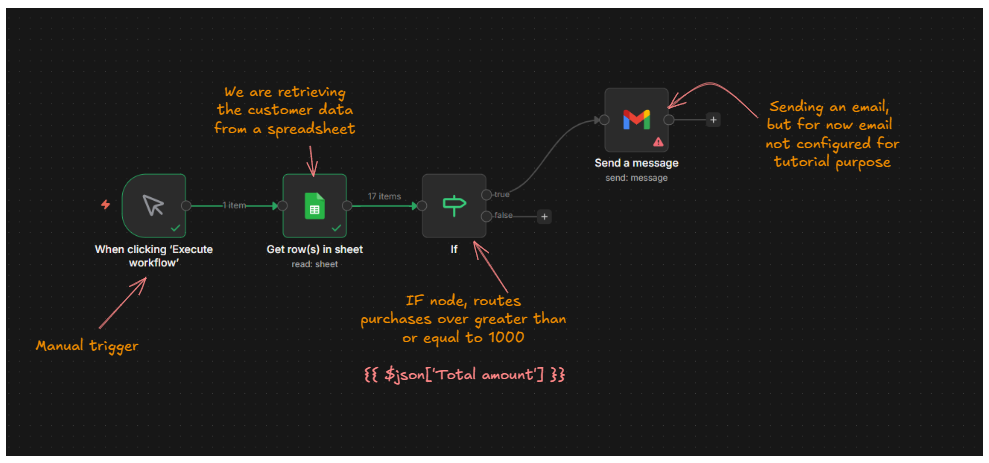
    Pattern 2: The Decision Tree (If This, Then That)

    When to use it: Different inputs require different actions.

    Real-world problems rarely have one-size-fits-all solutions. Support emails need different responses based on urgency. Sales leads need routing based on company size. File uploads need different processing based on file type.

    Example scenario: Triage support emails and route them based on urgency.

    The workflow structure:

    1. Email Trigger – New email arrives at support@yourcompany.com
    2. Code node – Analyze subject and body for keywords
    3. IF node – Branch into three paths:
      • Path A: Email contains “urgent” or “down” → High priority
      • Path B: Email contains “bug” or “error” → Medium priority
      • Path C: Everything else → Low priority
    4. Different actions per path:
      • High priority → Send Slack alert to on-call engineer
      • Medium priority → Create ticket in system with priority flag
      • Low priority → Send auto-reply, create normal ticket

    The IF node is your friend here. Each branch handles its specific case independently. This is much clearer than trying to build one giant node that handles all scenarios.

    Learn more about conditional logic in n8n to master this pattern.

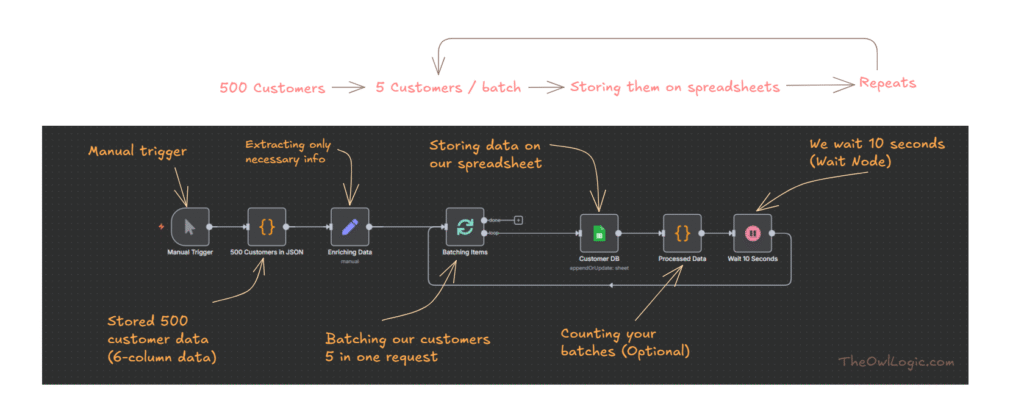
    Pattern 3: The Batch Processor (Loop Over Items)

    When to use it: You need to perform the same action on multiple items, but each item needs individual processing.

    This is where beginners often get stuck. They think “I have 100 contacts, I need to send 100 emails” and try to build a workflow that handles all 100 at once. That’s not how n8n works.

    n8n processes items in batches automatically, but understanding how loops work prevents confusion.

    Example scenario: Send personalized follow-up emails to 100 conference attendees.

    The workflow structure:

    1. Schedule Trigger – Run once (manual or scheduled)
    2. Google Sheets node – Fetch all attendee data (name, email, company, session attended)
    3. Loop Over Items – n8n handles this automatically,
      • For each attendee, the workflow processes them individually
      • The Email node receives one attendee at a time
    4. Set node – Create personalized variables for each attendee
    5. Code node – Build custom email body: “Hi {{name}}, thanks for attending {{session}} at our conference…”
    6. Send Email node – Send to each attendee individually
    7. Wait node – Pause 2 seconds between emails to respect rate limits

    The critical insight: n8n automatically loops over items from previous nodes. You don’t need to write a for-loop yourself. Each node processes all items it receives, one at a time.

    But you do need to handle rate limits. If you’re sending 100 emails, most email services will throttle or block you if you send them all instantly. That’s where the Wait node saves you—or better yet, learn about handling API rate limits in n8n.

    Practical Exercise: Design Your First Workflow (Before Opening n8n)

    Here’s the mistake I see constantly: beginners open n8n, add a few nodes, realize they don’t know what comes next, and start over. Then they do it again. And again.

    Stop doing that. Plan on paper first.

    Use this pre-workflow checklist before touching your mouse:

    1. Write the Problem in One Sentence

    Use this template: “I want to [outcome] when [trigger] so that [benefit].”

    Don’t cheat and make it vague. Be painfully specific.

    Example:
    I want to save new videos from the Fireship YouTube channel to my Notion workspace when they’re published so that I have a curated learning library.

    2. Map the Data Flow

    Answer three questions:

    What data comes in?

    • RSS feed from YouTube containing video title, URL, publish date, description

    What transformations happen?

    • Filter out YouTube Shorts (keep only videos longer than 60 seconds)
    • Extract just the title, URL, and publish date
    • Format publish date from ISO 8601 to readable format

    What data goes out?

    • Clean database entry in Notion with Title, URL, Date Added fields

    This step forces you to think about data types and formats. An RSS feed gives you different data than a direct API call. Notion expects data in a specific format. Understanding this before building saves hours of debugging.

    3. Identify Your Pattern

    Which pattern does this match?

    • Data Pipeline – Fetch → Transform → Deliver (linear flow, no complex logic)
    • Decision Tree – Different actions based on conditions
    • Batch Processor – Same action on multiple items

    Our YouTube-to-Notion example is a Data Pipeline with filtering.

    4. List Required Nodes (But Don’t Open n8n Yet!)

    Based on your pattern and data flow, write down which nodes you’ll need:

    1. RSS Feed Trigger (fetch YouTube feed)
    2. Filter node (remove Shorts)
    3. Set node (extract specific fields)
    4. Code node (format date – optional, could use expressions)
    5. Notion node (create database entry)

    Notice I wrote “optional” for the Code node. This is thinking through alternatives. n8n expressions might handle date formatting without custom code.

    5. Anticipate One Failure Point

    What’s the most likely thing to break?

    In our example: YouTube’s RSS feed could be down, return empty results, or change their data structure.

    How would we handle it?
    Add an IF node after the RSS Trigger. If the feed returns zero items or errors, send yourself a Slack notification instead of trying to create empty Notion entries.

    Now Open n8n and Build It

    Here’s what will happen: You’ll build the workflow in 10 minutes instead of an hour because you’ve already solved the hard problems. You’re translating a plan into nodes, not designing while building.

    When you get stuck, you’ll know exactly where the problem is. Your plan said “filter out Shorts,” so if that’s not working, you know the Filter node configuration is wrong—not your entire approach.

    Common Thinking Traps (And How to Avoid Them)

    Common thinking traps while you thinking for a workflow

    Trap 1: “I’ll Figure It Out As I Go”

    This leads to workflow spaghetti. You add nodes reactively, realize you need something earlier, insert nodes in the middle, and end up with a tangled mess.

    Solution: Spend 5 minutes planning before adding your first node. Use the pre-workflow checklist above. I promise you’ll save 30 minutes of confused clicking.

    Trap 2: “This Needs to Be Perfect”

    Analysis paralysis kills momentum. You research every possible approach, read documentation for hours, and never build anything.

    Solution: Build the MVP workflow first. Get it working with the simplest possible approach, even if it’s not elegant. You can always optimize later. A working workflow that’s ugly is infinitely more valuable than a perfect workflow that doesn’t exist.

    Trap 3: “I Need a Node for Everything”

    n8n has hundreds of nodes, but you don’t need to master them all. Sometimes a Code node with 5 lines of JavaScript is simpler than finding the perfect specialized node.

    Solution: Use Code nodes for simple transformations. String manipulation, date formatting, basic math—these are often clearer as explicit code than as complex expressions or chains of Set nodes.

    Trap 4: “It Works, Ship It!”

    Your workflow runs successfully once, so you deploy it to production. Then it breaks in the first week because you didn’t handle errors.

    Solution: Add error handling before deploying. Test failure scenarios intentionally:

    • What if the API returns an error?
    • What if you get zero results?
    • What if the data format is unexpected?

    Workflows that handle errors gracefully are the difference between a helpful automation and a maintenance nightmare.

    Next Steps: Apply This to Real Automation

    You now have a mental framework for designing workflows. Don’t just read this and move on and apply it.

    Your assignment:

    Pick one boring task you do manually every day or week. It doesn’t need to be complex. In fact, start simple.

    Examples:

    • Save attachments from specific emails to a folder
    • Post your new blog articles to Twitter automatically
    • Track product mentions on Reddit
    • Generate a weekly summary of Slack messages

    Apply the 4-Question Framework:

    1. What’s the desired outcome? (Be specific)
    2. What triggers the workflow? (Time, event, or manual)
    3. What transformations are needed? (Input → Transform → Output)
    4. What could go wrong? (Anticipate one failure)

    Choose your pattern (Pipeline, Decision Tree, or Batch Processor).

    Then build it.

    Start with automating boring tasks in n8n if you need practical examples, or browse the full n8n tutorial series for specific node guidance.

    The difference between beginners who struggle and those who succeed isn’t technical skill. It’s this: successful automation builders think through the workflow before they build the workflow.

    You just learned how to think like a workflow. Now go automate something.

  • 50 Boring Tasks You Can Automate with n8n in 2026 (No Coding)

    50 Boring Tasks You Can Automate with n8n in 2026 (No Coding)

    Every article I publish goes through the same tedious steps – generate an outline, run grammar checks, format for WordPress CMS, create social posts (for repurposing). I used to do each step manually, switching between tabs (Now split in chrome tabs), copying and pasting, checking boxes off a list. Guess how many hours it would take?

    For me, It takes about 14 hours repetitive tasks, then I switched my specific skills and tasks to no-code automation platform (n8n).

    Now it handles the entire pipeline. I focus on writing. The boring stuff happens automatically while keeping me as a human-in-loop.

    What’s human in loop? The automation runs, but I review the output before it takes final action – or I check the results afterward to catch anything off. Either way, I stay in control without doing the repetitive work myself.

    What “Boring Stuffs” Can You Actually Automate?

    Before we get into “how”, here’s what n8n can take off your plate.

    • Data entry and spreadsheet syncing – If you receive any new form submission or order, you can easily add it to Google sheets or to your database. Customer data changes in CRM? sync it everywhere instantly.
    • Email management – Auto reply to common questions, sort incoming emails by sender or keyword, forward specific messages to team members, from email to slack or maybe WhatsApp.
    • File organization – Rename file based on patterns, move upload to dated folders, back up important documents to cloud storage like Google drive or dropbox.
    • Notification and reminders – Get Slack alerts when something important happens, notify team about your deadlines.
    • Social media posting – Schedule posts across platforms, auto-share new blog content, post updates when product launch.
    • Report generation – Pull data from multiple sources (e.g. database, sheets), format it, send it to stakeholders on a schedule
    • Lead and CRM updates – Capture leads from forms, or emails, enrich the contact data, update deal stages or buckets automatically.

    If you find yourself doing the same task more than twice a week, It’s probably a sign that you need to automate.

    Why n8n Instead of Python or Zapier?

    Automate the Boring Stuff with Python” is an excellent book. But it assumes you want to learn programming. If you just want to stop wasting time on repetitive tasks, writing, and maintaining Python scripts might be overkill.

    The Python Approach: Write code, debug it, schedule it with cron, maintain it when APIs change, fix it when something breaks. I agree It’s powerful, but requires ongoing technical investment.

    The Zapier/Make Approach: Easy drag-and-drop setup, works great for simple tasks, but cost scale quickly – $20 / $50 (monthly) for serious usage – and you’re limited to what they’ve pre-built. (and, yet, they have most of the integrations unless you need a custom one for your business needs)

    The n8n Approach: Visual workflow builder like Zapier and Make, but you can self-host the instance locally for free. Write custom nodes when you can’t do something with the visual tools.

    50 “Boring Tasks” You Can Automate Today

    boring ideas to automate

    These are real automations – some I use daily, other I’ve built for my friends or seen in the automation community.

    Content & Publishing

    • Generate article outlines from a list of keywords
    • Run grammar and spell checks on drafts automatically
    • Format and publish WordPress posts from Google Docs
    • Create social media posts when a new blog post goes live
    • Scrape communities for content ideas and dump them into a spreadsheet (Educational only)
    • Pull YouTube video transcripts and save to Google Docs
    • Auto-create featured images using templated designs
    • Track content performance weekly and compile into a report
    • Send draft review reminders to editors after 48 hours
    • Auto-translate posts for multilingual sites
    • Update internal links across old posts when new content publishes

    Email & Communication

    • Sort incoming emails into folders by sender or keyword
    • Auto-reply to common questions with templated response
    • Send follow-up emails 3 days after no-response
    • Forward invoices to your accountant automatically
    • Unsubscribe reminders – flag newsletters you never open

    Data & Spreadsheets

    • Sync form submissions to Google Sheets in real-time
    • Update your CRM when a spreadsheet row changes
    • Merge data from multiple sheets into one master sheet
    • Clean up duplicate entries automatically
    • Pull analytics into a weekly report spreadsheet
    • Convert CSV uploads to formatted Google Sheets automatically
    • Validate data entries and flag rows with missing fields
    • Sync Stripe payments to a revenue track spreadsheet
    • Auto-calculate monthly totals and append to summary sheet
    • Pull exchange rates daily and update pricing sheets
    • Cross-reference two sheets and highlight mismatches
    • Export database tables to spreadsheet on a schedule
    • Track affiliate commission from multiple platform in one sheet

    Files & Backups

    • Back up important folders to Google Drive every night
    • Rename and organize downloaded files by date
    • Convert uploaded images to webp format automatically
    • Archive old files to cold storage after 90 days

    Notifications and Reminders

    • Get Slack alerts when a client pays an invoice
    • Birthday and contract renewal reminders
    • Notify your team when inventory drops below a threshold
    • Alert you when a competitor publishes a new content

    Client & Project Management

    • Create Trello/Asana tasks from form submission
    • Send onboarding emails when a new client signs up
    • Update project status across multiple tools simultaneously
    • Generate and send invoices on schedule
    • Track billable hours from Toggl/Clockify to spreadsheet automatically
    • Notify clients automatically when their deliverable is ready
    • Archive completed projects to cold storage after 30 days
    • Creating meeting notes template in Notion when calendar event starts
    • Alert you when a client hasn’t responded in 7+ days
    • Send project kickoff checklist to team when contract is signed

    WordPress Specific

    • Monitor uptime and get alerts when your site goes down
    • Auto-post new WooCommerce products to social media
    • Sync WooCommerce orders to Google Sheets or Airtable

    Your First Automation Takes 5 Minutes

    I won’t walk through a full tutorial here – that’s what the Hello World Workflow Guide is for. But understanding the pattern helps you see how simple this actually is.

    Every n8n automation follows the same structure

    Trigger > Action > (Optional: More Actions)

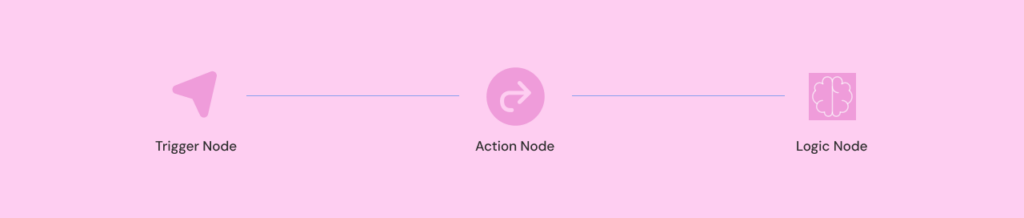
    The trigger decides when your workflow runs. New email arrives. Form gets submitted. Webhook receives data. You pick the event that should kick things off.

    The action decides what happens when triggered. Add a row to Google Sheets. Send a Slack message. Update your CRM.
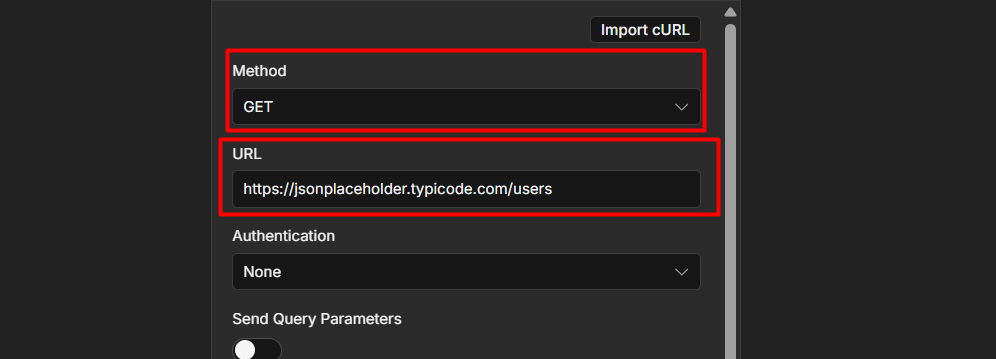
    Between trigger and action, you map the data. “Take the sender’s email from Gmail and put it in Column A”. n8n shows you the actual data structure when you click on any node’s output – you can drag and drop fields instead of writing expressions manually.

    That’s the entire mental model. The complexity comes from chaining more nodes together or adding conditional logic, not from the core concept itself.

    If you’ve never touched n8n, you can start with hello world workflow. You’ll have something running in under 10 minutes.

    Start With One

    Don’t try to automate everything at once. Pick the one task from this list that annoys you most. Build that workflow. Watch it run for a week. or maybe, you have a custom workflow in mind, just try to connect the dots and watch it run for a week.

    Once you see n8n handling something you used to do manually, you’ll spot the next opportunity yourself.

  • 5 Best n8n Alternatives in 2026 (After 50+ Workflows Built)

    5 Best n8n Alternatives in 2026 (After 50+ Workflows Built)

    I’ve been using n8n for over a year now. Built 50+ workflows. Taught it to business owners. Even wrote dozens of contents about n8n here it se as well on The Owl Logic.

    But here’s what I tell people who ask if they should use n8n, “Maybe not”

    n8n is undeniably powerful. But it’s not for everyone. Some teams need simpler tools. Others need different pricing models. some want easier onboarding for non-technical staffs like marketers, business managers.

    This guide helps you figure out if n8n alternatives make more sense for your situation. i’m not here to bash n8n (you can see from my other articles I genuinely like it). I’m here to give you an honest comparison so you pick the right tool.

    Why Teams Looks for n8n Alternatives (Based on Surveys)

    Let’s have a small talk about why people actually switch away from n8n.

    Steep Learning Curve for Non-Technical Teams

    n8n assumes you understand JSON, API requests, and data structures. The code node expects JavaScript or Python. Expressions use syntax that feels alien if you’ve never programmed before.

    I saw a post marketing manager spent ~40 minutes trying to format a data. Not because she is slow, n8n just doesn’t hand-hold you through these things.

    Limited Pre-Build Integrations

    n8n has 400-1200 nodes. Zapier has 8000+, Make has 3000+

    The HTTP request node lets you connect to any API, but that required reading documentation, understanding authentication, and debugging requests. Perfectly fine for developers.

    Self Hosting Complexity

    Self hosting n8n means managing docker containers, database backups, SSL certificates, and infrastructure scaling.

    I’ve seen teams abandon self-hosting after three months because managing it consumed more time than the workflows saved. The cloud version removes this complexity but costs significantly more.

    Pricing Models Doesn’t Fit for All Use Cases

    n8n charges per workflow execution. Make charges per operations (each node action)

    I’ve seen $20/month n8n bill balloon to $500 because a workflow with 15 nodes ran every 5 minutes. That same automation would cost $89/moth on Make’s operation pricing.

    How to Choose the Right n8n Alternative

    Don’t just pick the most popular tool sake of my friend referred me this, Make sure to match the platform to your actual needs.

    Your SituationLook ForSkip Tools That
    Non-technical team building automationVisual no-code builder, 2000+ pre-build nodes, minima setupRequire coding knowledge, self-hosting or API configuration
    High-volume workflows (100k+ executions/month)Execution-based pricing, generous free tiersCharge per operations, have strict usage limits
    AI-first workflows (content generation agents)Native LLM nodes, vector database support, agent buildersRequire custom HTTP requests for every AI call
    Need full control and data sovereigntyOpen-source, self-hostable, on-premise deploymentCloud only SaaS platforms
    Budget conscious startup testing automationFree tiers with real functionality, transparent pricingEnterprise-only features, pay-to start models

    Use this table to eliminate options that won’t work. Then dive into specific alternatives below.

    Best n8n Alternatives by Use Case

    Here are the fiver alternatives that actually matters for different scenarios.

    1. Make (formerly Integromat) – Best for visual complexity without code
    2. Zapier – Best for speed and breadth of integration
    3. Activepieces – Best for open-source AI-native automation
    4. Gumloop – Best for AI-powered workflows for non-developers
    5. Pipedream – Best for developer-first serverless workflows

    Make (formerly Integromat): Best for Visual Complexity Without Code

    Make is n8n’s closest competitor. Visual workflow builder, powerful data manipulation, serious depth. But easier for non-developers

    Best for

    • Marketing teams building multi-step campaigns or Ad campaigns.
    • Operation teams connecting SaaS tools without coding
    • Automations with complex branching logic

    Notable Strengths

    • 3,000+ integrations covering mainstream and niche apps
    • Visual builder shows entire workflow at once
    • Built-in function for data transformation without writing code
    • Better onboarding for beginners

    Limitations

    • Operation-based pricing gets expensive for workflows with many steps
    • No Self-hosting option (cloud only)
    • Custom JavaScript code requires Enterprise plan

    Pricing: Free plan with 1,000 operations/month. Paid plans start at $9/month.

    vs n8n: More integrations and easier for non-technical users, but less control and significantly more expensive at scale. (I mean massive scale like 100k operation)

    Zapier: Best for Speed and Breadth of integrations

    zapier page

    Zapier invented the automation category. still the easiest to use. Still the most expensive at scale

    Best for

    • Teams that need to automate fast without learning curve
    • Connecting mainstream business apps (everything integrated with zapier)
    • Simple to medium complexity workflows

    Notable Strengths

    • 8,000+ integrations – If an app exists, Zapier probably connects to it
    • Simplest interface in the marketing (linear trigger > action > action)
    • AI features for building workflows from descriptions
    • Extensive template library for common use cases
    • Best documentation and support

    Limitations

    • Most expensive option by far (a workflow costing $20/month on n8n might cost $200/month on zapier)
    • Limited customization compared to n8n or make
    • Code steps exist but are restrictive (timeouts, limited libraries)
    • Multi-step conditional logic feels clunky

    Pricing: Free plan with 100 tasks/month. Paid plans start at $20/month but scale quickly with usage.

    vs n8n: Easiest to use with most integrations, but 5-10x more expensive at scale and limited customization. Use Zapier when speed matters more than the cost and you need something working today. Use n8n when you have a developer resources and want control.

    Activepieces: Best for Opensource AI-Native Automation

    Activepieces page

    Activepieces is what n8n could have been. True open-source license (not n8n’s Sustainable Use License). Built for AI from the ground up.

    Best for

    • Teams building AI agents and LLM workflows
    • Developers who want truly open-source (not fair-code)
    • Organizations needing Model Context Protocol (MCP) support

    Notable Strengths

    • 594+ pieces (nodes) with deep AI integration
    • Supports MCP – 400+ MCP servers for AI agents
    • True Apache 2.0 license (fork it, embed it, do whatever you want)
    • AI pieces are automatically available as tools for LLMs
    • Free self-hosted version with no execution limits
    • Generous cloud free tier

    Limitations

    • Smaller community than n8n (fewer tutorials, less help)
    • Integration library smaller than Make or Zapier
    • Less mature – newer platform means occasional rough edges
    • Documentation not as comprehensive as established tools

    Pricing: Free self-hosted. Cloud free tier with 1,000 tasks/month. Pro plan $100/month.

    vs n8n: Similar flexibility and self-hosting, stronger AI focus, truly open-source license. Choose Activepieces if you’re building AI-first workflows or need a genuinely open license. Choose n8n for more integrations and a larger community.

    Gumloop: Best for AI-Powered Workflows for Non-Developers

    gumloop page

    Gumloop built automation for the AI era. Natural language workflow creation, built-in LLM access, AI debugging assistant.

    Best for

    • Non-developers building AI workflows
    • Content generation and enrichment pipelines
    • Teams that want AI capabilities without API complexity

    Key Strengths

    • Describe workflows in plain English – Gumloop builds them
    • Built-in premium LLM access (Claude, GPT-4, etc.)
    • Gummie assistant debugs workflows and suggests fixes
    • Visual canvas similar to n8n but optimized for AI operations
    • Fastest time-to-value for AI-powered automation

    Limitations

    • Less suitable for traditional automation (database ops, email sending)
    • Smaller integration library for non-AI tasks
    • Newer platform with evolving feature set
    • More expensive than self-hosted n8n for high volume

    Pricing: Free plan available. Paid plans start around $50/month.

    vs n8n: Much easier AI integration without coding, but less general-purpose. Use Gumloop if your primary need is AI workflows (content, enrichment, agents). Use n8n if you need flexibility across AI and traditional automation.

    Pipedream: Best for Developer-First Serverless Workflows

    pipedream page

    Pipedream is for developers who think visually but code when they need to. Event-driven, serverless, multiple languages.

    Best for

    • Developers building webhook-based integrations
    • Teams comfortable with Node.js, Python, Go
    • Serverless architecture fans

    Notable Strengths

    • Code-first approach with visual workflow builder
    • Event-driven architecture (perfect for real-time triggers)
    • Write code in Node.js, Python, Go, or Bash
    • Generous free tier (10,000 invocations/month)
    • Native support for npm packages and pip libraries
    • Excellent VS Code integration

    Limitations

    • Requires coding knowledge (not suitable for non-developers)
    • Less visual than n8n or Make
    • Smaller integration library than visual-first tools
    • Learning curve if you’re used to pure no-code

    Pricing: Free plan with 10,000 invocations/month. Paid plans start at $29/month.

    vs n8n: More developer-friendly with better code environment and serverless architecture. Choose Pipedream if your team codes daily and wants serverless. Choose n8n if you want balance between visual building and code customization with self-hosting control.

    Quick Comparison Table

    ToolBest ForIntegrationsSelf-HostingPricing ModelLearning CurveAI Capabilities
    n8nTechnical teams, high-volume workflows400-1,200YesExecution-basedSteepStrong (LangChain, agents, MCP Supported)
    MakeNon-technical teams, visual complexity3,000+NoOperation-basedModerateLimited
    ZapierSpeed, mainstream apps8,000+NoTask-basedEasyModerate
    ActivepiecesAI-first, truly open-source594+YesExecution-basedModerateExcellent (MCP support)
    GumloopAI workflows for non-devsModerateNoVariesEasyExcellent
    PipedreamDeveloper workflows1,000+NoInvocation-basedSteepGood

    When n8n is Still Right Choice?

    Not every search for alternatives should end in switching. n8n still win in specific scenarios.

    You have developer resources. If your team includes developers or technical operations staff, n8n’s flexibility pays off. The learning curve becomes irrelevant when someone can write JavaScript in the Code node or read API documentation for HTTP requests.

    You need full data control. Healthcare, finance, government, or any regulated industry with data sovereignty requirements. Self-hosting n8n on your infrastructure means data never leaves your control. That’s impossible with cloud-only platforms like Zapier or Make.

    You’re running high-volume workflows. A workflow that executes 100,000 times per month costs $50-100 on n8n Cloud. That same workflow might cost $500+ on Zapier or Make. For volume, n8n’s execution-based pricing is unbeatable.

    You want to contribute or fork the codebase. Even though n8n uses a Sustainable Use License (not pure open-source), you can fork it, modify it, and contribute back. That’s more flexibility than any closed-source alternative.

    You’re building complex, unique workflows. When your automation needs don’t fit templates or pre-built integrations, n8n’s Code node and HTTP Request node let you build anything. I’ve built custom error handling, rate limiting, and data transformation logic that would be impossible in Zapier’s linear model.

    Frequently Asked Questions

    Is there a completely free n8n alternative?

    Activepieces and Pipedream both offer generous free tiers. Activepieces is truly open-source (Apache 2.0) and can be self-hosted with no limits. Pipedream’s free tier includes 10,000 invocations per month. Zapier and Make have free plans but with tight restrictions (100-1,000 tasks/month).

    Which n8n alternative is easiest for non-technical users?

    Zapier wins for pure simplicity. Linear workflows, massive integration library, extensive templates. Make is second – more powerful than Zapier but still visual and approachable. Gumloop is easiest specifically for AI workflows.

    Can I migrate my n8n workflows to another platform?

    Not directly. No tool offers import from n8n’s workflow JSON. You’ll need to rebuild workflows manually. The concepts translate (triggers, actions, data flow), but the implementation differs in each platform. Budget 2-4 hours per workflow for rebuilding and testing.

    Which alternative has the most integrations?

    Zapier with 8,000+, followed by Make with 3,000+. But count isn’t everything. Check if your specific apps are supported and how deeply integrated they are. A platform with 1,000 integrations but deep support for your tools beats one with 5,000 shallow integrations.

    What’s the cheapest n8n alternative for high-volume workflows?

    Depends on workflow structure. For complex workflows (10+ nodes per execution), n8n’s execution-based pricing is usually cheapest. For simple workflows (2-3 steps) running frequently, Make’s operation pricing might cost less. Self-hosted Activepieces is free but requires infrastructure management. Run your numbers with each platform’s pricing calculator.

    Is Make better than n8n?

    “Better” depends on your team’s skills and needs. Make is better for non-technical teams building visual automations quickly. n8n is better for technical teams needing customization, high-volume workflows, or self-hosting. Make has more integrations; n8n has more control. Choose based on your situation, not popularity.

    Your Next Move

    There’s no single “best” automation platform. The right choice depends on your team’s technical skills, workflow complexity, volume, and budget.

    If you’re still using n8n and it’s working, don’t switch just because alternatives exist. But if you’re fighting the learning curve, overpaying for executions, or need better non-technical user support, one of these alternatives probably fits better.

    Start with free tiers. Build the same test workflow in 2-3 platforms. See which one feels right for your team. The right tool is the one your team will actually use.

    And if you decide n8n is still your platform? Check out the rest of The Owl Logic’s n8n tutorials to get more out of it.

  • How to Integrate Google Sheets to n8n (Updated 2026)

    How to Integrate Google Sheets to n8n (Updated 2026)

    I was literally spending 5-8 hours every week manually transferring the data – traffic metrics, source channels, sales figures and more.

    Everything was manual, day-to-day grunt work.

    As a business owner, when work piles up (and it always does), I’d skip the data processing entirely. Those tasks would just pile up into my backlog, creating even more stress down the line.

    Then I thought: enough, Let’s automate with n8n.

    I integrated Google Sheets with n8n, and now everything runs on autopilot. EVERYTHING.

    In this post, I’m going to show you exactly how to integrate Google Sheets to n8n. Step by step. This is a beginner friendly guide that assumes zero prior automation experience.

    Prerequisites

    Before we integrating Google Sheets with n8n, make sure following ready.

    1. An n8n account or Self-hosted instance.

    You’ll need access to n8n to build your workflow. You’ve got two options

    • n8n cloud (Recommended for beginners): Sign up for free account at n8n.cloud. No installation required, and you start building workflows immediately.
    • Self-hosted n8n instance: If you prefer running n8n on your server or locally, follow this guide How to install n8n locally (Window + Mac)

    For this tutorial I’m using a local instance.

    2. A Google Account

    You need a Google account to access Google Sheets and Google Cloud Console. If you don’t have one, create a free account.

    3. Google Cloud OAuth Credentials (Already Setup)

    To connect Google Sheets with n8n, you’ll need OAuth credentials from Google Cloud Console.

    If you haven’t setup this yet, follow our comprehensive guide here: Complete n8n credentials and services guide

    This guide covers

    • Creating a Google Cloud Project
    • Enabling Google Sheets API
    • Setting OAuth 2.0 credentials
    • Connecting credentials to n8n

    Already have credentials but they keep expiring? Check out our troubleshooting guide here How to Fix n8n credentials Expiring Issues

    Once your Google OAuth credentials are connected to n8n, come back here continue with the integration workflow.

    4. A Google Sheet to Work With

    Create a simple Google Sheet to to test the integration. You can use existing spreadsheet or create a new one with simple data.

    5. Basic Understanding of Spreadsheets

    You don’t need a coding experience here. If you know how to use Google Spreadsheet (rows, columns, basic data entry), you’re ready to go.

    Step 1: Setting Up Your First Google Sheet Workflow

    Create a New Workflow

    • Log in to your n8n account
    • Click on “New Workflows” in the left sidebar
    • You’ll see a blank canvas – this is where your automation playground

    Add a Manual Trigger

    Every n8n workflow needs a trigger to start it. For testing purposes, We’ll use a manual trigger, which lets you run the workflow whenever you click the execute button.

    Why manual trigger? We want to test everything manually before setting up automated triggers like, schedules, or webhooks. This gives full control during the learning phase.

    Rename Your Workflow

    Rename the workflow to something useful, Always use clear, descriptive names. When you’re managing 10+ workflows, you’ll thank yourself for this habit.

    Step 2: Connect Your Google Sheets Node

    Configuring Google Sheets Node

    1. Click on the “+” icon next to your manual trigger.
    2. In the search bar, “Google Sheets”
    3. Click on the “Google Sheets” to add it to your editor.

    You’ll see the node configuration panel open on the right side.

    There are many operations for sheets, Append, Update, Delete, Create, Get and etc.

    For this tutorial, we are going to use GET operation Get row(s) to read what is inside on the Google Sheets.

    Credentials to Connect With

    Click on the “Credentials to connect with” dropdown and select your Google OAuth credentials that you’d already setup.

    Don’t see your credentials here? Go back to our n8n credentials and services to set it up.

    Document: Select Your Google Sheet

    You have three ways to select your spreadsheet

    • From List: Choose from your recent Google Sheets (easiest)
    • By URL: Paste the full Google Sheets URL
    • By ID: Use the spreadsheet ID from the URL

    For beginners, select “From List” and choose your test spreadsheet from the dropdown.

    Sheet: Select Your Sheet Tab

    If your spreadsheet has multiple tabs (Sheet 1, Sheet 2, etc). Select which one you want to read from.

    In my case, I’m using Sheet 1.(the default tab name)

    Step 3: Execute The Workflow

    Time to see the magic happen! let’s run this workflow and fetch Google Sheets data.

    Run Your First Test

    1. Make sure both nodes are connected (you should see a line in between them)
    2. Click “Execute Workflow”

    What happens next?

    n8n will connect your Google Sheet, fetch all the rows, and display the data in the output panel below the Google Sheets node.

    Congratulations You’ve just fetched (read) data from Google Sheets to n8n.

    What you can do from here?

    Now that you have sheet data flowing into n8n, the automation possibilities are endless.

    • Filter and process the data using n8n’s built-in nodes
    • Send data to other apps like Gmail, Discord, Slack, etc
    • Transform the data with code, AI or data manipulation nodes
    • Trigger action based on specific values in your sheet
    • Append new data back to same or different sheet

    Common Google Sheets Operations Explained

    Now that you’ve successfully read data from Google Sheets, let’s explore the other essential operations you’ll use most frequently. Understand these will give you the foundation to build any Google Sheets automation with n8n.

    Append Row – Adding New Data

    When you want to add new entries to the bottom of your spreadsheet (like logging form submission, new leads or daily reports).

    How it works?

    • Add a Google Sheets node to your workflow
    • Select “Append Row” from operations dropdown
    • Choose your spreadsheet (document) and sheet
    • Map the data you want to add to each column

    Update Row – Modifying Existing Data

    When you need to change information in specific rows (like updating order status, making tasks complete, or changing contact details).

    How it works

    • Add a Google Sheet node
    • Select “Update Row” from Operations
    • Choose your spreadsheet (document) and sheet.
    • Specific which row to update (or use column matching to find the right row)
    • Map the new values for each column

    Important: You need a way to identify which row to update. You can either use

    • The row number (if you know it)
    • Match by unique column value (like email or order ID)

    Append or Update Row – Smart Data Handling

    When you’re not sure if a record already exists. This operation check first, then either updates the existing row or creates a new one.

    How it works

    • Same structure as choosing sheet nodes.
    • Choose your spreadsheet (document) and sheet
    • Define the column to check for existing records (like email or ID)
    • Map your data

    Why this is so powerful? This prevents duplicate entries while keeping your data up-to date automatically.

    What You’ve Learned

    Let’s recap what you’ve learnt in this tutorial

    • Set up Google Sheets integration with n8n – You connected your Google account and configured OAuth credentials to enable secure communication between n8n and Google Sheets.

    • Created your first automation workflow – You build a working n8n workflow from scratch, understanding how nodes connect and execute

    • Successfully fetched data from Google Sheets – You use the “Get Row(s)” operation to pull spreadsheet data into n8n, which is the foundation for any Google Sheets automation

    • Understood the essential operations – You now know the difference between, Append, Update and Append & Update. When to use each one.

    Your Turn & Share Your Progress

    The best way to solidify what you’ve learned is to build something yourself.

    Got your workflow working? Awesome, here’s what you have to do next?

    • Experiment freely – try combining different operations, break things, and rebuilt them.
    • Start small, then scale – don’t jump straight into complex 20-node workflows. Master simple 2 – 4 node flows first.
    • Document your workflows – Use n8n’s notes feature to add comments explaining what each node does.
    • Build something real – The best practice project is one that solves an actual problem you have. What manual tasks could you automate today?
  • How to Use Sub-Workflows in n8n (When to Use & Examples)

    How to Use Sub-Workflows in n8n (When to Use & Examples)

    Sub-workflows let you call one workflow from another workflow. Instead of rebuilding same automation in multiple places, you build it once and reuse it like a component.

    Why it really matters?

    Let’s say you’re validating customer addresses (for an example). You check if the street address exists, verify the postal code format, and make sure the city matches the state. That’s maybe 6-8 nodes doing the validation.

    Now you need the same validation in three different workflows – one for new orders, one for customer profile updates, and one for shipping.

    Without sub-workflows, you copy those 6-7 nodes into all three workflows.

    • Order workflow: has address validation nodes
    • Profile workflow: has the same address validation nodes (copied)
    • Shipping workflow: has the same address validation nodes (copied)

    When the postal service changes their validation rules, you have to update all three workflows.

    With sub-workflows, you build one address validation workflow. Then your other three main workflows just call it. Update the validation once, and all three workflows automatically use the new rules.

    But sub-workflows aren’t always the answer. Sometimes they add complexity you don’t even require. perhaps a simple IF node or loop does the job better.

    This guide shows you when sub-workflows actually help.

    This is an advanced topic in n8n – If you’re a beginner, better to read our other fundamentals first to understand this topic.

    When to Use Sub-Workflows in n8n

    Use sub-workflows when you’re dealing with one of these situations

    Reusable logic across workflows – When you’re copying the same node group into multiple workflows. Data validations, API calls with specific error handling, report generation, anything you do more than once is a candidate.

    Memory issues in a massive workflows – Workflows with 50+ nodes can hit memory limits. Breaking them into smaller sub-workflows gives each piece it’s own execution context

    Modular testing – Testing a 50-node workflow means running all 50 nodes. Testing a 10-node sub-workflow in isolation is faster and catches issues earlier.

    Human-in-loop – Need approval, sub-workflows handle these cleanly and return the approval result to the parent.

    Don’t use sub-workflows when

    • Simple branching is enough – An IF node handles “do X if true, Y false” that’s totally fine. Don’t build a sub-workflow for a 3-node branch
    • When you’re doing batch processing – Loop over items processes arrays within a single workflow.
    • If you’re never going to reuse it, and then don’t use it.

    How Sub-Workflows Work

    A sub-workflow is just a regular n8n workflow that another workflow calls.

    The parent workflow sends data to the child workflow. The child does it work. The it sends results back to the parent.

    Here’s what happens

    • Parent workflow hits a Execute Sub-workflow node
    • Data get passed to the child workflow
    • Child workflow runs from start to finish
    • Final output returns to the parent
    • Parent continues with the returned data

    By default, the parent wait for the child workflow to complete. The workflow execution pauses at Execute Sub-workflow node until the child finishes.

    I checked that Sub-workflow executions don’t count toward your monthly execution quota if you were in n8n cloud. n8n only counts the parent workflow execution. This means you can call sub-workflows as much as you want without burning through your plan limits.

    Enough theory, Let’s see it in action.

    Let’s Build It: The Address Verification System

    Let’s build a scenario here.

    Copy the spreadsheet content if you’d like to create your own

    customer data sheet for n8n tutorial

    We’ve lists of customer data, We need to verify their address and update the Verification Status as Order Approved

    Let’s create the workflow

    • Add a Manual trigger
    • Read the sheet – Spreadsheet with customer detail
    • Execute the sub-workflow – We validate the address in a different workflow
    • Update the Verification Status as Order Approved (This is the final output)

    1. Add a Manual Trigger + Google Sheet (Read)

    connecting google sheet node in n8n

    2. Add Execute Workflow Node

    connection execute workflow node in n8n
    configuring execute workflow node in n8n

    Go to Execute Workflow node, and select the Workflow, either Create a new Sub-Workflow or use the existing one. I create a new.

    Once you selected the created a new, then n8n will opening up a new tab with that workflow.

    When executed by another workflow node settings in n8n

    In the new created sub-workflow, you have to add the Input data mode, for this tutorial, I go with Accept all data which means fetch all incoming data from the parent workflow.

    Sub-workflow interface in n8n

    Now you’ll see like this in your sub-workflow. and make sure to Save and Publish your sub-workflow otherwise it will throw errors.

    3. Adding the Core Logic

    We need to validate only for new customers,

    • in our customer sheet, there is a column called “Return Customer”
    • which means we can validate it with. If return customer is “Yes” then we don’t need to validate his/her address.
    • If it’s “no” then we need to just validate it.
    explaining how sub-workflow works

    4. Connecting Final Sheet Update Node

    Now, we are going to connect the final the sheet node to update the verification status to Order Approved

    explaining how parent and child works in n8n
    google sheet node configuring

    Go to Update row in a sheet – make sure to match the columns, and change the verification status to Order Approved.

    5. Execute the Parent Workflow

    indicating that child (sub-workflow) is working on the parent workflow
    the final sub-workflow tutorial output - theowllogic

    Well, the sub-workflow is executing on its own and the parent workflow on-halt because child-workflow must pass down the data to the parent.

    What happened in the sub-workflow? aye, let’s see it.

    executions data lists on sub-workflow

    Go to your sub-workflow, and executions to see all the data output.

    final output of customer sheet (tutorial)

    this is the final output, and yeah, This is not a big tutorial workflow, yet this gives you a glimpse on when to use sub-workflow.

    Passing Data Between Workflows

    The trickiest part of sub-workflows is getting data in and out correctly.

    Sending Data to the Sub-Workflow

    When the parent workflow calls a sub-workflow, it passes data through the execute Sub-workflow node.

    In our tutorial example, the parent workflow reads 17 customer records from Google Sheets. When it hits the Execute Sub-Workflow node, those 17 records get sent to the child workflow.

    The child workflow receives this data in it’s trigger node – the Execute Sub-workflow Trigger (also called as “When Executed by Another Workflow)

    // Parent sends these 17 customer records:
    [
      {
        "Customer Name": "Christopher Lee",
        "Product": "Graphics Tablet",
        "Return Customer": "No",
        "Address": "8421 Pine Road"
      },
      {
        "Customer Name": "David Wilson", 
        "Product": "Laptop Pro 15",
        "Return Customer": "Yes",
        "Address": "3156 Sunset Lane"
      }
      // ... 15 more records
    ]
    
    // Child workflow receives all 17 records in the trigger node

    If you set the Execute sub-workflow mode to “Run once with all items“, the sub-workflow gets all 17 records in one executions.

    If you set it to “Run once for each item“, the sub-workflow runs 17 times – once per customer record.

    Receiving Data From The Sub-Workflow

    Here’s where people get confused, (yes, I did too, so please you don’t)

    The Sub-Workflow’s last node output becomes the parent workflow’s Execute Sub-Workflow node output.

    Not the input. Not some middle node. The final node.

    In our tutorial, the sub-workflow ends with two Google Sheet updates nodes (one for return customers, one for new customers). The combined output from both update operations return to the parent workflow.

    Let’s say the sub-workflow processed 17 customers

    • 5 return customers went through the TRUE path
    • 12 new customers went through the FALSE path
    • Both paths updated their respective sheet columns

    Parent workflow receives all 17 updated records

    // Sub-workflow returns this to parent:
    [
      {
        "Customer Name": "Christopher Lee",
        "DB Verification": "DONE",
        "Verification Status": "Order Approved"
      },
      {
        "Customer Name": "David Wilson",
        "DB Verification": "RETURN CUSTOMER", 
        "Verification Status": "Order Approved"
      }
      // ... 15 more updated records
    ]

    In the parent workflow’s next node (the final Update row in sheet), you access this data usig

    {{ $json["Customer Name"] }}
    {{ $json["DB Verification"] }}
    {{ $json["Verification Status"] }}

    Common mistakes: people try {{ $json.output.field}} or goes through nesting, It’s just {{ $json.field }}. The sub-workflow output is the JSON object.

    What Happened In Our Tutorial? (Complete Flow)

    1. Parent workflow reads 17 customers records from Google Sheets
    2. Parent workflow sends all 17 records to sub-workflow
    3. Sub-workflow receives 17 records in its trigger
    4. Sub-workflow checks “Return Customer” column using IF node.
    5. Sub-workflow splits data: 5 return customers (TRUE), 12 new customers (FALSE)
    6. Sub-workflow updates appropriate columns for each group
    7. Sub-workflow returns all 17 updated records to parent
    8. Parent workflow receives 17 records with updated verification data
    9. Parent workflow updates final “Verification status” column to “Order Approved”

    Frequently Asked Questions (Real)

    I’ve an existing nodes in placed primary workflow? How do I copy instantly?

    Yes, you can do this, make sure to highlight the nodes you want, and right click, select the option as create sub-workflow. This way faster than manual setup when refactoring existing workflows.

    can copy and convert nodes to sub-workflow

    Or press alt + x

    What You Just Learned

    Sub-workflows solving specific-problems, reusing logics, breaking up massive workflows or isolating testable components

    They’re not always the answer. Sometimes an IF node does the job better. Sometimes keeping everything in one workflow is simpler.

    But when you find yourself copying node groups between workflows, or when your workflow canvas looks like a tangled mess, that’s when sub-workflows shine.

    Start with something simple. Extract your most-copied logic into a sub-workflow. See how it feels. The expand it from there.

  • How to Use n8n Loop Over Items (When You Actually Need It)

    How to Use n8n Loop Over Items (When You Actually Need It)

    Here’s something no one tells you when you’re learning n8n. 80% of the time, you don’t need Loop Over Items (split it batches) node.

    I started my n8n workflow by building it connecting dots, so I added this node (loop over items) to the editor, and I was passing data from point A to B to C iteratively, and sending one by one without getting interrupted, then I removed the “Loop over items”, surprisingly it worked but faster.

    n8n already processes multiple items automatically.

    The Loop over items node is the exception, not the rule.

    But, I’d say that you still need it. It is when,

    • API rate limits will breaking your workflow
    • When pagination fails
    • Certain nodes will only process the first item and ignore the rest.

    This guide will show you exactly when Loop over items is necessary with real use case scenarios, when it is completely unnecessary to add, and how to avoid the mistakes that broke my workflows when I was learning.

    my first web scraping n8n workfow

    This is first time I ever posted a workflow on reddit, and I received 162k views and 400+ upvotes. I think this is 10 months ago, and I used first time ever Loop over items.

    How n8n Actually Processes Multiple Items?

    Most n8n nodes process ALL items automatically. That’s built into how n8n works.

    Say you pull 100 rows from Google Sheets. Each row becomes an “item” in n8n. When that data hits your next node, maybe a slack node that post messages. n8n automatically runs that Slack node 100 times. One message per item.

    You don’t build a loop. You don’t configure anything special. It just happens.

    This is different from Make.com(formerly Integromat). In Make, use an iterator to process items one by one through entire workflow.

    In n8n, each node processes all items, then passes results to next node.

    Most beginners (past me) assume they need Loop over items because that’s how worked in Make. They actually don’t. n8n already handles it.

    You can see this for yourself.

    1. Manual trigger
    2. Code node that create 5 test items
    3. Another code node that add fields to each item

    Run it, look at the output. You’ll see 5 items, all processed, no loop needed.

    The 3 Scenarios Where You Need Loop

    Scenario #1: Rate Limiting & API Throttling

    APIs limit how many requests you can make per minute. Gmail allows 100 emails per minute. Most APIs cap at 60-120 requests per minutes. Some are trickier.

    If you’ve 500 items and n8n’s default behavior processes them all at once, you’ll hit that limit. Your workflow fails. The APIs returns error, sometimes it process, other’s don’t.

    Solution

    • Option 1: You need to add wait (1 minute) to the end of node.
    • Option 2: Batch your items 1 or 10. (totally depends on your requirement)

    If you’re calling external APIs for many items, you probably need this. Everything else in n8n handles multiple items automatically, but external APIs don’t care about n8n architecture – They’ll block you for too many requests.

    For more advanced rate limiting patterns: How to handle API Rate limits in n8n

    Scenario #2: Node Exceptions (Nodes that Don’t Auto Loop)

    Some nodes only process the first item by default design. It’s not a bug, and it’s how those specific nodes work.

    The most common example: RSS Feed Read Node

    You give it an array of 5 RSS URLs. Most nodes would fetch all 5 feeds. RSS feed read node? Only fetches the first one and ignore the rest.

    Why? The RSS Feed read node expects a single URL, fetches the feed, and returns multiple items (contents). It’s designed for “One feed in, many contents out” – not “many feeds in”

    If you need to read multiple RSS feeds, then you need to connect with Loop over items.

    n8n’s official doc maintains a list of node exceptions. Before assuming thing up, check if you node is on that list.

    Other nodes that might need loops

    • Certain webhooks nodes that expects a single request
    • Some database nodes with specific query patterns
    • Custom nodes that process items differently

    Scenario #3: Pagination with Unknown Page Counts

    APIs that return paginated data sometimes don’t tell how many pages are exist.

    They just say here “page 1”, “page 2” without revealing total pages.

    well, let’s move on with a workflow here. This is going to be a little bit advanced workflow, and though you would need to understand these before you move to this workflow, otherwise you can still try it out with me and see whether you understood or else check it out the references here.

    Create a workflow, and add a manual trigger. In the manual trigger, ping this object code.

    [
      {
        "subreddit": "n8n",
        "after": null,
        "allPosts": []
      }
    ]
    manual trigger pinned option in n8n

    Once you pinned the object, then connect Loop Over Items node,

    In the Loop node,

    • Add the batch size into 1.
    • Click on the option, and toggle to enable “Reset”

    What is Reset option? This option controls whether the loop can restart with ew data or just run once with the original data.

    batching size on loop over items in n8n

    Now, you connect the loop output path to HTTP Request

    loop over items in n8n

    Within the HTTP Request,

    • Toggle to enable “query parameters”
    • In query parameters
      • Name: limit
      • Value: 25

    So what we are doing here is, we are going to send a request to n8n subreddit to fetch posts, and we are limiting to 25 posts, that’s why we are creating a limit = 25

    http request node in n8n

    This is how it should look like. Please be make sure to compare your workflow with the image.

    After that we are going to add a code node.

    const posts = $input.first().json.data.children;
    const nextPageToken = $input.first().json.data.after;
    const loopData = $('Loop Over Items').first().json;
    
    const previousPosts = loopData.allPosts || [];
    const allPosts = [...previousPosts, ...posts]
    
    return {
      allPosts: allPosts,
      after: nextPageToken,
      subreddit: loopData.subreddit,
      hasMorePages: nextPageToken !== null,
      totalPosts: allPosts.length,
      currentPage: (loopData.currentPage || 0) + 1
    }
    code node in n8n

    Code review: When the workflow starts, you begin with an empty bag (allPosts: []). you also have instructions on which sub-reddit to visit (subreddit: "n8n") and a note that says “start from the beginning” (after: null)

    HTTP request node goes to reddit, and says “give me 25 posts from r/n8n starting from the beginning “.

    Reddit responds with 25 posts AND a special ticket that says “if you want more posts, come back with this ticket: t3_abc123”

    Now your Code node runs. It looks at three things.

    • First: It grabs those 25 new posts.
    • Second: It grabs that special ticket for getting more posts later
    • Third: it checks your shopping bag to see what you already collected from previous trips. on the first tip, array is empty, on the second trip, your array has 25 posts, on the third trip, it has 50 posts.

    Now we can fetch posts from reddit based on pagination by limiting.

    Quick Troubleshooting

    Loop processes the same item every time?

    You’re using .first() inside the loop. This literally means “always grab the first item” – not the current one.

    // ❌ Wrong - always returns first item
    {{ $('Google Sheets').first().json.email }}
    
    // ✅ Right - returns current item
    {{ $json.email }}

    Loop never stops?

    You’re missing an exit condition. Every loop needs a way out. Like, we need to safety limit the fetches data. Make sure to test with small datasets first.

    Quick Decision Flowchart

    quick decision flowchart whether you need loop over items or not.

    Use this every time you think you need Loop Over items

    Start – Do you have multiple items to process?

    • No – You don’t need any loop
    • Yes – Next,

    Does the next node automatically process all items?

    • Yes – No Loop Over Items needed
    • No – Next,

    Check these 3 reasos

    • Need rate limiting – Loop Over items with batch size + Wait node
    • Node exception (RSS, etc) – Loop Over items with batch size 1
    • Pagination scenario – Loop Over Items with reset option on.
    • None of the above – reconsider workflow

    Still not sure, Test without Loop over items first. If items 2-100 aren’t processing, then add it.

    When to Skip Loop Over Items Entirely

    You do NOT need Loop over items for,

    • Standard data processing: Google Sheets, databases, Airtable – they all return multiple items. n8n processes them automatically.
    • AI/LLM operations: OpenAI node, Claude node – they handle batching internally.
    • Most HTTP requests: Unless the API specifically has rate limits you’re hitting, n8n will make all requests.
    • Basic transformations: Code nodes, Set nodes, Filter nodes – all process multiple items by default.
    • Email to small groups: Sending 50 emails? n8n handles it. Sending 500? Now you might need rate limiting.
    • The rule: If you can’t explain in one sentence WHY you need Loop Over Items (using one of the three scenarios), you don’t need it.

    Final Thoughts

    Loop Over Items is powerful when you need it. But I’ve reviewed dozens of community workflows, and 80% of them have unnecessary Loop Over Items nodes, and some add another loop inside the main loop. I’ve zero idea, what they are trying to accomplish.

    The pattern I follow is build without it first. Only add when I hit one of three situations – rate limit, node exceptions, or pagination

    You workflow will be simpler. It will run faster. And when you DO need Loop over items, you’ll know exactly why.

  • How to Build Conditional Logic in n8n (IF, Switch + Examples)

    How to Build Conditional Logic in n8n (IF, Switch + Examples)

    Workflows becomes useful when they make decisions. You need to route customer emails differently based on domain, process high-value orders separately, or send urgent tickets to different teams. That’s conditional logic – having your workflow ask questions and take different action based on the answers.

    I’ll show you how to build decision-making into your n8n workflows using IF nodes, switch nodes and conditional expressions. more importantly, I’ll show you how to troubleshoot when things don’t work as expected, because that’s where most people get stuck.

    If you’re new to n8n, I recommend starting with building your first workflow to understand the basics. This guide assumes you know how to add nodes and execute workflows.

    The IF Node: Primary Decision Making Node

    n8n IF Node introduction

    The IF node looks at your data and splits it into two paths: true and false. Data that matches your condition goes down the true path. Everything else goes down the false path.

    Here’s what make this powerful: both branches can have completely different workflows attached. Your true branch might send a Slack message while your false branch updates a database. The IF node routes each piece of dat to where it needs to go.

    The data itself doesn’t change when it flows through an IF node. If you send in a customer record, that exact same customer record comes out, just on either true or false output.

    IF node inspects the data and makes a routing decision, but the data stays intact.

    Understanding how data flows through conditional nodes is critical. I cover the fundamentals in my guide on how n8n workflow nodes handle data, but here’s the quick version, when an IF node receives multiple items, it evaluates each one individually. Some items might go true, others false. Both outputs can have data at the same time.

    Key Takeaways

    • Learn how to filter and route data using IF and Switch nodes with real customer scenario (Example of real use case provided)
    • Find out why your condition fails (data type, mismatches, case sensitivity) and how to fix them
    • mixed AND/OR logic using expressions when the UI dropdown isn’t enough
    • Download the workflow JSON below to import and test it in your n8n instance, or follow the step by step guide

    How to Setup Your First IF Node

    Let me walk through a practical example, filtering customer orders, Let’s assume, we are going to give a discount for those who have purchased above $1000 for upcoming holiday season, and we are going to send them emails. Well, we have a lists of customer db with purchasing value. Let’s break down the core objectives.

    customer db in spreadsheet for n8n (examples)

    Our goal is,

    • Find customers who had purchased over $1000
    • Get their email address.
    • Start email sequence for Holiday season reminder with VIP 20% Offer above $1200 purchases.
    • Don’t do anything to those who purchased below $1000
    n8n IF node data flow sketch diagram
    IF node adding conditional status

    What do you think it will happen now? you got any guesses here.

    IF node outputs TRUE FALSE items

    Yes, you get 9 customers who had purchased over $1000, and then you can add any node, like gmail, to send them a message with coupon code, or whatsoever.

    Same for false branch too, either you can send to sheets or whatsoever, that’s totally up to you how you want to manipulate the data you have.

    Understanding Data Types and Comparison Operators

    Every comparison in an IF node requires you to select a data type. This tells n8n how to interpret the values.

    Comparing “1000” as a string different from comparing 1000 as a number.

    Let’s expand our customer workflow (what we did earlier with IF) We filtered by purchase amount, but what if we only target US customers? or customers who haven’t received the emails recently?

    Each of these checks different data-type.

    Choosing the Right Data Type

    • String: Text data like names, emails, or country codes. Use this when comparing text, even if the text contain numbers (like phone number or zip codes)
    • Number: Numeric values for mathematical comparisons. Purchase amounts, quantity, age, or any value you need to compare them mathematically.
    • Boolean: True or False values. Use this when checking if something else enabled, or active. for an example: John doe is a US customer, so in the sheet there is a column header with US country, true.
    • Date & Time: Timestamps and dates. Use this when comparing if something happened before or after specific times.
    // Number - what we already did
    {{ $json.purchaseAmount }} larger than 1000
    
    // String - check if customer is in US
    {{ $json.country }} equals "US"
    
    // String - check email domain
    {{ $json.email }} contains "@gmail.com"
    
    // Boolean - check VIP status
    {{ $json.isVIPMember }} equals true
    
    // Date & Time - check recent activity
    {{ $json.lastPurchaseDate }} after "2026-01-23"

    Common Operators Mistakes (And How to Avoid Them?)

    Using “equals” when you need “contains” – You want to check if customer uses Gmail.

    Don’t check if email equals “gmail.com”. The full gmail is “customerx@gmail.com”, which doesn’t equal “gmail.com”. Use contains instead.

    // Wrong
    {{ $json.email }} equals "gmail.com"  // Never matches
    
    // Right
    {{ $json.email }} contains "@gmail.com"  // Matches customer@gmail.com

    Comparing numbers stored as strings: your database might return purchase amount as strings, If your data "1000" (with quotes), that’s a string.

    Comparing it as a number might not work because n8n tries to convert, but it is unpredictable.

    Check your actual data type in the expression editor. If you see quotes around the number, convert it first.

    {{ Number($json.purchaseAmount) }} larger than 1000

    or just use string comparison if that makes more sense for your data.

    {{ $json.purchaseAmount }} equals "1000"

    Date format mismatches – Dates come in many formats. n8n expects ISO 8601 Format (2026-01-15T10:30:00Z) for reliable comparisons. If your dates look like “01/15/2026” or “January 15, 2026”, you’ll need to convert them first.

    Case sensitivity: String comparisons are case-sensitive by default. “US” doesn’t equal “us”. If you need case-insensitive matching, convert both values to lowercase first:

    {{ $json.country.toLowerCase() }} equals "us"

    Building Workflow #2 With New Data

    I hope, I didn’t bore you guys, you need to learn and understand this to keep your head clean when you manipulating or mapping data. let’s go.

    Updated the customer db in n8n for sample spreadsheet

    Now our sheet has US Country on F Column , and I added boolean value TRUE / FALSE.

    Our objective is to send emails to those who purchased over $1000 US customers.

    Mapping the values in IF Node

    Now we need to map the US country to value.

    Adding it to true boolean value in IF Node

    Here’s the steps you need to take.

    • Drag the US country parameters, directly to the value, then n8n automatically detects it’s data type.
    • After that you need to select whether it is true or false.
    • I select “TRUE” because that’s my core objective.
    • You can execute the workflow now.
    diagram that shows and filtered out the customers based on the business rules

    Yay, we got it. but n8n do all the heavy lifting for your when you drag and drop the parameters, still, you need to understand what is happening behind the scenes.

    Data Type Reference

    Data TypeCommon OperatorsWhen to Use
    Stringequals, contains, starts with, ends withEmail domains, country codes, status values
    Numberlarger, smaller, equals, betweenPurchase amounts, ages, quantities
    Booleanequals (true/false)Active status, feature flags, yes/no fields
    Date & Timeafter, before, betweenLast purchase date, signup date, deadlines

    Building Multiple Conditions (AND/OR Logic)

    In the previous section, we added a second condition to our IF node using the AND operator. Wait, where did I add that?

    using conditional operator AND OR logic.

    Yes, It is basically chaining if the conditions are equals then it will provide us filtered data. so we checking greater than or equals to 1000, and customer need to be in United states, if both conditions are satisfies, then n8n passed the appropriate data to next node.

    What AND Logic Does?

    • Customer A: $1200 purchases, US customer – Both true – Goes to true output
    • Customer B: $1200 purchase, UK customer – One false- goes to false output
    • Customer C: $800 purchase, US customer – One false – goes to false output
    • Customer D: $800 purchase, UK customer – Both false – goes to false output

    Only Customer A gets the email, AND logic is strict, everything should match.

    Understanding OR Logic

    Now let’s change the business rule. Marketing team wants include VIP members even if they are spent less than $1000.

    Let’s practically work on this in a workflow I guess, that would seems easier to understand.

    Workflow #3 AND OR Logic Combined

    so as we said, we need to add a new rule here. We are going to add a new column as VIP.

    workflow added new column for customer db in n8n spreadsheet (Sample)

    Here’s where the IF Node UI gets tricky. You can’t mix AND or OR operators in the dropdown. When you change the dropdown, n8n changes ALL the operators.

    If you have three conditions connected by AND and change one dropdown to OR, all three becomes OR.

    conditional chaining on IF node

    Alright, so how do we gonna solve this?

    We use expressions. Instead of multiple conditions with dropdown, we write the entire logic as a single expression

    Our new business rule is: Send email if customer has (amount >=1000 AND is a US customer) OR VIP customer.

    This is the expression

    {{ ($json['Total amount'] >= 1000 && $json['US Country'] === true) || $json.VIP === true }}
    explaining how n8n expressions works
    IF node condition with expression

    so we are adding an expression stating in the codeblock, and we are expecting a boolean value, which means it should true or false, In our case we need to our values to be true. so we are setting up the values which is boolean is true.

    let’s execute and see.

    Final output of expression in n8n

    We get 11 customers who match our logic, some because they are high-value US customers, some because they’re VIP customers, and some because they meet both criteria.

    Switch Node: Route Data to Multiple Paths

    Switch node introduction in n8n

    IF node splits your workflow to two directions.

    Switch splits into as many direction as you need.

    When to use Switch nodes?

    So, basically I wanted to give you with the examples of the current workflow, that we are sending customers emails who purchases over $1000 and US based.

    • Sort customers by spending tiers (Gold, Bronze, Silver)
    • Route support tickets by priority (Low, Medium, High, Urgent)
    • Send different emails based on locations (US, UK, Asia, EU)
    • Handle different product categories with unique logic.

    alright, now you maybe asking, “yeah, we can use it with IF Nodes right?”

    Yes, but you should know that when to use IF Nodes?

    • Simple yes/no answers.
    • Just two paths needed
    • Binary choices (approved, rejected, or active/inactive)

    Switch has two modes,

    • Rules mode: Visual condition (what we’ll use)
    • Expression mode: Write code to calculate output number

    We’ll use visual mode since it’s more practical for our users.

    Workflow #4 Routing by Customer Tier

    Let’s route our customers to different email campaigns based on spending levels, In marketing, we should not always treat always who spend higher, even though who spend lower. Engagement is the key.

    We have three customer tiers

    • Bronze: $0 – $500
    • Silver: $501 – $1000
    • Gold: $1001+
    introduction to switch node in n8n

    Connect the switch node to the sheets.

    n8n switch node rules

    You’ll get this interface, sometimes you won’t see the parameters on the left side node, which means you have to execute them individually to to see the output data of the previous node. Check the reference image below for your understanding

    executing the single node to get the output of previous node's data

    Click on that “Play” icon to execute that node, but not the workflow. Got it. let’s move to the next phase.

    Explaining the UI of switch node and it's output

    You have to configure this as it is for your criteria or business needs, for now I wanted to create the bronze tier, and it’s done.

    Let’s create other tiers as well – click on the Add routing rule to create another route for “Silver tier”

    but silver tier is tricky, I’ll let you to solve it, if you couldn’t find the answer then scroll down.

    data value mapping on switch nodes in n8n

    In this scenario, we have to check two comparisons for silver tier

    • It should greater than 500
    • and less than 1000

    But, you cannot write two comparisons in a single field, that’s where we have to use expressions here.

    so the logic is simple.

    {{ $json['Total amount'] > 500 && $json['Total amount'] <=1000 }}

    It should be greater than 500 and less than 1000.

    and, go for the Gold tier as well.

    switch node in n8n executed all the filtered customers.

    Finally I was able to get the customers list based on tier types, this is how you have to use Switch nodes appropriately. By blending expressions and with help of UI as well like dragging and mapping.

    I hope you understood this module clearly, but I prefer to read multiple times, and try with different scenario. This way you can build a great things in the future easily.

    I do believe in one thing certainly that mastering basics can do anything.

    Get here the Workflow JSON here

    Frequently Asked Questions

    Q. Why isn’t my IF node working even though my condition looks correct?

    The most common issue is a data type mismatch. If you’re value stored as as text “1000” but you comparing it as numbers, the condition will fail. Check your data type in the IF node dropdown, or toggle on the convert types where required option

    Q. Can I use OR logic IF Node dropdown?

    Yes, if it’s for a single comparison, but you cannot mix with OR + AND operators, to do this multiple comparisons, then you have to use chain comparisons with expressions. e.g `|| &&”

    Q. My Switch node is sending customers to the wrong output

    Switch sends data to the FIRST matching rule by default. If you have any overlapping conditions (like checking silver tier before the gold tier), customers might match the wrong rule first. Always order your switch rules to specific to least specific for best case scenario.

    Final thoughts

    You’ve already learned how conditional logic works in n8n. Now it’s time to build your own workflows. Start simple, and correlate with your ideas. Send us your Switch related workflows to us to review.

    Send it to: hello@theowllogic.com

    Now go build something useful, for additional references, you can check below the resources.

  • n8n expressions: The Complete Practical Guide

    n8n expressions: The Complete Practical Guide

    Building workflows in n8n without expressions similar to driving with first gear, well you can move forward, but you’re missing out the other gears that you can travel faster. It’s like totally missing out 90% of the utility power.

    Similar to the above analogy, you’re totally missing out if you’re not using expressions.

    I learned this in a hardway when I built my first “real-real” workflow.

    webhook data ingesting issues, solving with expressions

    Grabbed data from a webhook, tried to send it to Google Sheets. Workflow ran perfectly in testing. Once deployed it immediately threw error.

    The problem? The webhook sometimes sent firstName and sometimes first_Name. Sometimes the email field was nested under body.contact.email, other times just email. My rigid workflow couldn’t handle the variations.

    That’s when I discovered aha there is expressions. Not just {{ }} syntax everyone mentions, but the actual pattern for handling messy, real-world data. The difference between workflows that run once during testing versus workflows that survive actual production use.

    This guide shows you the expressions I wish I’d learned on day one or two. Not theoretical syntax, but copy-paste patterns you’ll actually use when webhooks send inconsistent data, APIs return nested objects, and you need to transform 500 items without crashing.

    What are n8n Expressions? (And, Why They Are Important)

    Here’s the simplest way to think about expressions.

    They turn static workflow parameters into dynamic ones that adapt to your actual data.

    Without expressions, every value in your workflow is hardcoded.

    Want to send an email? You’d type “john@example.com” directly into recipient field. That works exactly once, for exactly one person.

    mapping data in n8n with expression

    With expressions, you tell n8n “grab the email from the data that just came in” Same workflow now handles John, Sarah, and 10,000 other people without changing a single thing. Well, you got me there, but you can ask? Shajid, we can directly map the key, then whatever the John, Sarah, Michael could come in automatically? That’s correct. but We are going beyond just mapping by drag and drop values. Keep reading.

    Under the hood, n8n uses Tournament, a templating language it developed specifically for workflow automation.

    Tournament provides the {{ }} syntax and handles JavaScript execution. n8n extends Tournament with custom variables ($json, $node, $input), transformation functions, and built-in libraries like Luxon for dates and JMESPath for JSON querying.

    The syntax is just double curly braces wrapping JavaScript code

    {{ $json.email }}

    That’s it. Everything inside {{ }} executes as JavaScript and gets replaced with the result. Static becomes dynamic.

    You’ll use expressions constantly because real workflows process dynamic data. Form submission from different people. API responses that change. Customer names, order amounts, timestamps, Any time data flows through your workflow, you need expressions to access it, transform it, and pass it along like baton.

    If you’re completely new to n8n, check out Your First Hello-World n8n Workflow to get your bearings first. Once you can build a basic workflow, expression are your next step.

    Expression Syntax Fundamentals (The {{ }} The Wrapper)

    The rule is simple.

    If you want n8n to evaluate code instead of treating it as plain text, wrap it in {{ }}.

    Click any parameter field in n8n and you’ll see a toggle between Fixes and Expression modes.

    fixed and expression toggle

    Fixed mode is for static values.

    Expression mode is where the magic happens.

    Inside those curly braces, you’re writing JavaScript. n8n executes it and replaces the expression with whatever it returns.

    Common beginner mistake is forgetting the wrapper entirely.

    👎🏼 Wrong: $json.name
    👍🏼 Right: {{ $json.name }}

    👎🏼 Wrong: {$json.email}
    👍🏼 Right: {{ $json.email }}

    expression error - invalid syntax in n8n

    If you see an “expression not recognized” error, you either forgot the {{ }} or you’re still in Fixed mode. Toggle to Expression mode first, then make sure your code is wrapped properly

    This is n8n expression editor

    The expression editor (click the little expansion icon) gives you syntax highlighting and autocomplete. Use it when you’re writing anything longer than a simple field access. Inline mode works fine for {{ $json.email }} but for complex transformation, the editor saves you from syntax errors, and confusion.

    Accessing Data: Your First Expression ($json Explained)

    Every node in n8n receives data from the previous node. That data lives in $json. Think of it as “the current item I’m working with”

    Response from a n8n webhook, and we are using expression to extract

    When a webhook fires, form data comes in. That data is now $json. When an HTTP request returns a response, that response is $json. When you read a row from Google Sheets, that row is $json.

    // Input data:
    {
      "name": "Shajid",
      "email": "shajid@example.com"
    }
    
    // Expression:
    {{ $json.name }}
    // Output: Shajid
    
    {{ $json.email }}
    // Output: shajid@example.com

    Nested objects work exactly how you’d expect

    // Webhook input:
    {
      "body": {
        "user": {
          "first_name": "John",
          "last_name": "Doe"
        }
      }
    }
    
    // Expression:
    {{ $json.body.user.first_name }}
    // Output: John

    The tricky part? Field names with spaces or special characters. Dot notation breaks. Use bracket notation instead.

    // Data:
    {
      "Full Name": "Jane Smith",
      "user-id": "12345"
    }
    
    // Wrong:
    {{ $json.Full Name }}  // Breaks
    
    // Right:
    {{ $json["Full Name"] }}
    {{ $json["user-id"] }}

    Here’s where beginners hit their first real problem. Webhooks are the most common way to start n8n workflows, and webhook data always comes nested under body. You’ll see this structure constantly.

    {
      "body": {
        "email": "user@example.com",
        "name": "Sarah"
      }
    }

    The mistake? Trying {{ $json.email }}. That field doesn’t exist at the root level. You need {{ $json.body.email }}.

    When your webhook expressions return undefined, check the actual data structure first. Click the node, look at the output tab, see where your fields actually live. Then write your expression to match that structure.

    Check it out here: Webhook in n8n for Beginners

    When to Use Expressions vs Code Node?

    Ask yourself one question, Can I write this transformation in a single line of JavaScript?

    If yes, use an expression. If you need multiple lines, variables, or loops, reach for the code node.

    Expressions excel at simple.

    {{ $json.email }}  // Extract a value
    {{ $json.name.toUpperCase() }}  // Transform it
    {{ $json.price * 1.1 }}  // Calculate something
    {{ $json.first_name + " " + $json.last_name }}  //Combine fields

    These are one-line operations. Clean, readable, fast.

    The Code node wins when your logic get complex

    // This needs the Code node:
    const activeItems = $input.all().filter(item => item.json.active);
    const total = activeItems.reduce((sum, item) => sum + item.json.price, 0);
    const average = total / activeItems.length;
    
    return { 
      json: { 
        count: activeItems.length, 
        total: total,
        average: average 
      } 
    };

    You need variables to store intermediate results. You’re looping through items. You’re building a new object from scratch. These are Code node tasks.

    Performance-wise, expressions and Code nodes run at similar speed for small operations. The real difference is maintainability.

    Expressions keep your workflow visual and easy to scan. Code nodes hide the logic inside a black box.

    Use expressions when you can, Code when you must.

    One more thing: Expressions execute per item. If you’re processing 100 items, an expression runs 100 times. The Code node can process all 100 items at once using $input.all(). For complex multi-item logic, Code node is often cleaner.

    Check it out here: n8n Nodes, Workflow, and Data-flow

    Essential n8n Variables You’ll Use Daily

    Beyond $json, n8n gives you several built-in variables for different scenarios.

    $input – Working with Multiple Items

    Most expressions use $json, which represents the current single item. But workflows often process multiple items at once. That’s where $input comes in.

    // Get all items from previous node
    {{ $input.all() }}
    
    // Get first item only
    {{ $input.first().json.email }}
    
    // Get last item
    {{ $input.last().json.name }}
    
    // Current item (usually same as $json)
    {{ $input.item.json.id }}

    When would you use this? Your workflow fetches 50 customer records from a database. You want to send one email that lists all 50 names. You can’t use $json.name here, that’s only the current item. You need $input.all() to access every item at once.

    Another common pattern is you have multiple items but only care about the first one. Maybe you’re looking up a user by email and database returns a list. Use $input.first().json to grab that single record.

    $node["Node Name"] Cross Node Data Access

    Sometimes you need data from a node that’s not directly before the current one. Maybe you fetched user details in earlier HTTP request node, then did some processing, and now you need that original user data again.

    // Reference data from a specific earlier node
    {{ $node["HTTP Request"].json.userId }}
    
    // Node names with spaces need brackets
    {{ $node["Get User Data"].json.email }}

    Note: node names are case-sensitive. {{ $node["http request"] }} won’t find a node named “HTTP Request”. Copy the exact name from your workflow.

    “Referenced node is unexecuted” error means that node hasn’t run yet. Check your workflow path. If nodes run conditionally (through an IF node, for example), the referenced node might be on a path that didn’t execute.

    $now – Timestamps and Dates

    n8n includes Luxon for date handling, and $now gives you the current timestamp

    // Current Unix timestamp
    {{ $now }}
    
    // Format as readable date
    {{ $now.toFormat('yyyy-MM-dd') }}
    
    // Calculate future dates
    {{ $now.plus({ days: 7 }).toISO() }}
    
    // Calculate past dates
    {{ $now.minus({ months: 1 }).toFormat('yyyy-MM-dd') }}

    This is useful for timestamping records, scheduling future actions, or filtering data by date ranges.

    For understanding how these variable through your workflow and when nodes executes see n8n workflows, nodes and data-flow

    String Manipulations Patterns (Copy-Paste Ready)

    Here are the string operations I use constantly, organized by what you’re trying accomplish.

    Making Text Uppercase or lowercase

    {{ $json.name.toUpperCase() }}
    // "john doe" becomes "JOHN DOE"
    
    {{ $json.email.toLowerCase() }}
    // "USER@EXAMPLE.COM" becomes "user@example.com"

    Combining Text

    // Using + operator
    {{ $json.firstName + " " + $json.lastName }}
    // "John" + " " + "Doe" = "John Doe"
    
    // Building URLs
    {{ "https://api.example.com/users/" + $json.userId }}
    
    // Template literals (backticks) for cleaner syntax
    {{ `Hello ${$json.name}, your order #${$json.orderId} is ready` }}

    Template literals are cleaner when you’re mixing text and variables. The backtick syntax (`) lets you drop variables directly into strings without concatenation. They also support multi-line text:

    // Multi-line email template
    {{ `Hi ${$json.name},
    
    Your order #${$json.orderId} is ready for pickup.
    Total: $${$json.total}
    
    Thanks for your business!` }}

    The backtick approach is especially useful when building formatted messages, HTML content, or API payloads where readability matters.

    Extracting parts of text

    // First 10 characters
    {{ $json.description.substring(0, 10) }}
    
    // Everything after position 5
    {{ $json.code.substring(5) }}
    
    // Split on space, get first part
    {{ $json.fullName.split(" ")[0] }}
    // "John Doe" → "John"

    Removing Whitespace

    {{ $json.userInput.trim() }}
    // "  hello  " becomes "hello"

    This one saves you constantly when processing form submissions. Users add accidental spaces. Trim them before comparing or storing data.

    Finding and replacing

    // Replace first occurrence
    {{ $json.text.replace("old", "new") }}
    
    // Replace all occurrences
    {{ $json.text.replaceAll(" ", "_") }}
    // "hello world" becomes "hello_world"

    Check if text contains something

    {{ $json.email.includes("@gmail.com") }}
    // Returns true or false

    Use this in IF nodes to route data based on content. Gmail users go one path, everyone else goes another.

    n8n Specific String Methods

    n8n extends JavaScript with custom transformation methods that make common data cleaning tasks easier. These methods are unique to n8n and aren’t available in standard JavaScript.

    MethodDescriptionExample
    extractEmail()Extract email from text{{ "Contact: user@example.com".extractEmail() }}
    .extractDomain()Extract domain from URL/email{{ "https://example.com/path".extractDomain() }}
    .toTitleCase()Convert to Title Case{{ "hello world".toTitleCase() }}
    .toSentenceCase()Capitalize first letter only{{ "HELLO WORLD".toSentenceCase() }}
    .toSnakeCase()Convert to snake_case{{ "Hello World".toSnakeCase() }}
    .removeMarkdown()Strip markdown formatting{{ "**bold** text".removeMarkdown() }}
    .hash()Generate SHA256 hash{{ "password123".hash() }}
    .isEmpty()Check if string is empty{{ $json.field.isEmpty() }}
    .isNotEmpty()Check if string has content{{ $json.field.isNotEmpty() }}

    These methods are particularly useful for cleaning user input from forms:

    // Extract email from messy contact field
    {{ $json.body.contact.extractEmail() }}
    // "Please contact me at john@example.com or call" → "john@example.com"
    
    // Standardize company names
    {{ $json.company.toTitleCase() }}
    // "ACME CORP" → "Acme Corp"
    
    // Create URL-friendly slugs
    {{ $json.title.toSnakeCase() }}
    // "My Blog Post Title" → "my_blog_post_title"
    

    String Transformation Quick Reference

    OperationMethodExampleResult
    Uppercase.toUpperCase(){{ "hello".toUpperCase() }}HELLO
    Lowercase.toLowerCase(){{ "HELLO".toLowerCase() }}hello
    Trim spaces.trim(){{ " text ".trim() }}text
    Replace text.replace(old, new){{ "hello".replace("h", "j") }}jello
    Replace all.replaceAll(old, new){{ "a b a".replaceAll("a", "x") }}x b x
    Check contains.includes(text){{ "hello".includes("ell") }}true
    Get length.length{{ "hello".length }}5
    Substring.substring(start, end){{ "hello".substring(0, 3) }}hel
    Split to array.split(separator){{ "a,b,c".split(",") }}["a","b","c"]

    Array Operations (Working With Lists)

    Arrays are everywhere in n8n. API responses return lists of items. Webhooks send arrays of selections. You’ll need these operations constantly.

    Getting array length

    {{ $json.items.length }}
    // Returns number of items in the array

    Accessing specific items

    {{ $json.users[0].name }}
    
    // Last item
    {{ $json.products[$json.products.length - 1].id }}

    Joining array items into text

    {{ $json.tags.join(", ") }}
    // ["automation", "n8n", "workflow"] becomes "automation, n8n, workflow"

    This is perfect for displaying comma-separated lists in emails or notifications.

    Filtering arrays

    // Get only active items
    {{ $json.users.filter(u => u.active) }}
    
    // Get items over a threshold
    {{ $json.products.filter(p => p.price > 50) }}

    Filter returns a new array containing only items that match your condition. The u => u.active syntax is an arrow function – u represents each item as you loop through.

    Mapping arrays

    // Extract just the names
    {{ $json.users.map(u => u.name) }}
    // [{name: "John", age: 30}, {name: "Sarah", age: 25}] 
    // becomes ["John", "Sarah"]
    
    // Extract emails and join
    {{ $json.contacts.map(c => c.email).join(", ") }}

    Map transforms each item in an array. You’re taking a complex object and pulling out just one field from each.

    Chaining operations

    // Get active users' emails as comma-separated string
    {{ $json.users
      .filter(u => u.active)
      .map(u => u.email)
      .join(", ") 
    }}

    This is where arrays get powerful. Filter first to narrow down items, map to extract the field you need, join to create readable output. Three operations, one expression.

    Checking if array includes something

    {{ $json.tags.includes("urgent") }}
    // Returns true if "urgent" is in the array

    Here’s a real-world example that combines several of these, and this comes in handy.

    // Webhook receives form with checkboxes
    {
      "body": {
        "interests": ["automation", "productivity", "ai"],
        "name": "John"
      }
    }
    
    // Create readable text from interests
    {{ "User " + $json.body.name + " is interested in: " + $json.body.interests.join(", ") }}
    
    // Output: "User John is interested in: automation, productivity, ai"
    OperationMethodExampleResult
    Get length.length{{ [1,2,3].length }}3
    Access item[index]{{ ["a","b","c"][1] }}b
    Join to string.join(separator){{ ["a","b"].join(", ") }}a, b
    Filter items.filter(condition){{ [1,2,3].filter(n => n > 1) }}2
    Transform items.map(transform){{ [1,2,3].map(n => n * 2) }}[2,4,6]
    Check includes.includes(value){{ ["a","b"].includes("a") }}true
    Find first match.find(condition){{ [1,2,3].find(n => n > 1) }}2
    Get subset.slice(start, end){{ [1,2,3,4].slice(1, 3) }}[2,3]

    Advanced JSON Querying with JMESPath

    When you’re working with deeply nested JSON or need to query complex data structures, dot notation can get messy fast. JMESPath is n8n’s built-in solution for powerful JSON querying without reaching for the Code node.

    JMESPath (JSON Matching Expression paths) lets you extract, filter, and transform JSON data using a query language specifically designed for this purpose. n8n includes it by default.

    // Extract all order totals from array of orders
    {{ $jmespath($json, "orders[*].total") }}
    
    // Input:
    {
      "orders": [
        {"id": 1, "total": 99.99},
        {"id": 2, "total": 149.50}
      ]
    }
    // Output: [99.99, 149.50]

    The [*] syntax means “all items in this array.” Much cleaner than looping with map.

    Filtering arrays

    // Get only active users
    {{ $jmespath($json, "users[?active==`true`]") }}
    
    // Get products over $50
    {{ $jmespath($json, "products[?price > `50`]") }}
    
    // Get orders from specific customer
    {{ $jmespath($json, "orders[?customerId==`12345`]") }}

    The [?condition] syntax filters arrays. Note the backticks around values – JMESPath requires them for literals.

    Extracting and reshaping data

    // Extract specific fields from each item
    {{ $jmespath($json, "users[*].{name: fullName, email: emailAddress}") }}
    
    // Input:
    {
      "users": [
        {"fullName": "John Doe", "emailAddress": "john@example.com", "age": 30},
        {"fullName": "Jane Smith", "emailAddress": "jane@example.com", "age": 25}
      ]
    }
    // Output:
    [
      {"name": "John Doe", "email": "john@example.com"},
      {"name": "Jane Smith", "email": "jane@example.com"}
    ]

    This is powerful for cleaning up API responses before sending them to another service. Extract only what you need and rename fields in one expression.

    When to use JMESPath vs dot notation

    Use dot notation for simple field access:

    {{ $json.user.email }}  // Simple, clear

    Use JMESPath when you need to,

    • Query arrays without explicit looping
    • Filter data based on conditions
    • Extract and reshape nested structures
    • Avoid writing complex Code node logic

    Real world example – processing Stripe webhook

    // Stripe sends nested invoice data
    // Extract all line item descriptions where amount > $100
    
    {{ $jmespath($json.body.invoice, "lines.data[?amount > `10000`].description") }}
    
    // Gets descriptions of all line items over $100 (Stripe uses cents)

    JMESPath won’t replace all your array operations, but for complex queries on nested data, it’s significantly cleaner than chaining multiple maps and filters.

    Working with Objects

    Objects are everywhere in n8n – API responses, database records, form data all come in as JavaScript objects. Beyond basic field access, you’ll need these operations for combining data, checking properties, and transforming structures.

    Accessing objects properties dynamically

    Sometimes you don’t know the exact field name ahead of time. Maybe it’s based on user selection or comes from another node.

    // Static access (you know the field name)
    {{ $json.user.name }}
    
    // Dynamic access (field name comes from data)
    {{ $json.user[$json.selectedField] }}
    
    // If selectedField = "email", this accesses $json.user.email

    Iterating over object properties

    // Get all property names (keys)
    {{ Object.keys($json.settings) }}
    // {theme: "dark", lang: "en"} → ["theme", "lang"]
    
    // Get all values
    {{ Object.values($json.settings) }}
    // {theme: "dark", lang: "en"} → ["dark", "en"]
    
    // Get key-value pairs
    {{ Object.entries($json.settings) }}
    // {theme: "dark", lang: "en"} → [["theme", "dark"], ["lang", "en"]]

    Object.entries() is particularly useful when you need to loop through properties in a Code node or build custom output.

    Merging Objects

    // Combine two objects using spread operator
    {{ { ...$json.user, ...$json.preferences } }}
    
    // Input:
    // $json.user = {name: "John", email: "john@example.com"}
    // $json.preferences = {theme: "dark", lang: "en"}
    // Output: {name: "John", email: "john@example.com", theme: "dark", lang: "en"}

    Spread syntax (...) is cleaner than manually copying properties. Later properties override earlier ones if there are duplicate keys.

    Checking if properties exist

    // Check if property exists
    {{ "email" in $json.user }}
    // Returns true if user object has email property
    
    // Check using hasOwnProperty (more precise)
    {{ $json.user.hasOwnProperty("email") }}

    The in operator checks the entire prototype chain. hasOwnProperty() only checks the object itself. For workflow data, they usually give the same result.

    Practical example – combining data from multiple nodes:

    // Merge user details from database with form submission
    {{
      {
        ...($node["Database Query"].json),
        ...($json.body),
        updatedAt: $now.toISO()
      }
    }}
    
    // Database returns: {userId: "123", status: "active"}
    // Form sends: {body: {email: "new@example.com", phone: "555-1234"}}
    // Result: {userId: "123", status: "active", email: "new@example.com", phone: "555-1234", updatedAt: "2026-01-18T..."}

    This pattern is common when updating records – grab existing data, merge new data, add a timestamp.

    Numbers and Math Operations

    Number operations are straightforward. Just remember that JavaScript follows standard math precedence (multiplication before addition, etc.).

    ```javascript
    // Addition
    {{ $json.price + $json.tax }}
    
    // Subtraction
    {{ $json.total - $json.discount }}
    
    // Multiplication
    {{ $json.quantity * $json.unitPrice }}
    
    // Division
    {{ $json.total / $json.itemCount }}

    Rounding numbers

    // Round to 2 decimal places
    {{ ($json.price * 1.1).toFixed(2) }}
    // 99.99 * 1.1 = 109.989 → "109.99"
    
    // Round to nearest integer
    {{ Math.round($json.value) }}
    // 4.7 → 5, 4.3 → 4
    
    // Always round up
    {{ Math.ceil($json.value) }}
    // 4.1 → 5
    
    // Always round down
    {{ Math.floor($json.value) }}
    // 4.9 → 4

    The toFixed() method is crucial for dealing with money. JavaScript’s floating point math creates weird results like 0.1 + 0.2 = 0.30000000000000004. Use toFixed(2) to clean that up.

    Comparisons

    {{ $json.stock > 0 }}  // true if stock is positive
    {{ $json.price >= 100 }}  // true if price is 100 or more
    {{ $json.quantity === 0 }}  // true if quantity is exactly 0

    These return true or false, perfect for IF nodes.

    Number Operations Quick Reference

    OperationMethodExampleResult
    Add+{{ 10 + 5 }}15
    Substract-{{ 10 - 5 }}5
    Multiply*{{ 10 * 5 }}50
    Divide/{{ 10 / 5 }}2
    Round to decimals.toFixed(n){{ (10.567).toFixed(2) }}“10.57”
    Round to integerMath.round(){{ Math.round(10.5) }}11
    Round upMath.ceil(){{ Math.ceil(10.1) }}11
    Round downMath.floor(){{ Math.floor(10.9) }}10
    Absolute valueMath.abs(){{ Math.abs(-10) }}10
    MaximumMath.max(){{ Math.max(10, 20, 5) }}20
    MinimumMath.min(){{ Math.min(10, 20, 5) }}5

    Working with Dates and Time (Luxon Basics)

    n8n includes Luxon for date handling. You don’t need to import anything – it’s already available.

    Getting current date/time

    // ISO format (standard)
    {{ $now.toISO() }}
    // "2026-01-18T14:30:00.000Z"
    
    // Custom formats
    {{ $now.toFormat('yyyy-MM-dd') }}
    // "2026-01-18"
    
    {{ $now.toFormat('MM/dd/yyyy HH:mm') }}
    // "01/18/2026 14:30"

    Parsing date strings

    // From ISO string
    {{ DateTime.fromISO($json.createdAt) }}
    
    // From custom format
    {{ DateTime.fromFormat($json.date, 'MM/dd/yyyy') }}

    The second parameter in fromFormat() tell Luxon what format the input is in. Match it exactly to your data.

    Date calculations

    // Add 7 days
    {{ $now.plus({ days: 7 }).toISO() }}
    
    // Subtract 1 month
    {{ $now.minus({ months: 1 }).toFormat('yyyy-MM-dd') }}
    
    // Calculate difference
    {{ DateTime.fromISO($json.endDate)
        .diff(DateTime.fromISO($json.startDate), 'days')
        .days 
    }}
    // Returns number of days between two dates
    OperationMethodExampleResult
    Current time (ISO)$now.toISO(){{ $now.toISO() }}2026-01-18T14:30:00Z
    Format date.toFormat(pattern){{ $now.toFormat('yyyy-MM-dd') }}2026-01-18
    Parse ISO stringDateTime.fromISO(){{ DateTime.fromISO("2026-01-18") }}DateTime object
    Parse custom formatDateTime.fromFormat(){{ DateTime.fromFormat("01/18/2026", "MM/dd/yyyy") }}DateTime object
    Add time.plus({unit: n}){{ $now.plus({days: 7}) }}7 days from now
    Subtract time.minus({unit: n}){{ $now.minus({months: 1}) }}1 month ago
    Difference.diff(other, unit){{ date1.diff(date2, 'days').days }}Number of days

    Advanced Techniques: IIFE and Complex Logic

    Most expressions are one-liners. But sometimes you need variables or multi-step logic. That’s where IIFE (Immediately Invoked Function Expression) comes in.

    The syntax looks intimidating but it’s just wrapping your code in a function that executes immediately:

    {{
      (() => {
        // Your code here with variables
        return result;
      })()
    }}

    The (() => { ... })() wrapper creates a function scope where you can use variables and multiple statements.

    Practical example: Complex date calculation

    {{
      (() => {
        const startDate = DateTime.fromISO($json.startDate);
        const endDate = DateTime.fromISO($json.endDate);
        const diff = endDate.diff(startDate, 'months').months;
        return Math.round(diff);
      })()
    }}

    This calculates the number of months between two dates and rounds the result. Too complex for a single line, but IIFE makes it possible without switching to a Code node.

    Simple conditional logic

    // Ternary operator (basic if/else)
    {{ $json.status === 'active' ? 'Active User' : 'Inactive' }}
    
    // Multiple conditions
    {{ $json.score >= 90 ? 'A' : $json.score >= 80 ? 'B' : 'C' }}

    The ternary operator format is condition ? valueIfTrue : valueIfFalse. You can chain them, but it gets messy fast. For more than 2-3 conditions, use IIFE:

    {{
      (() => {
        const score = $json.testScore;
        if (score >= 90) return 'Excellent';
        if (score >= 70) return 'Good';
        return 'Needs Improvement';
      })()
    }}

    When to stop and use Code node instead: If your IIFE exceeds 10 lines or needs loops, switch to Code node. Expressions should remain readable at a glance. Complex logic belongs in Code nodes where you have proper debugging and structure.

    Common Expression Errors (And How to Fix Them)

    Error MessageCommon CauseQuick Fix
    “Cannot read property of undefined”Accessing missing/null fieldUse optional chaining: {{ $json.field?.property }}
    “Referenced node is unexecuted”Node hasn’t run yetCheck workflow execution order
    “Invalid syntax”Typo, missing bracket, wrong modeUse expression editor, check brackets balance
    “Expression not recognized”Missing {{ }} wrapper or Fixed modeToggle to Expression mode, add wrapper
    Webhook data shows undefinedNot accounting for body nestingUse {{ $json.body.field }} instead of {{ $json.field }}

    Error “Cannot read property of undefined”

    What it means: You’re trying to access a field that doesn’t exist in your data.

    Common causes

    • The field name is misspelled (JavaScript is case-sensitive)
    • The data structure is different than you expected
    • Previous node returned empty results
    • The field is optional and doesn’t always exist

    Fix with optional chaining

    // Before (breaks if email is missing):
    {{ $json.user.email }}
    
    // After (returns undefined instead of crashing):
    {{ $json.user?.email }}
    
    // With fallback value:
    {{ $json.user?.email || 'no-email@example.com' }}

    The ?. operator stops execution if user doesn’t exist instead of throwing an error. The || operator provides a default value if the field is undefined or empty.

    Error “Referenced node is unexecuted”

    What it means: You’re trying to access data from a node that hasn’t run yet.

    This happens when you reference $node["Node Name"] but that node is on a workflow path that didn’t execute. Maybe it’s after an IF node and went down the other branch. Maybe it’s disabled.

    Fix: Restructure your workflow so the node you’re referencing always executes before you try to access its data. Or handle the missing data with optional chaining.

    See n8n workflows, nodes and data-flow for understanding execution order.

    Error “Invalid Syntax”

    What it means: JavaScript syntax error in your expression.

    Common causes:

    • Trailing period: {{ $json.field. }}
    • Missing closing bracket: {{ $json.items.map(i => i.name }}
    • Wrong quote type (mixing single and double quotes incorrectly)
    • Missing {{ }} wrapper entirely

    Fix: Use the expression editor’s syntax highlighting. Check that all brackets are balanced. Make sure you’re in Expression mode, not Fixed mode.

    Error “Webhook data showing as undefined”

    What it means: You’re not accounting for how webhook data is structured.

    Webhooks nest data under body. If your expression is {{ $json.email }} but the actual structure is

    {
      "body": {
        "email": "user@example.com"
      }
    }

    Then $json.email is undefined. You need $json.body.email.
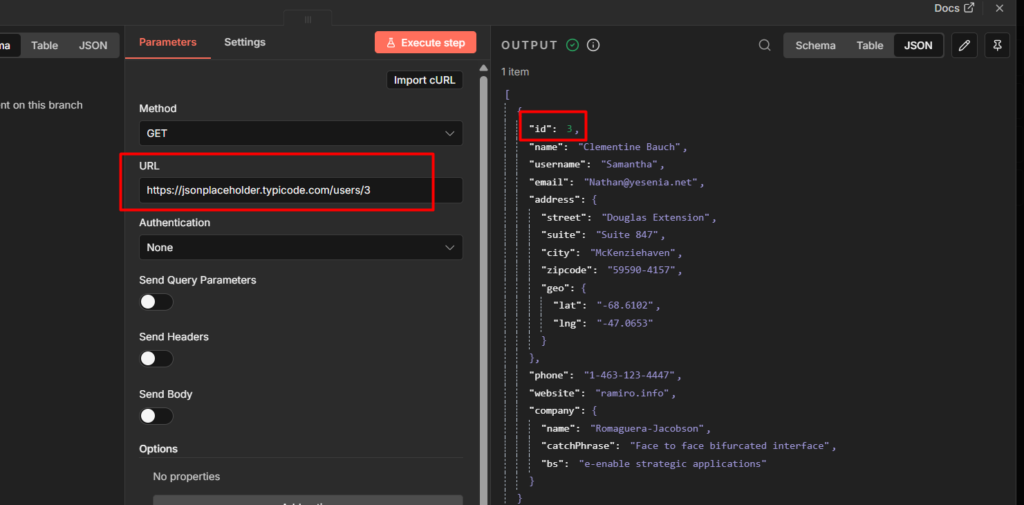
    Fix: Click the webhook node, look at the Output tab, see the actual structure. Write expressions that match that structure exactly.

    For complete webhook data structure details, see Webhook in n8n For Beginners

    Real World Workflow Examples (Building Blocks With n8n Expressions)

    Scenario 1: Processing Contact Form Submissions

    // Webhook receives:
    {
      "body": {
        "firstName": "john",
        "lastName": "doe",
        "email": "JOHN@EXAMPLE.COM",
        "message": "  Need help with automation  "
      }
    }
    
    // Clean and format for CRM:
    
    // Full name (capitalize first letter of each)
    {{ $json.body.firstName.charAt(0).toUpperCase() + $json.body.firstName.slice(1) + " " + $json.body.lastName.charAt(0).toUpperCase() + $json.body.lastName.slice(1) }}
    // "john doe" → "John Doe"
    
    // Or use n8n's custom method (cleaner):
    {{ ($json.body.firstName + " " + $json.body.lastName).toTitleCase() }}
    
    // Email (lowercase, no spaces)
    {{ $json.body.email.toLowerCase().trim() }}
    // "JOHN@EXAMPLE.COM" → "john@example.com"
    
    // Message (remove extra whitespace)
    {{ $json.body.message.trim() }}
    // "  Need help with automation  " → "Need help with automation"

    Scenario 2: E-Commerce Order Processing

    // Calculate order total with tax
    {{ ($json.subtotal * 1.08).toFixed(2) }}
    
    // Tag high-value orders
    {{ $json.subtotal >= 1000 ? 'VIP' : 'Standard' }}
    
    // Format order date for display
    {{ DateTime.fromISO($json.orderDate).toFormat('MMM dd, yyyy') }}
    // "2026-01-18T00:00:00.000Z" → "Jan 18, 2026"
    
    // Create order summary using template literal
    {{ `Order #${$json.orderId} - ${$json.items.length} items - Total: $${$json.total}` }}
    // "Order #12345 - 3 items - Total: $156.99"

    Scenario 3: Multi Node Data Combination

    // Combine user data from earlier node with current order
    {{ $node["Get User"].json.name + " ordered " + $json.productName }}
    // "Sarah ordered Premium Plan"
    
    // Mix webhook data with database lookup
    {{ $json.body.email + " (Customer ID: " + $node["Database Query"].json.customerId + ")" }}
    // "user@example.com (Customer ID: C-001)"
    ```
    
    These scenarios mirror actual automation workflows. You can adapt these patterns directly to your use cases.
    
    ## Quick Reference Cheat Sheet
    
    Keep these patterns handy for quick lookup.
    
    **Data Access:**
    ```
    Current node data: {{ $json.fieldName }}
    Nested data: {{ $json.parent.child.field }}
    Spaces in names: {{ $json["Field Name"] }}
    Previous node: {{ $node["Node Name"].json.field }}
    All items: {{ $input.all() }}
    First item: {{ $input.first().json.field }}
    ```
    
    **Common Transformations:**
    ```
    Uppercase: {{ $json.text.toUpperCase() }}
    Lowercase: {{ $json.text.toLowerCase() }}
    Combine text: {{ $json.first + " " + $json.last }}
    Template literal: {{ `${$json.first} ${$json.last}` }}
    Array length: {{ $json.items.length }}
    Join array: {{ $json.tags.join(", ") }}
    Current date: {{ $now.toFormat('yyyy-MM-dd') }}
    Round money: {{ ($json.price * 1.1).toFixed(2) }}
    Extract email: {{ $json.text.extractEmail() }}
    Title case: {{ $json.name.toTitleCase() }}
    ```
    
    **Conditionals:**
    ```
    Simple if/else: {{ $json.active ? 'Yes' : 'No' }}
    Check exists: {{ $json.email?.includes("@") }}
    Fallback value: {{ $json.name || 'Unknown' }}
    ```
    
    **Advanced:**
    ```
    JMESPath query: {{ $jmespath($json, "users[*].email") }}
    JMESPath filter: {{ $jmespath($json, "items[?price > `50`]") }}
    Object keys: {{ Object.keys($json.settings) }}
    Merge objects: {{ { ...$json.user, ...$json.prefs } }}

    What’s Next? From Expression to Workflows

    You now know how to access data $json, transform strings and arrays, handle dates, query JSON with JMESPath, work with objects, and fix common errors. That covers 90% of the expressions you’ll write.

    The next level is knowing when to stop using expressions. If you’re writing 15-line IIFEs with nested loops, that logic belongs in a Code node. Expressions keep workflows readable. Code nodes handle complex transformations.

    Practice with simple expressions first. Grab a field, make it uppercase, combine two fields. Build muscle memory. Then tackle transformations – filtering arrays, calculating totals, formatting dates. The syntax clicks after you’ve used it a few times.

    Master data extraction before moving to transformations. Get comfortable accessing fields, then start manipulating them. That progression works better than trying to learn everything at once.

    When you’re ready to build complete workflows with these expressions, start here

  • How to Stop n8n Credentials From Expiring Every Week

    How to Stop n8n Credentials From Expiring Every Week

    When I started my n8n journey, credentials weren’t an issue for me, it was all plug and play and everything seemed to work, then I stopped workflow for few weeks, and started the workflow again, then I got credential error. I was like! what! what just happened, then I had to re-authenticate to make it work.

    credentials expiry error

    But, what if this issue constantly happen for n8n workflow builder occasionally, that’s pure annoyance. so the builder needs to rinse and repeat. So OAuth2 clients needs to be refresh it’s tokens.

    This ain’t a bug in your workflow. It’s how OAuth2 access tokens work by default. They expire after 7 days. Everytime they expire, you need to manually re-authenticate it (This method considered as a fix, but it’s not efficient). For automated workflows that should run without any interruptions.

    I’ve seen lots of users had posted their frustration “credentials expiring” in reddit, and community forums.

    Alright, let’s fix this credentials expiring issue right now.

    Why Do We Need Access & Refresh Tokens?

    The Refresh token in Google OAuth2 for n8n acts as a long-term key that allows n8n to generate a short-term access key (access token) without requiring you to log in manually every hour.

    Two Types of Tokens

    • Access token: This is the actual key n8n uses to read your sheets or add google calendar events. For security purposes this key will expire after 1 hour.
    • Refresh token: This is a special key stored securely in your n8n database. It has only one job, ask Google to get a new token if current refresh token expired.
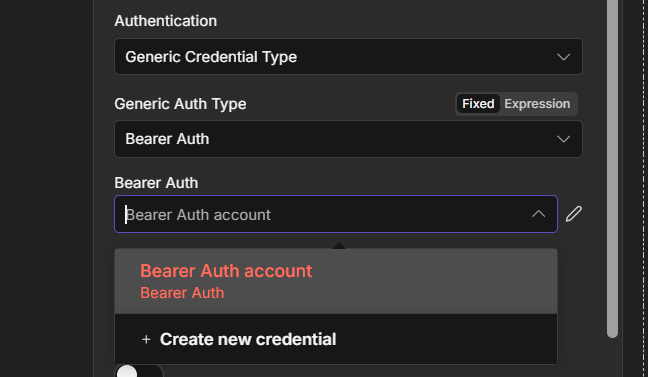
    Next thing, we are gonna see how does this actually works.

    When you setting up credentials, This is what will happen.

    • Initial Auth Process: You click “Sign in with Google” in n8n.
    • Exchange: n8n sends your consent code to Google and requests access_type=offline
    • Storage: Google sends back an Access token and a Refresh token. n8n saves both.
    • Auto Renewal
      • n8n attempts to run a node (e.g. Google sheet read)
      • if Google replies 401 unauthorized (Token expired), n8n automatically pauses
      • n8n sends a Refresh token to Google
      • Google validates it and return a new access token
      • n8n retries the request seamlessly.

    How to Fix Credentials Expiry Error?

    fixing n8n credential expiry
    1. Go to Google Cloud Console > oAuth Consent screen
    2. Navigate to Audience tab
    3. Click the button to Publish App (push to production)
    fixing n8n credential expiry issue

    Note: You don’t need to submit your app for verification if you are only using it for yourself (using your own email address). However, you’ll see a warning screen says Google hasn’t verified this app, but you click advanced > Go to App(unsafe) to bypass it.

    Configuration Checklist

    To ensure the Refresh token mechanism work correctly, Your Google Cloud Console settings must match this criteria.

    • Redirect URL: Must be exactly https://[YOUR-N8N-DOMAIN]/rest/oauth2-credential/callback or https://localhost:5678/rest/oauth2-credential/callback
    • Scopes: if you add any new scopes (e.g., adding Gmail to an existing Drive credentials), the old Refresh token may become invalid. You must re-authenticate to generate a new one that covers all the updated scopes.

    If you’re setting up n8n credentials for the first time or working with other services, Check our n8n credentials and service guide for step by step instructions across all the major platforms.

    Your workflow should now run uninterrupted. No more weekly re-authenticate cycles.