
Most n8n workflows eventually branch. An IF node splits data into two paths. Two parallel API calls run simultaneously. A loop finishes and you need its output alongside something fetched
earlier. The Merge node is what brings those separate paths back together.
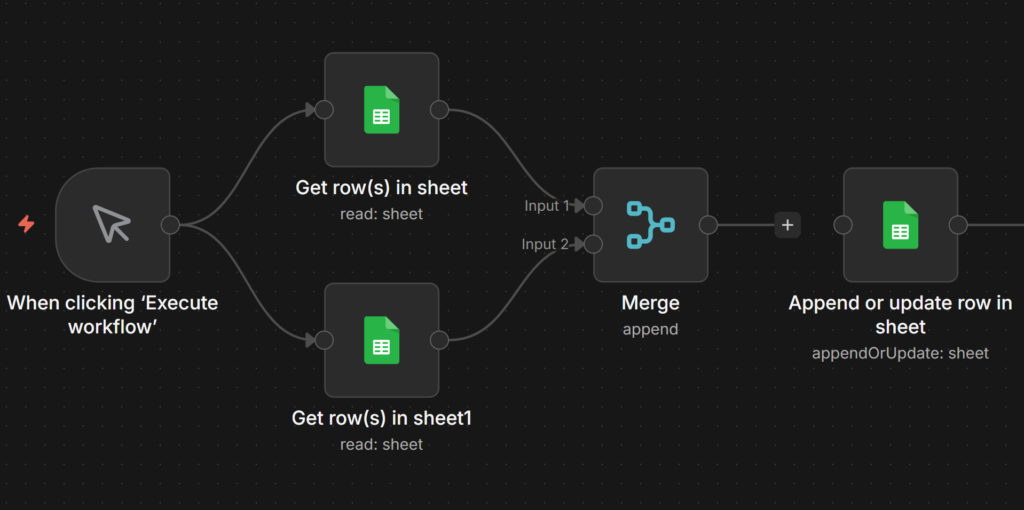
Without it, parallel branches stay separate all the way to the end. There’s no automatic recombination. If you want downstream nodes to work with data from multiple branches simultaneously, you need to explicitly tell n8n how to combine them.
New to n8n? Review these core concepts first to get the most of this guide. They’ll help you make sense of the rest of this technical guide.
- Your First Hello World n8n Workflow
- n8n Expressions: The Complete Practical Guide
- How to Plan a n8n Workflow (Beginner’s Guide)
What the Merge Node Actually Does?
The Merge node is a synchronization point. When you connect two or more branches to it, it pauses and waits until it receives data from all connected inputs before executing. This is its
primary function not just combining data, but controlling when execution continues.
This matters because without a Merge node, if two branches feed into the same downstream node, that node fires once per branch potentially sending duplicate emails, making redundant
API calls, or writing the same record twice. The Merge node collects everything first, then releases a single consolidated output.
Two things to know before choosing a mode:
- Input 1 vs Input 2 the distinction matters for asymmetric modes (Choose Branch, Position). Input 1 is the connection on the top input socket, Input 2 is the bottom. If your merge logic depends on which side is the “primary” dataset, connect accordingly.
- Version requirement modes other than Append and the original Combine options require n8n v1.49.0 or later. SQL Query mode and support for more than two inputs were both added in that version. If those options don’t appear in your Merge node, check your n8n version.
Understanding how data flows between nodes before reaching a Merge is useful context if any of the examples below look unfamiliar.
Append Stack All Items Into One List
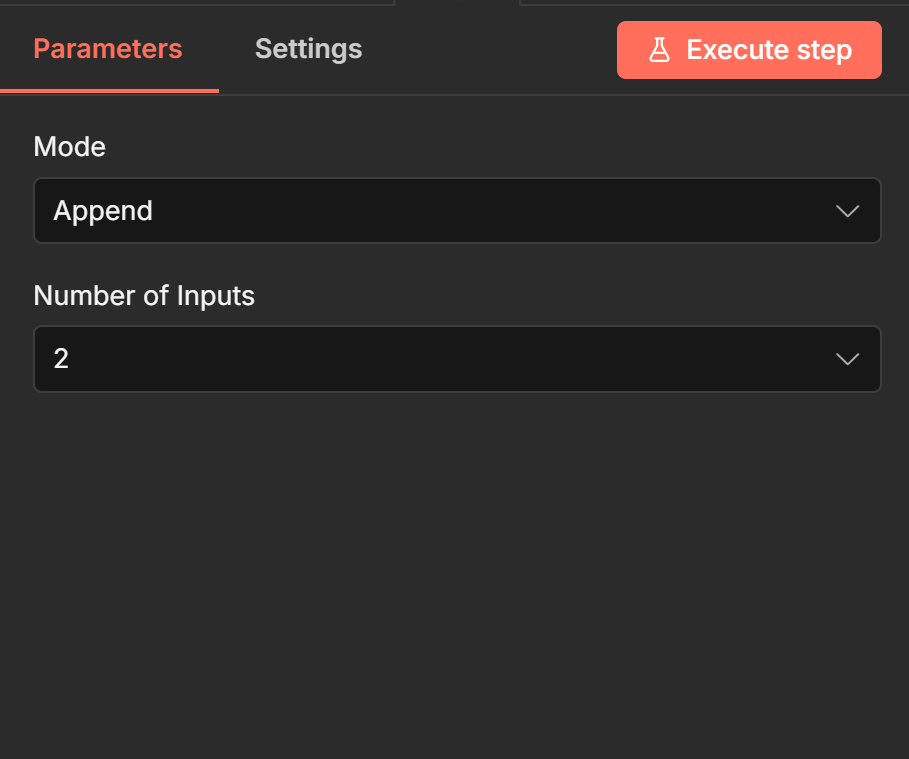
Append takes every item from Input 1 and every item from Input 2 and outputs them as a single list Input 1 items first, then Input 2 items. No matching, no pairing. Just concatenation.
Use it when you have two independent sets of items that need to flow through the same downstream nodes. The total output count equals the sum of both inputs.
Example: You fetch active subscribers from Mailchimp (Input 1) and active subscribers from HubSpot (Input 2). You want to send all of them the same Slack notification. Connect both API
nodes to a Merge node in Append mode, then connect the Merge to your Slack node. The Slack node receives a single list of all subscribers.
// Input 1 (3 items from Mailchimp)
[
{ "email": "alice@example.com", "source": "mailchimp" },
{ "email": "bob@example.com", "source": "mailchimp" },
{ "email": "carol@example.com", "source": "mailchimp" }
]

// Input 2 (2 items from HubSpot)
[
{ "email": "dave@example.com", "source": "hubspot" },
{ "email": "eve@example.com", "source": "hubspot" }
]

// Output (5 items)
[
{ "email": "alice@example.com", "source": "mailchimp" },
{ "email": "bob@example.com", "source": "mailchimp" },
{ "email": "carol@example.com", "source": "mailchimp" },
{ "email": "dave@example.com", "source": "hubspot" },
{ "email": "eve@example.com", "source": "hubspot" }
]
On n8n v1.49.0+, Append supports more than two inputs. Click the + button on the Merge node to add a third, fourth input. This replaces the old pattern of chaining multiple Merge nodes
together.
Combine by Matching Fields – The n8n Join
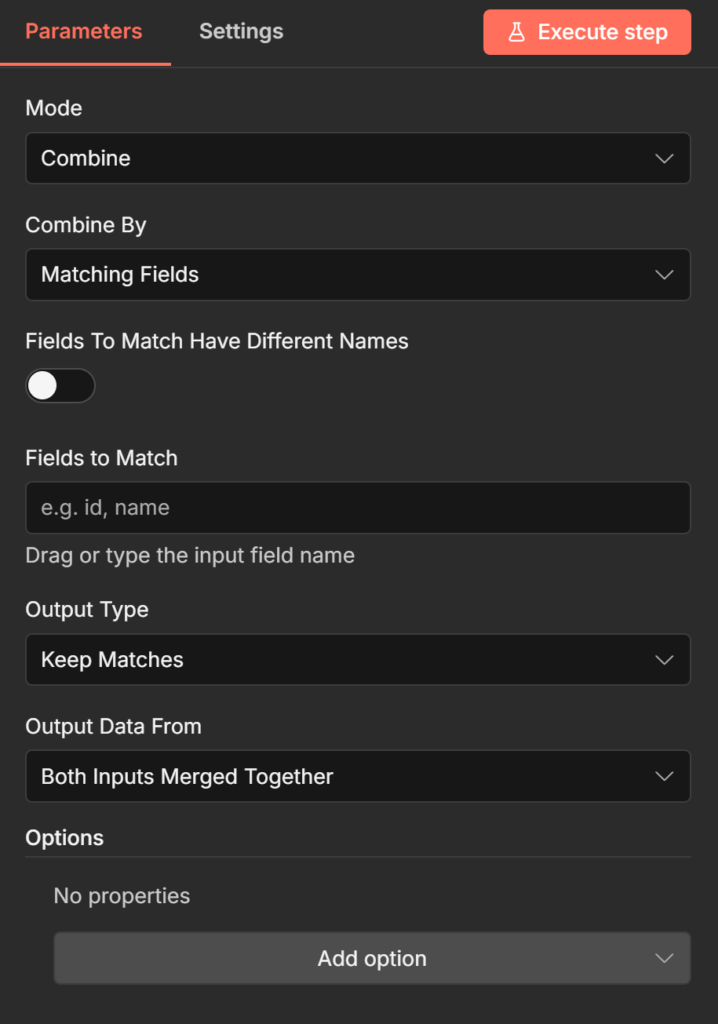
This is the most powerful Combine sub-mode and the one most workflows actually need. It matches items from Input 1 against items from Input 2 based on a shared field value like a SQL
JOIN then merges the matched items into single output items.
Configure it by setting Input 1 Field and Input 2 Field to the field names you want to match on. The values in those fields must be identical for a match to occur (case-sensitive).
Example: You fetch customer records from your CRM (Input 1) and order totals from your ecommerce platform (Input 2). Both contain a customer_id field. You want one merged item per
customer that includes both their profile and their spending data.
// Input 1 (CRM records)
[
{ "customer_id": "C001", "name": "Alice Chen", "email": "alice@example.com" },
{ "customer_id": "C002", "name": "Bob Okafor", "email": "bob@example.com" },
{ "customer_id": "C003", "name": "Carol Wu", "email": "carol@example.com" }
]

// Input 2 (order totals)
[
{ "customer_id": "C001", "total_spend": 4200 },
{ "customer_id": "C003", "total_spend": 890 }
]
The Output Type setting controls what you get:
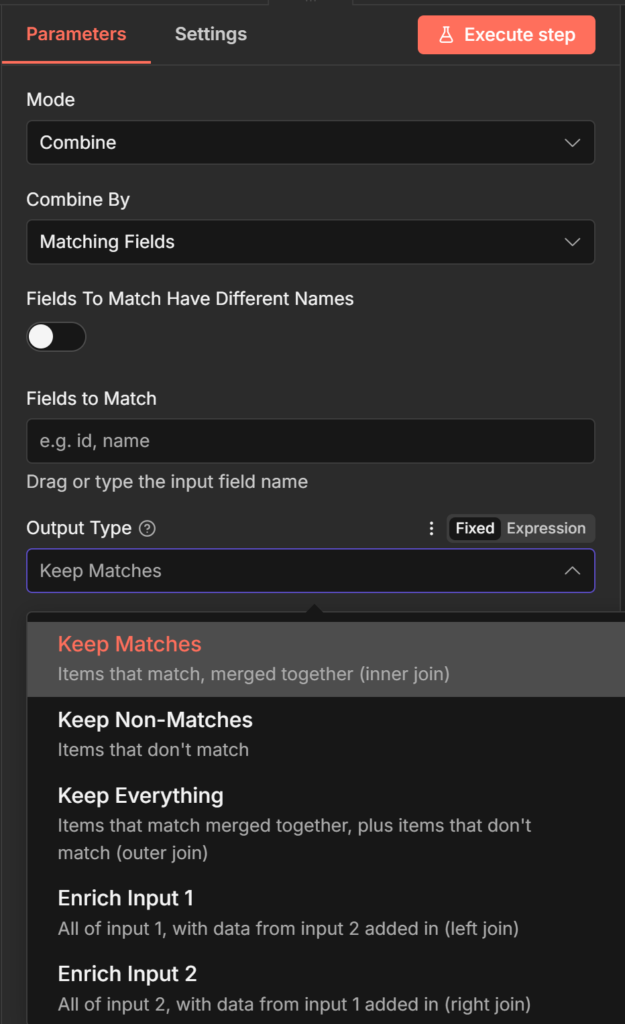
Keep Matches (inner join) only items with a match in both inputs. Output: Alice + C001 data, Carol + C003 data. Bob is excluded because there’s no matching order record.
Keep Non-Matches only items that don’t have a match. Output: Bob, because he has no order record. Useful for finding gaps customers with no orders, orders with no customer profile.
Keep Everything (full outer join) all items from both inputs, matched where possible. Output: Alice merged, Bob (no match, CRM data only), Carol merged. C002 appears without order data.
Two additional settings worth knowing:
- Multiple Matches if Input 1 has one customer but Input 2 has three orders for that customer, what happens? Include All Matches outputs three separate items (one per order). Include First Match Only keeps one item and discards the rest.
- Dot notation for nested fields if your match field is nested (e.g., user.id ), enter it exactly as
user.idin the field box. n8n interprets the dot as a path separator by default.
Combine by Position Pair Items by Index
Position mode pairs items from Input 1 and Input 2 by their order in the list. Item 1 from Input 1 merges with Item 1 from Input 2. Item 2 with Item 2. And so on.
Use it when your two inputs are naturally ordered and correspond to each other by position for example, two parallel API calls that each return results in the same sequence.
Example: You fetch product names from one API (Input 1) and current prices from another(Input 2). Both APIs return results in the same product order.
// Input 1 (product names)
[
{ "product_id": "P1", "name": "Widget A" },
{ "product_id": "P2", "name": "Widget B" },
{ "product_id": "P3", "name": "Widget C" }
]

// Input 2 (prices)
[
{ "price": 9.99 },
{ "price": 14.99 },
{ "price": 7.49 }
]

// Output
[
{ "product_id": "P1", "name": "Widget A", "price": 9.99 },
{ "product_id": "P2", "name": "Widget B", "price": 14.99 },
{ "product_id": "P3", "name": "Widget C", "price": 7.49 }
]
The critical gotcha: if your inputs have different item counts, Position mode silently drops the extras. 5 items in Input 1 + 8 items in Input 2 = 5 output items. The last 3 from Input 2 disappear
without warning.
Fix this by enabling Include Any Unpaired Items under Add Option. With this on, the same 5 + 8 scenario produces 8 output items the first 5 fully merged, the last 3 from Input 2 with empty values where Input 1 fields would have been.
If your inputs don’t naturally correspond by position, use Matching Fields instead. Position mode is reliable only when you’re certain both inputs return items in the same order.
Combine by All Possible Combinations Cartesian Product
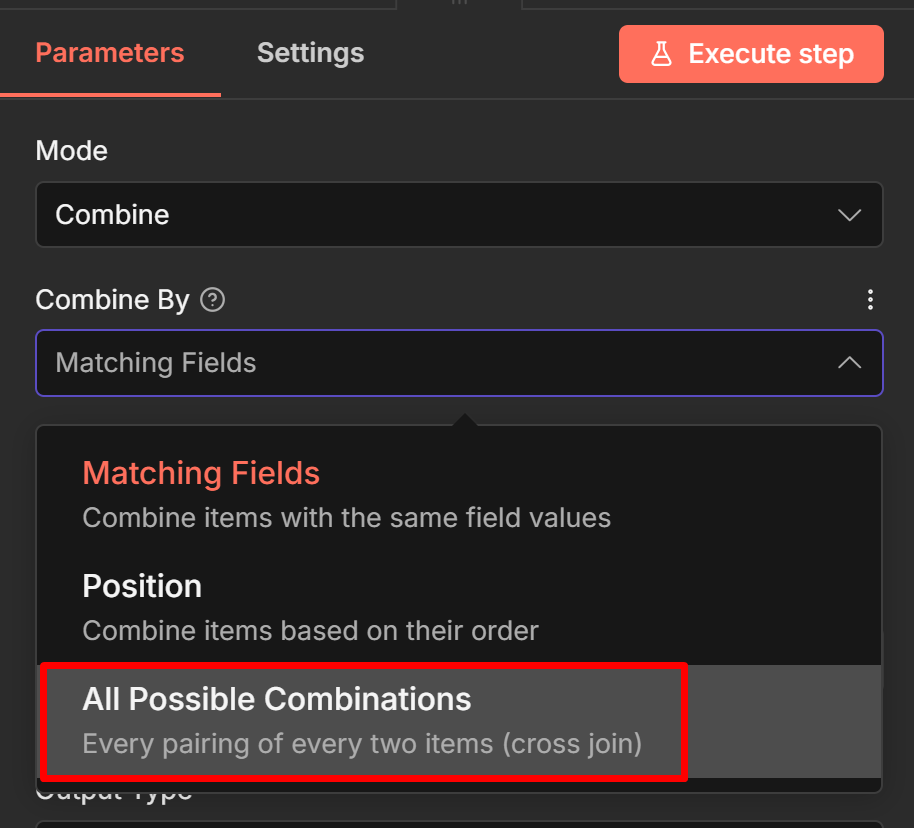
This mode generates every possible pairing of items from Input 1 with items from Input 2. 3 items × 5 items = 15 output items, each containing one item from Input 1 combined with one item from
Input 2.
Example: You have 3 email subject line variants (Input 1) and 4 audience segments (Input 2). You want to test every subject line against every segment.
json

// Input 1 (subject lines)
[
{ "subject": "Your order is ready" },
{ "subject": "Don't miss out" },
{ "subject": "Quick update for you" }
]

// Input 2 (segments)
[
{ "segment": "new_users" },
{ "segment": "returning" },
{ "segment": "vip" },
{ "segment": "inactive" }
]

// Output: 12 items (3 × 4)
[
{ "subject": "Your order is ready", "segment": "new_users" },
{ "subject": "Your order is ready", "segment": "returning" },
// ... 10 more combinations
]
Output count grows fast. 10 × 10 = 100 items. 20 × 20 = 400. Keep that in mind before feeding the output into an HTTP Request node that makes one API call per item.
SQL Query Mode Full Control With AlaSQL
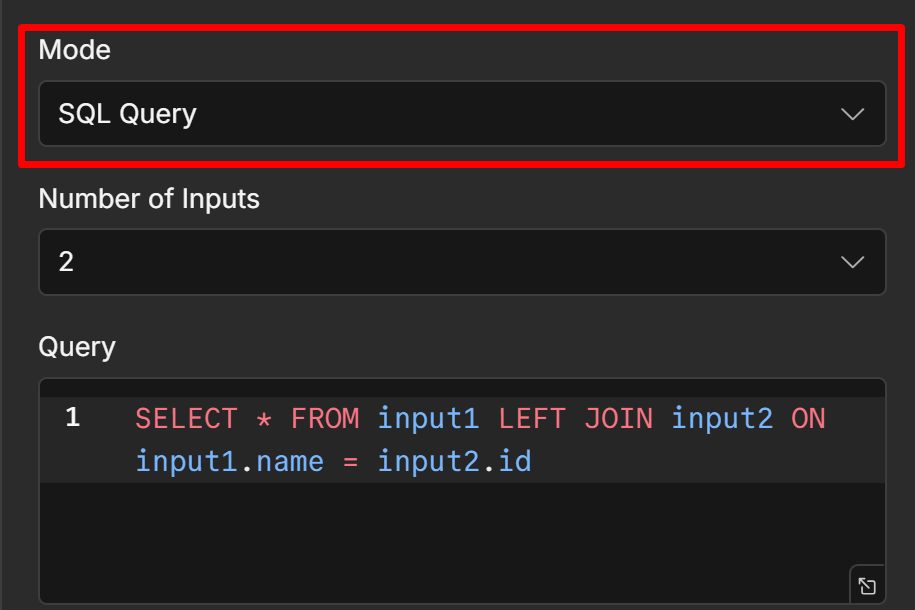
SQL Query mode treats each input as a named table input1 , input2 , input3 and lets you write a SQL query to define exactly what the output looks like. It uses AlaSQL, a JavaScript SQL engine that supports most standard SQL syntax including SELECT, JOIN, WHERE, GROUP BY, and UNION.
This mode is for situations where the other Combine options don’t give you enough control: you need to filter while joining, rename fields, aggregate, or write logic that doesn’t map cleanly to the visual options.
Example: Join CRM customers with order data, but only output customers who have spent more than $500, and rename the fields for your downstream node.
SELECT
 input1.name AS customer_name,
 input1.email AS customer_email,
 input2.total_spend AS lifetime_value
FROM input1
JOIN input2 ON input1.customer_id = input2.customer_id
WHERE input2.total_spend > 500
With inputs:
// input1 (customers)
[
{ "customer_id": "C001", "name": "Alice Chen", "email": "alice@example.com" },
{ "customer_id": "C002", "name": "Bob Okafor", "email": "bob@example.com" },
{ "customer_id": "C003", "name": "Carol Wu", "email": "carol@example.com" }
]

// input2 (orders)
[
{ "customer_id": "C001", "total_spend": 4200 },
{ "customer_id": "C002", "total_spend": 320 },
{ "customer_id": "C003", "total_spend": 890 }
]
Output onlyAlice and Carol, with renamed fields:
[
{ "customer_name": "Alice Chen", "customer_email": "alice@example.com", "lifetime_
{ "customer_name": "Carol Wu", "customer_email": "carol@example.com", "lifetime_va
]
One known limitation: there are community reports of SQL Query mode intermittently returning no output with unchanged inputs, particularly on certain n8n cloud versions.
If your SQL query stops working without an obvious reason, try re-saving the node or checking whether a recent n8n update affected the AlaSQL version.
This is worth being aware of before building critical production workflows around SQL mode.
AlaSQL doesn’t support every SQL feature window functions, stored procedures, and some advanced JOIN types aren’t available.
For anything that hits those limits, the Code node with
JavaScript array methods is the alternative.
Choose Branch Wait Without Merging Data
Choose Branch is the least intuitive mode because it doesn’t combine data at all. It waits for both inputs to have data, then outputs only the items from whichever input you select unchanged.
The synchronization behavior is the point. Use Choose Branch when you need one branch to finish before execution continues, but you only want the data from one of them.
Example: Branch A makes a slow AI summarization call (takes 10–30 seconds). Branch B does a fast database lookup (under a second). Your downstream node needs Branch B’s data, but it also needs Branch A to have completed before it runs maybe to ensure a log entry was written or a status was updated. Connect both to a Merge node in Choose Branch mode, select Input 2
(Branch B), and the downstream node receives Branch B’s data only after Branch A has also finished.
The Input 1 precedence rule: if you select Input 1 and Input 1 has 5 items while Input 2 has 10 items, only 5 items are processed. The node uses Input 1’s item count as the ceiling. This is rarely what you want if your goal is just synchronization in that case, select whichever input has the complete dataset you actually need downstream.
Common Problems and Fixes
Three failure patterns show up repeatedly in Merge node usage. All of them produce wrong item counts or missing data, but each has a different root cause.
Empty or unexpected output after an IF node
If you connect a Merge node downstream of an IF node, you’ll often see both the true and false branches execute even when the IF node only routes data down one path.
The Merge node needs data from all its connected inputs before it can fire. When Input 1 receives data and triggers the Merge, n8n goes back and executes the branch connected to Input 2 to satisfy that requirement. If that branch starts with the false output of an IF node, it runs even though the IF node sent no data there during normal execution.
The result is usually empty items appearing in your output, or downstream nodes running when they shouldn’t.
Fixes:
- Add a Filter node immediately after the Merge to remove empty items before they reach downstream nodes
- Use Choose Branch mode instead if you only need data from one path
- Restructure the workflow so the Merge node isn’t fed directly by IF node outputs process each branch further before merging
For more on IF node behavior, the conditional logic in n8n guide covers branching patterns in detail.
Position mode silently drops items
If your Merge output has fewer items than you expect, and you’re using Combine by Position, your inputs have different item counts. The shorter input determines the output count extras
from the longer input are dropped silently.
Fix: Enable Include Any Unpaired Items under Add Option in the Merge node settings. This keeps all items from both inputs, filling missing fields with empty values where no pair existed.
Combine by Matching Fields returns nothing
If Keep Matches produces zero output despite both inputs having data, the field values aren’t matching. Common causes:
- Field name mismatch
customerIdvscustomer_id. Check the exact field names in the input panel. - Case sensitivity
"Alice"won’t match"alice". - Whitespace a trailing space in one field that isn’t visible in the panel.
- Nested field if your match field is inside an object (e.g.,
user.id), you must enter it in dot-notation format as plain text, not as an expression.
Open the input panel of the Merge node and check the actual raw values of the fields you’re matching on before adjusting settings.
For workflows where matching failures lead to silent downstream errors, setting up error notification as covered in the error handling guide will catch these before they become production problems.
Which Mode to Use Quick Reference
| What you’re trying to do | Mode |
| Stack two (or more) lists into one | Append |
| Match records from two sources by a shared field (like a JOIN) | Combine → Matching Fields |
| Pair items by their order in each list | Combine → Position |
| Generate every combination of two lists | Combine → All Possible Combinations |
| Join, filter, rename, or aggregate with full SQL control | SQL Query |
| Wait for both branches, but only keep one input’s data | Choose Branch |
| Wait for both branches, but only keep one input’s data | Combine → Matching Fields → Keep NonMatches |
| Wait for both branches, but only keep one input’s data | Combine → Matching Fields → Keep Everything |
If you’re working with data that loops processing batches and collecting results the Loop Over Items guide covers how to structure that alongside merging the accumulated output.
Leave a Reply