You’ve built a slick n8n workflow to update 500 customers records in your google sheet, you hit execute, watch the first rows update perfectly, and then BAMM! everything stops.
Error: Rate limit exceeded.
Half your data is updated, and another half isn’t. Literally, your workflow is broken. Sounds familiar? ahem. You just hit an API rate limit.
In this post, I’m going to teach you how to handle API rate limits in n8n like a pro. Maybe you’re a beginner to this space, well, no worries. I’ve got you covered everything you need to know in terms of handling API rate limits.
What Are API Rate Limits? ( And Why do they exist)
Think of an API Rate limit like a speed limit on highway. It’s not there to annoy you or make miserable – It’s there to keep you safe and everyone safe.
APIs limit how many request you can make in a specific time period. This prevents server overload, protect against abuse, and yes, sometimes encourages you to upgrade to a paid plan.
Read Here (Advanced-method): How to use Redis to Rate Limit Your Form Submissions
For Google Sheets specifically,
- 100 requests per 100 seconds per user
- That’s roughly 1 request per second
- Exceeding this triggers the dreaded 429 status code error
How You Know You’ve Hit a Rate Limit?
The signs are pretty obvious,
Error messages like
- “Rate limit exceeded”
- “429 Too many requests”
- “Quota exceeded”
Your workflow
- Stops mid-execution
- Processes the first chunk of data, then fails
- Shows partial results (100 items worked, 400 didn’t)
To fix this, you need a solution and strategy. Let’s get started
Level 1: Throttling (Split in Batches)
When an API or Google Sheets limits on how many requests you can send per second, you don’t want to flood it – you slow down and batch it.
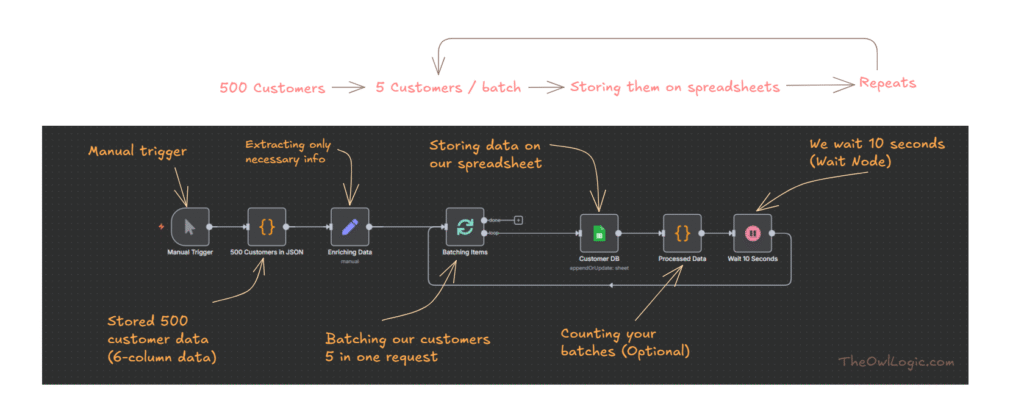
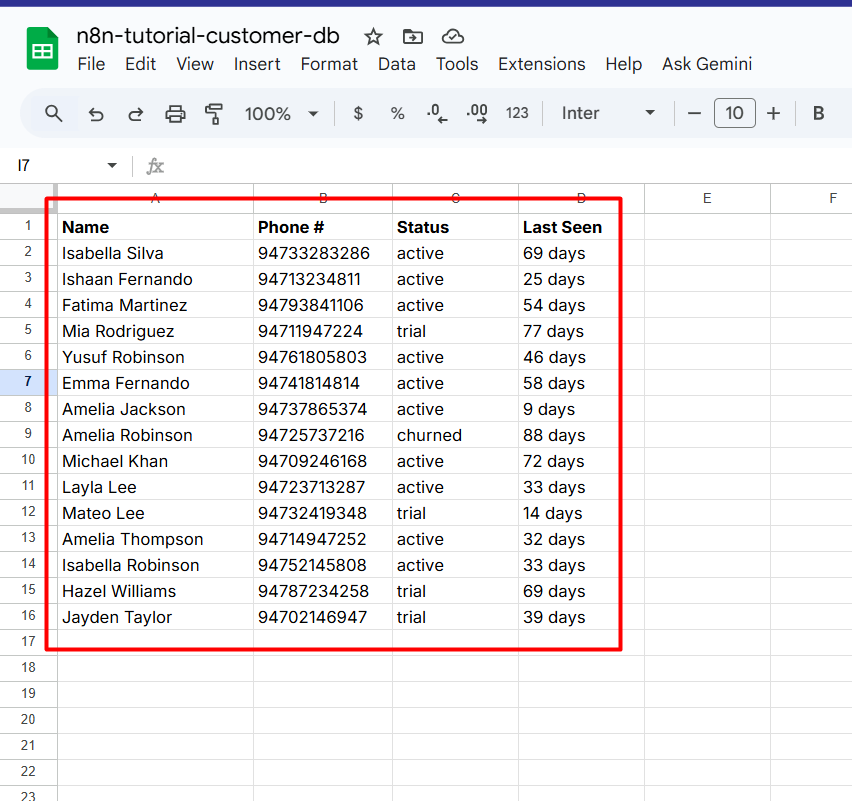
In this example, we have 500 customers that needs to be written into a Google Sheet. If we send all 500 requests at once, we will hit Google’s rate limit.
So instead, we:
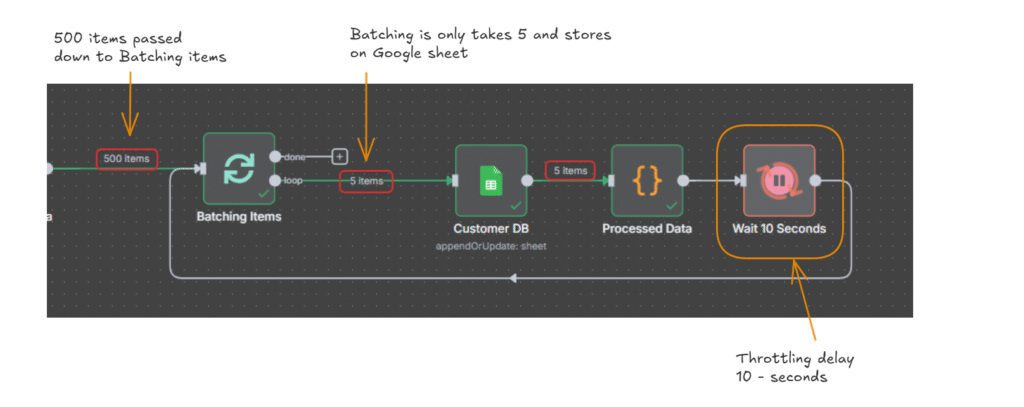
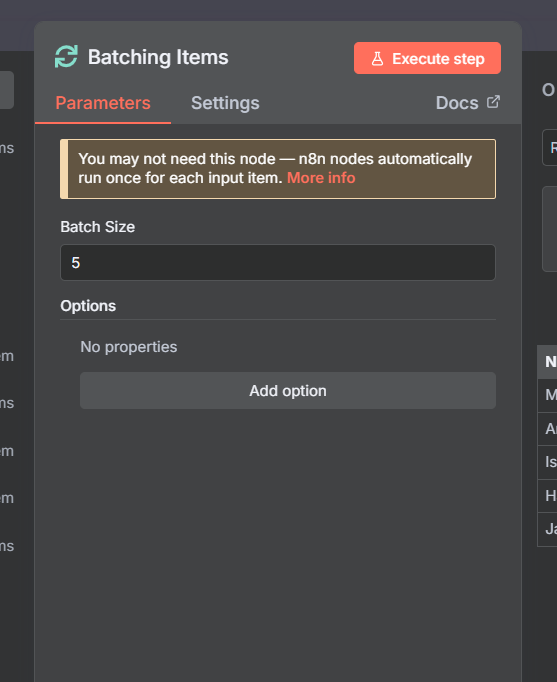
In Loop over items node, you can add batch size to 5 to create a chunks in data.
- Batch 5 customers at a time
- Write them to the sheet
- Wait 10 seconds
- Repeat until all 500 are done
Workflow Breakdown
For this workflow, I created a 500 customer sample data in JSON.
| Node | Purpose |
|---|---|
| Manual Trigger | Starts the workflow manually |
| 500 customers in JSON | Stores your dataset (simulated API for tutorial purposes, and for your case, maybe you might have in database or CRM) |
| Enriching data | Optional: Filters only the fields you care about (name, email and etc) |
| Batching Items (Split in Batches) | Groups the customers in batches of 5 |
| Customer DB (Google Sheet) | Appends or update each batch |
| Processed data (function) | Optional: Logs the batch count |
| Wait 10 Seconds | Prevents rate limiting (Throttle delay) |
| Loop back | Returns to batching items until all 500 are processed |
I hope this example might give you some glimpse of how to rate limit properly using Loop over items (Split in batches) node and Wait node.
Level 2: Retry Logic
In Level 1 throttling, where you slow down requests using delays and batching, then level 2 = Retry handling (Graceful recovery) – where you respond intelligently when rate limits or temporary failures actually happens.
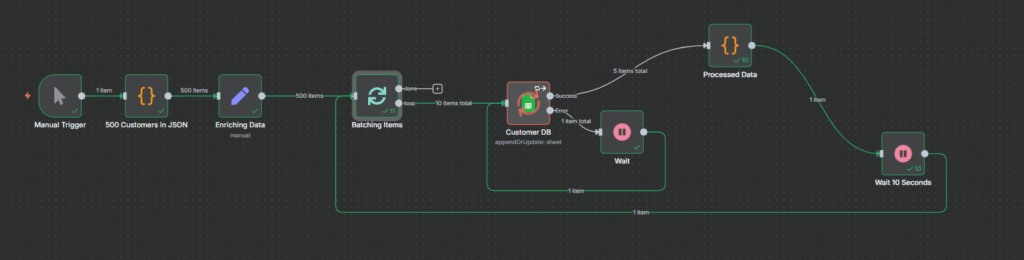
In our previous workflow example, we created our retry handling if Google sheets throws any limit error.
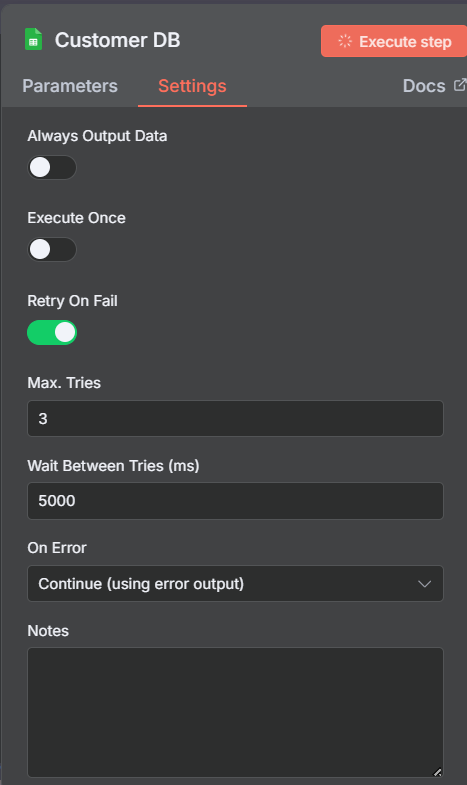
- In our Google Sheet Node, go to settings, and toggle Retry On Fail
- Keep the Max. tries as 3 and Wait between tries as 5000ms which is 5 seconds.
- On Error, select Continue (using error output)
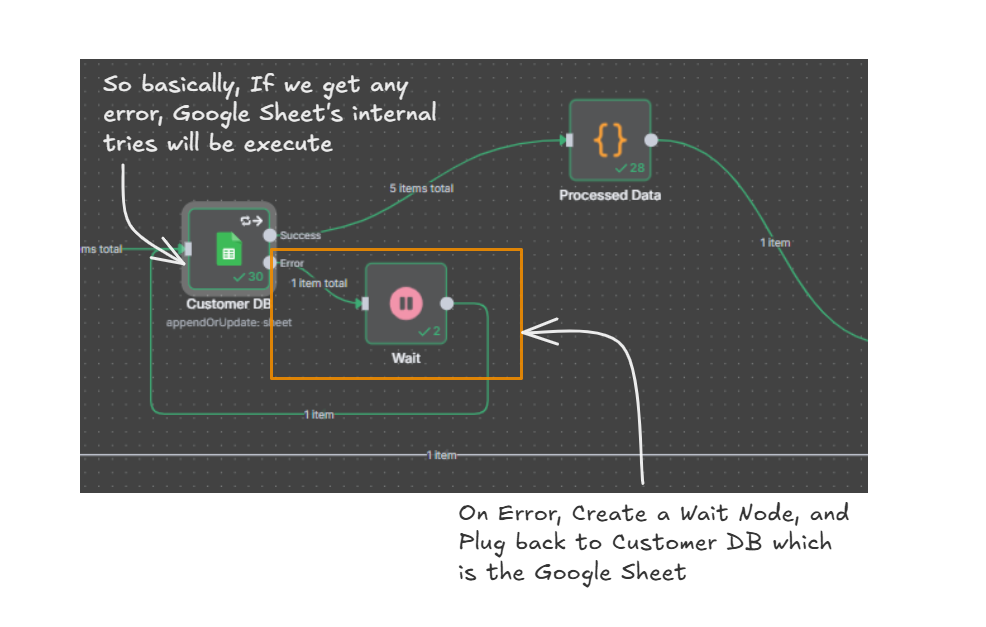
- On Error, create a Wait Node and assign 10 seconds.
- Plug back the Wait Node to Customer DB (Google Sheet)
By this way, we gracefully handling the errors, in case if we get any rate limit error. perhaps we need to assign 60 seconds for the Wait Node to prevent the rate limit. It totally depends on the API’s rate limit.
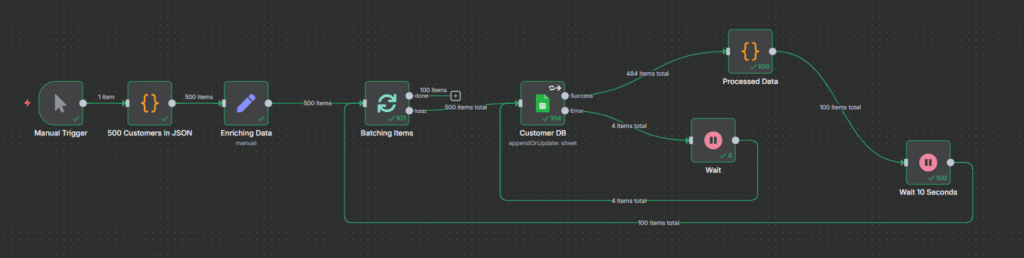
As we can see here, green highlighted areas on Error output resolved the rate limiter, and passed on to success route efficiently.
My Personal Tips
- Do the Math first
- 500 customers / 5 per batch x 10 seconds wait = ~16 minutes total. Know your execution time upfront so you’re not surprised.
- Check the API Docs
- Google Sheets – 100 req / 100 sec
- Airtable – 5 req / sec
- Notion – 3 req / sec
- Each API is different – always check their limits first
- Test with Small Batches
- Before running 500 records, test with 20.
- Catch issues early, iterate faster
- Monitor Your Executions
- Check n8n’s execution logs regularly
- If you see multiple retries, your wait time is too short
Rate limits don’t have to break your workflows. With throttling and retry logic, you can handle them gracefully:
Throttling prevents you from hitting limits in the first place
Retry logic handles the occasional hiccup when limits do hit
Start with these two techniques, and you’ll be handling 99% of rate limit scenarios like a pro.
Leave a Reply