Handling errors gracefully is one of the most important skills you need to master in n8n to keep your workflows running without interruption.
I built a workflow that scraped product data from a website, enriched it through an API, and added everything to Google Sheet. Tested it multiple times. Worked perfectly every time.
Set it to run every hour before going to bed. Felt pretty good about it though.
Next morning, I checked the sheet, same data from yesterday. Nothing new has been enriched, and saw my workflow stopped at 5:12 AM.
The website was down for maintenance. Just a 20-minute blip. But my workflow didn’t recover. Didn’t log error. Didn’t retry. Just stopped.
Lost 9 hours of data collection because I didn’t know handle a simple error at that time.
This is the reality of automation without error handling
APIs go down. Websites change their structure. Data comes in unexpected formats. Internet connection issues. Rate limits. Even the most carefully designed workflows WILL encounter problems.
The difference between fragile workflow and a production-ready automation isn’t avoiding errors (that’s impossible in my personal experience). It’s building workflows that can detect problems, recover gracefully, and keep running even when things go wrong.
In this guide, you’ll learn
- The most common errors you’ll face in n8n (and why they happen)
- How to build workflows that notify you when problems occur
- Practical strategies to validate data before it breaks your workflow
- Real working examples you can copy and test it immediately
The Most Common n8n Errors (and Why They Happen)?
When building a workflow in n8n, you’ll typically encounter these errors.
| Error Type | What it looks like | Why it happens |
|---|---|---|
| HTTP failures | ETIMEDOUT, getaddrinfo ENOTFOUND | API is down, internet dropped, or wrong URL. |
| Auth errors | 401 Unauthorized, 403 Forbidden | Expired API keys, missing headers, or stale OAuth tokens. |
| Rate limits | 429 Too Many Requests | You hit your API quota or are requesting too frequently. |
| Missing data | Cannot read property ‘x’ of undefined | A field doesn’t exist, or previous nodes returned empty results. |
| Timeouts | Execution timed out, 10000ms exceeded | Processing too much data or the API is too slow. |
| JSON errors | Unexpected token < in JSON | The API returned HTML (an error page) instead of JSON. |
| Config errors | Column “Name” not found | Changed Google Sheet headers, deleted Slack channels, or typos. |
The Pattern You’ll Notice
most errors fall into three categories
- External failures (APIs down, network issues) – Need retry logic
- Data problems (missing fields, wrong format) – Need validation
- Configuration mistakes (wrong credentials, typos) – Need testing
The 3 Essential Error Handling Techniques
Now that you know what errors to expect, let’s talk about how to actually handle them. You don’t need complex setups or advanced knowledge. These three techniques will cover 90% of your error handling needs.
Technique 1: Error Trigger – Get Notified When Things Break
What it does: Catches any error in your workflow and lets you know immediately via slack, email, discord or wherever you want.
When to use it: Every production workflow. Period. If a workflow runes without you watching it, you need to know when it fails.
Before you setting up Error Trigger, make sure:
- Your main workflow uses an automated trigger (e.g, schedule, Webhook, etc)
- Your Error Workflow is published/active (not just saved)
- Critical nodes don’t have continue on fail enabled in their individual settings
- You have notification credentials setup. (Gmail, slack and etc)
Alright let’s get things step by step, then you would understand what it is.
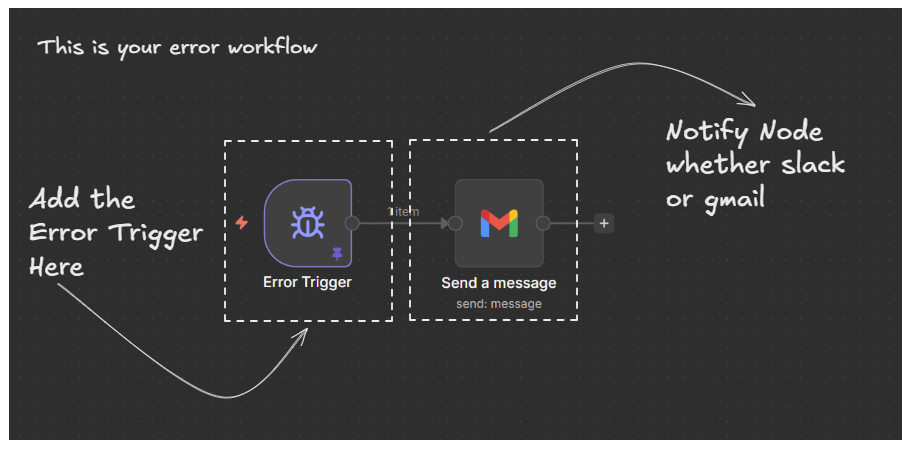
Step 1: Create a workflow and add Error trigger, and also connect node of Gmail or slack to pass the appropriate information to the end-user
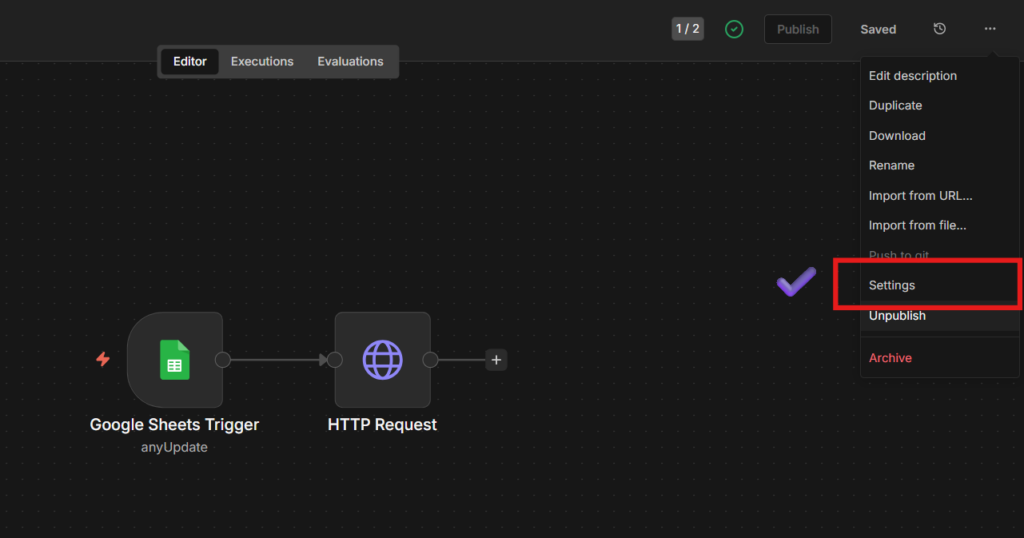
Step 2: Go to Your Main Workflow > Settings > Error Workflow > Select your Error Workflow
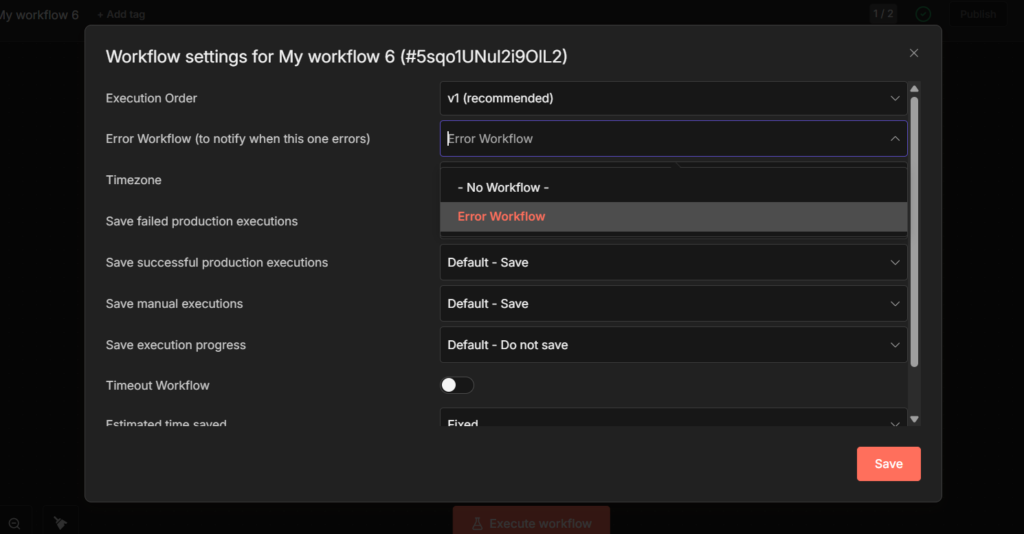
That’s it. so whenever you encountered any workflow errors, then Error Workflow will automatically triggers and notify you via an email. It totally depends on what kind of notification node you use, and yet you still can use slack, telegram or whatsapp to reach out with the exact error.

an example of email I received due to an error that I made purposely to show you all how it should work.
Step 3: Test it
Since Error trigger doesn’t work with manual executions, you need to test it with an automated trigger
- Add a Schedule trigger to your main workflow (set to run every 1 minute)
- Make sure workflow will fail (wrong API URL – In HTTP node, add GET , and change the URL to somewhat like googleyysadas.com
- Wait for the scheduled execution
- You should receive an error notification
After testing it, you can switch back to your preferred trigger type.
Technique 2: Validate Data Before Processing It (IF Nodes)
Check if data exists and is valid BEFORE you try to use it. Prevents crashes from missing or malformed data.
When to use this: Anytime you’re processing data from external sources (Google Sheets, APIs, webhooks, web scraping) where you can’t guarantee the format of completeness.
Example: Validating customer data
I have a customer database with 766 contacts in Google Sheets. Before sending them automated emails, I need to make sure each contact has a valid status field but not empty.
The Setup:
- Manual trigger: to start the workflow
- Google Sheets: Reads customer database (766 contacts)
- IF Node: Checks “Is status field is empty?”
- True Path: 766 items with valid status (process manually)
- False Path: contacts with missing status (log or skip)
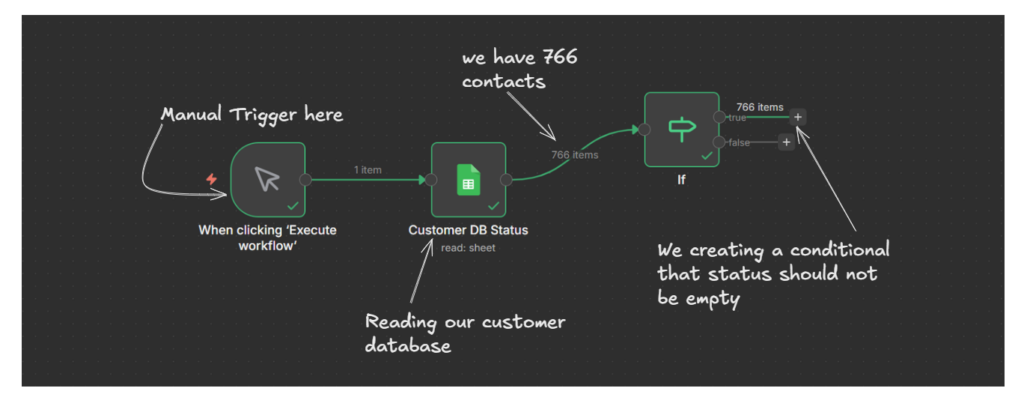
The Result:
All 766 contacts had valid status fields, so they all went through TRUE path. If any contacts had missing status, they would have gone to false path where you could,
- Log them to an “Error Sheet”
- Skip processing them
- Send a notification about incomplete data.
Without this validation, the workflow would crash the moment it tried to use a missing status field. With validation, it gracefully handles the incomplete data.
Technique 3: Status Tracking With Continue on Fail
I’m going to show you production-ready pattern I use when processing large batches of data. Instead of just letting failures disappear into execution logs, I update my Google Sheets or database to track exactly which items succeeded and which failed.
Pattern: Instead of stopping on the first error, we let the node fail, catch it, and record the results in the database.
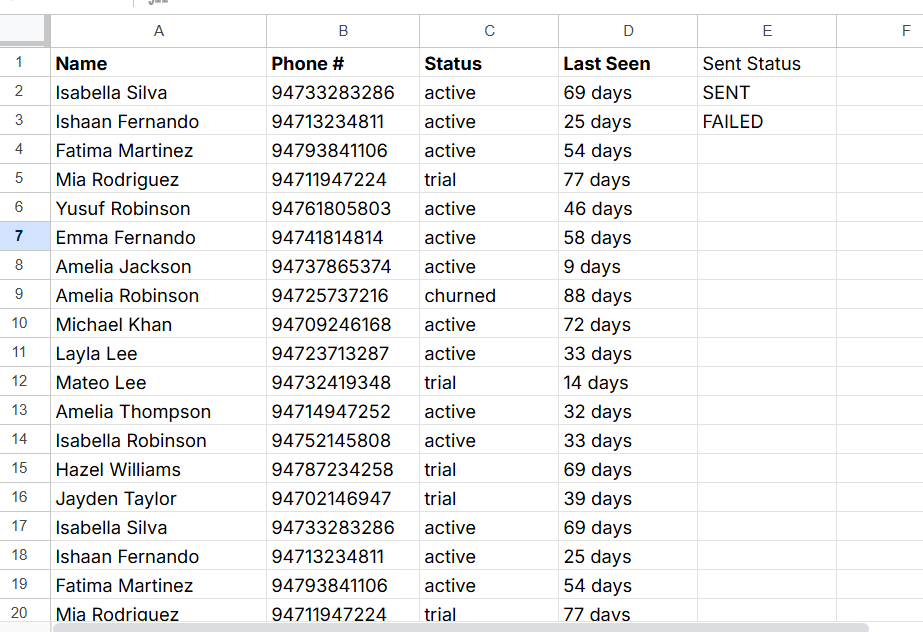
FYI: these Phone # are fake. generated with claude.

The Complete Setup
I have 766 customers contact in Google Sheet. I need to send them all welcome emails, but I know some emails address might be invalid or cause errors. Here’s how I handle it.
The Workflow breaks down like this
- Read all 766 contacts from Google Sheet
- Loop over items – Process them in batches (1 by 1 or you can add 50 too)
- Gmail node with Continue on Fail enabled – This creates two outputs paths
- Success path: Email that sent successfully
- Error path: Emails that failed
- Update success: If email sent successfully, update the sheet with status = SENT
- Update failed: if it fails, update the sheet with the status = Failed
- Wait 5 seconds: it’s better to give nodes a break.
- Loop back: Process the next batch.
Why this works flawlessly?
When I ran with workflow with 766 contacts:
- 760 emails sent successfully (marked SENT and it was my end-goal for this automation)
- 6 emails failed (marked Failed)
- I got a complete audit trail
- So I create a new workflow, and add a schedule trigger to try out failed ones.
This pattern scales. I’ve used it with 50 contacts and with 5000 contacts. Same workflow, just adjust the batch size.
My Final Thoughts
Remember the workflow I told you about? the one that stopped at 5:12 AM and cost me 9 hours of data collection?
I rebuilt the full framework with these error handling I covered today. I saw lots of complex stuffs in the n8n community regards to error handling, but these 3 would be sufficient, perhaps totally depends on the use-cases and different situations.
so my full framework running for couple of months and processed around 50k data and hundreds of errors, yeah obviously that’s goes for all of us. But it never stops anymore. It logs the errors, update sheets (now data-table), notifies me if needed, and keep processing everything else.
That’s the difference.
Leave a Reply