Tag: AI Agents

  • How to Use Summarization Chain in n8n

    How to Use Summarization Chain in n8n

    Most people find the Summarization Chain node the same way – they’re building an AI workflow, they see it in the node panel, and they have no idea what it actually does or how it connects to anything.

    The official docs tell you what the parameters are. They don’t tell you when to use Map Reduce vs Stuff, what the output looks like when it comes out, or why your text isn’t getting summarized even though the node ran without errors.

    That’s what this covers.

    What is Summarization Chain

    A Summarization Chain is a pre-built sequence of operations from Langchain – a popular AI framework – where each step passes its output to the next, all wired together to accomplish one specific task. In this case, that task is taking long text, breaking it into manageable pieces, sending those pieces to a language model, and returning a condensed summary.
    What the Summarization Chain Node Actually Does

    The Summarization Chain is an AI node – part of n8n’s LangChain integration. It takes text as input, sends it to a language model, and returns a natural language summary.

    Before anything else, get clear on what it is not: there’s also a core node in n8n simply called “Summarize”. That one has nothing to do with AI. It aggregates data like a pivot table, counting rows, summing values, grouping fields. Completely different tool.

    The Summarization Chain is also not an Agent. Chains in n8n have no memory. Each execution is stateless – the node takes text in, returns a summary out, and forgets everything. If you need the model to remember previous messages or carry on a conversation, you need an AI Agentic workflow instead.

    For one-shot summarization tasks – “take this article and give me a 3-sentence summary” – the chain is exactly the right tool.

    The Three Ways to Feed It Data

    When you open the Summarization Chain node, the first setting you’ll see is Data to Summarize. This dropdown has three options, and everything else in the node changes based on which one you pick. This is where most people get confused.

    Node Input (JSON) – Use this when the text you want to summarize is already flowing through your workflow as a JSON field. If you pulled content from an HTTP Request, read rows from Google Sheets, or received data from a webhook, this is your option. You point the node at the field that contains the text, and it handles the rest.

    Node Input (Binary) – Use this when the previous node passed along a binary file – a PDF, a Word document, an uploaded file. The node reads the binary data directly. You don’t need to extract the text first.

    Document Loader – Use this when you want to connect a sub-node (like the Default Data Loader) that pulls in documents from an external source. This option unlocks the sub-node connection point at the bottom of the Summarization Chain node.

    Here’s a quick reference for common situations:

    What you’re summarizingInput mode you use
    Text from an HTTP Request or webhookNode Input (JSON)
    Rows from Google SheetsNode Input (JSON)
    PDF file from Google DriveNode Input (Binary)
    Multiple documents via a loader sub-nodeDocument Loader

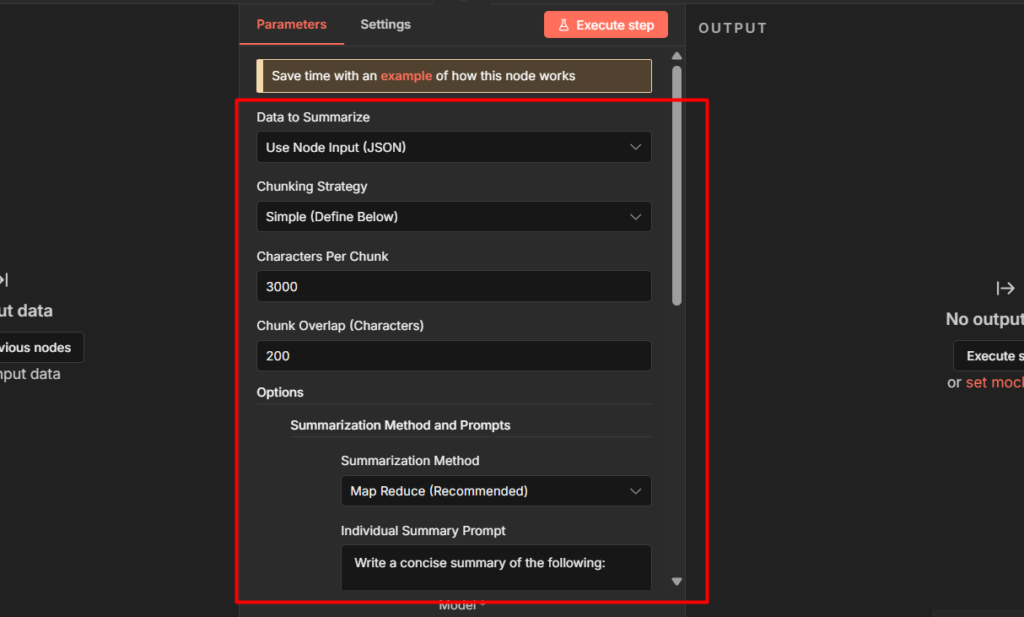
    Once you pick Node Input (JSON), you’ll see a Chunking Strategy setting appear. This controls how the node splits your text before sending it to the model. Simple is fine for most cases. set Character per chunks to around 3000 and Chunk Overlap to 200. The overlap means consecutive chunks share some content at the boundaries, which helps the model produce coherent summaries across chunks.

    Map Reduce, Stuff, or Refine – Which One to Use

    By default, the Summarization Chain uses Map Reduce. To see or change the method, click Add Option and select Summarization Method and prompts.

    Here’s what each method actually does and when to use it:

    MethodHow it worksBest forWatch out for
    Map ReduceSummarizes each chunk separately, then combines the summaries into a final resultLong documents, articles, multi-page contentFires parallel API calls – can cause timeouts with local models like Ollama
    StuffSends all the text in one single API callShort text, single emails, brief contentFails silently if the text exceeds the model’s context window
    RefineSummarizes the first chunk, then iteratively passes each new chunk alongside the running summaryWhen you need coherence across a long documentSlowest method – makes sequential API calls, one per chunk

    Map Reduce is the right default for anything longer than a few hundred words. It’s what n8n recommends and what handles chunking most reliably.

    Use Stuff when you’re certain the text is short enough to fit in one LLM call – a single email, a short review, a product description. It’s faster and cheaper.

    Use Refine only when you’ve tried Map Reduce and the output feels disconnected. It’s the most token-intensive option.

    One Known UI issue with Map Reduce: When you enable Summarization Method and Prompts in Map Reduce mode, the two prompt fields shown in the UI are displayed in the wrong order. The first field you see is actually the Final Prompt to Combine (the prompt used to merge all chuk summaries into the final output), and the second is the Individual Summary Prompt (the prompt used on each chunk). The labels say the opposite. If you’re customizing these prompts, double-check which field you’re editing – It’s the reverse of what the UI shows.

    Let’s Build It: Summarize Articles from an RSS Feed

    This workflow reads the latest articles from an RSS feed, summarizes each one, and gives you the output you can route into Slack, Notion, or anywhere else. It uses Node Input (JSON) – the most common setup.

    You’ll need an AI credentials connected in n8n. If you haven’t set that up yet, then make sure to check the credentials and service guide here.

    Step 1: Add a Manual or Schedule Trigger

    If you’re setting up a schedule trigger, Set it to run once daily. This keeps API costs predictable during the testing, you’re not burning tokens every time you manually trigger the workflow.

    Step 2: Add an RSS Read Node

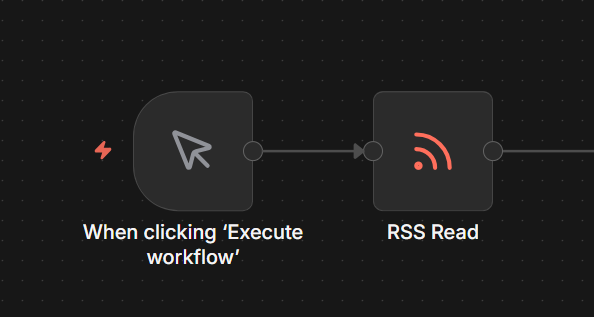
    Adding RSS Read node to the n8n

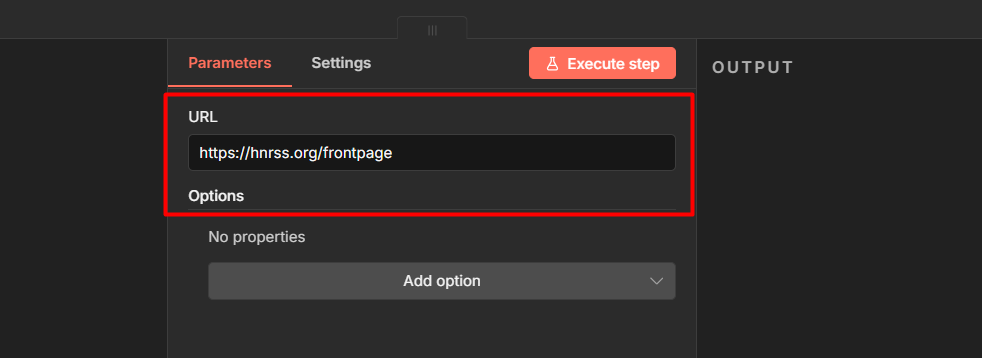
    Connect it to the trigger. Set the URL to any feed you want – for testing, https://hnrss.org/frontpage (Hacker News) works well.

    configuring RSS read node

    Configure it as:

    • Feed URL: your RSS source
    • Limit: leave at default for now

    This outputs one item per article, each with fields like title, link, and content.

    Step 3: Add a Limit Node

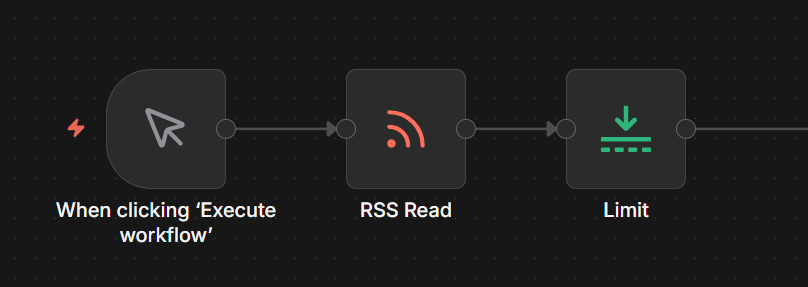
    Adding limit node next to the RSS read to limit the links

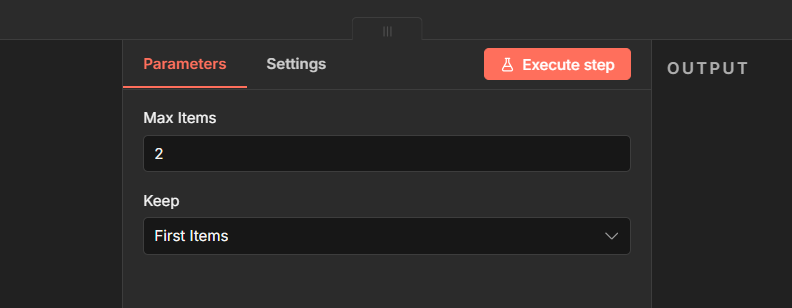
    Connect it after the RSS Read node. Set keep items to 2

    configuring limit node

    During testing, don’t summarize 50 articles at once. Test with 2, confirm everything works, then remove the limit when you’re ready to go live.

    Step 4: Add the Summarization Chain Node

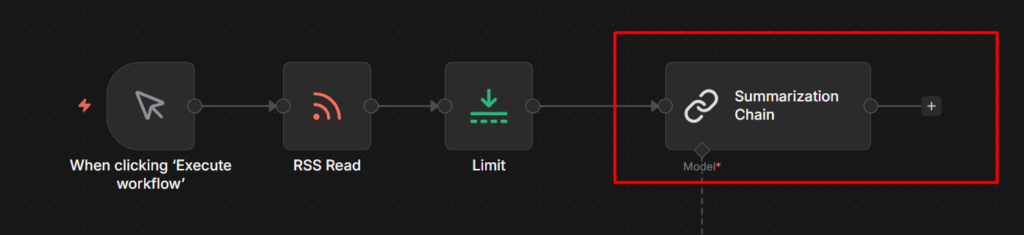
    Adding Summarization Chain in n8n

    This is the main node. Connect it after the Limit node.

    Summarization Chain configuration

    Configuration:

    • Data to Summarize: Node Input (JSON)
    • Input: Click the expression editor and map it to the content field from the RSS node. for Hacker News this is {{ $json.content }}. For other feeds it might be {{ $json.description }} or {{ $json['content:encoded'] }} – check your RSS node output to confirm the field name.
    • Chunking Strategy: Simple
      • Character Per Chunk: 3000
      • Chunk Overlap: 200
    • Click Add Option – Summarization Method and Prompts
    • Summarization Method: Map Reduce
    • Leave the prompt fields at their default to start. Once it’s working you can customize them. Just remember the UI Swaps the label order – the top field is the Final Prompt, the bottom is the Individual Summary Prompt.

    Step 5: Connect the Chat Model Sub-Node

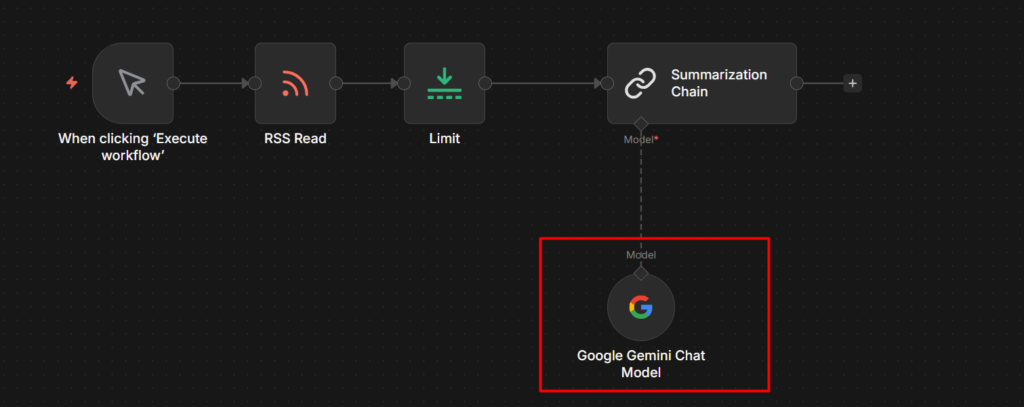
    Adding chat model to Summarization Chain

    Click the + icon on the Model connection point at the bottom of the Summarization Chain node. Search for Gemini and add Gemini Chat Model.

    In the Gemini Chat Model settings:

    • Credential: select your gemini credential
    • Model: 2.5 flash works well here – it’s fast, cheap, and more than capable for summarization.

    Step 6: Run it and Check the Output

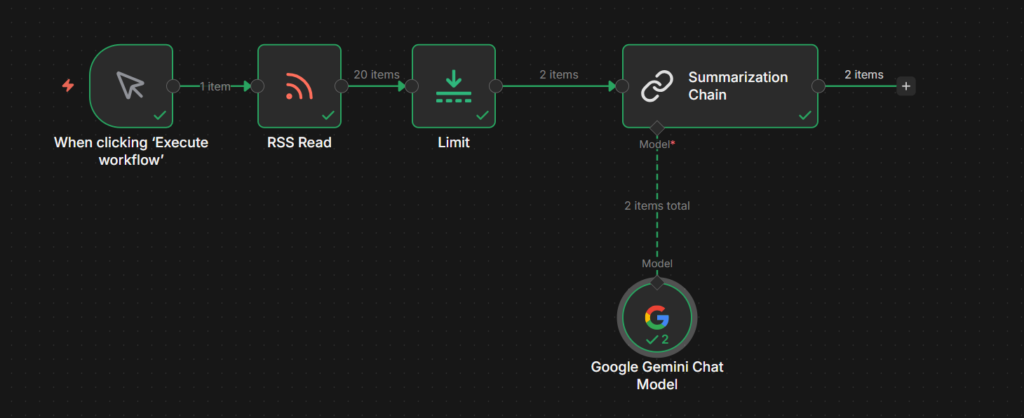
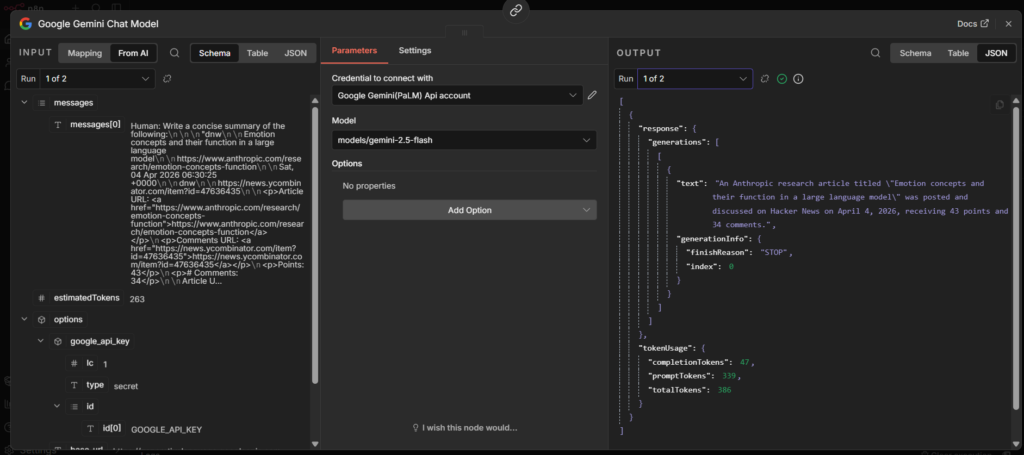
    Summarization Chain output

    Execute the workflow. Click the Summarization Chain node after it runs.

    The output will look like this:

    Summarization Chain final output

    The summary lives inside response.text. This trips people up the first time – the output isn’t just a plain string, it’s nested inside the response object.

    To use the summary in the next node, reference it with

    {{ $json.response.text }}

    So if you’re sending to Slack, you message field would be

    {{ $json.title }}: {{ $json.response.text }}

    That’s the complete workflow. Manual trigger > RSS Read > Limit > Summarization Chain > Wherever you want the summaries to go.

    To understand more about how data flows between nodes like this, the n8n workflow nodes and data flow guide has a solid breakdown.

    When to Use This Instead of AI Agent

    The rule is simple. If the task is “text goes in, summary comes out” use the Summarization Chain. It’s purpose-built for that, it’s straightforward to configure, and it costs fewer tokens than routing through an agent.

    Use an AI Agent when you need any of the following like memory across multiple interactions, the ability to call external tools or APIs during the tasks, or multi-step reasoning where the model decides what to do next. Agents handle complexity. Chains handle one defined task.

    For batch summarization, processing a list of articles, emails, or documents in a workflow – The Summarization chain is the right choice every time.

  • How to Use Telegram Bot in n8n (Send Messages Receive Them)

    How to Use Telegram Bot in n8n (Send Messages Receive Them)

    Telegram is one of the best notification layers you can add to an n8n workflow. It’s Free, instant, and works on every device, and the bot API is genuinely simple to work with.

    There are two ways people use it. Pushing messages out to Telegram from a workflow (alerts, reports, notifications), and receiving messages from Telegram to trigger a workflow. This post covers both + practical implementations that saves your time.

    Before we dive into the workflows, you’ll need two things. a Telegram account, and n8n instance, If your just getting started, n8n cloud is the easiest choice and recommended – no server setup, and webhook work out of the box. If you’re self hosting locally, it takes a bit time to configuration, but don’t worry – I’ve covered those steps as well.

    Step 1: Create Your Bot With BotFather

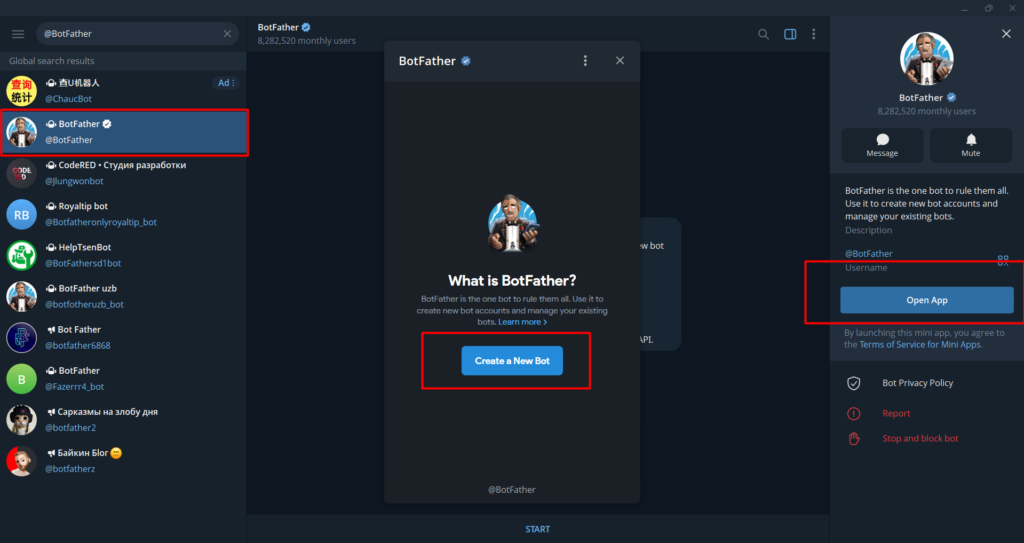
    configuring botfather for the first time

    Every Telegram bot starts here. BotFather is Telegram’s official bot for creating and managing other bots.

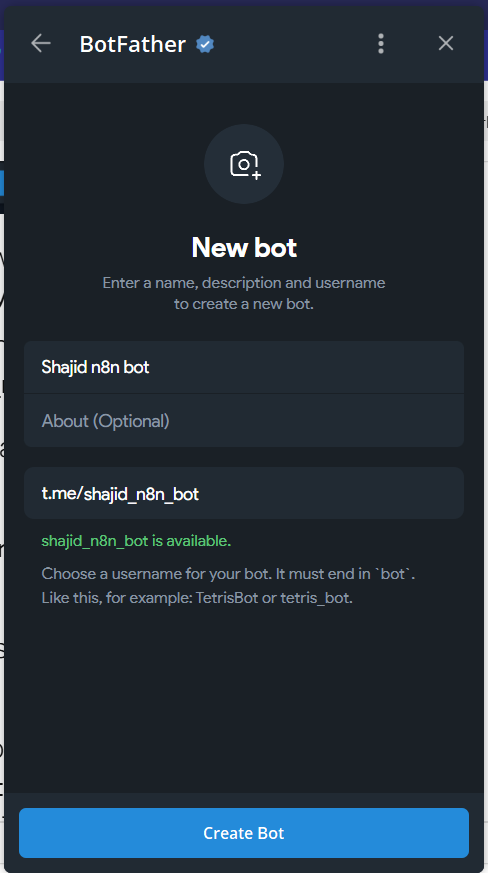
    Open Telegram and search for @BotFather. Start a conversation and send /newbot or you can just click on Open App to Create a new bot.

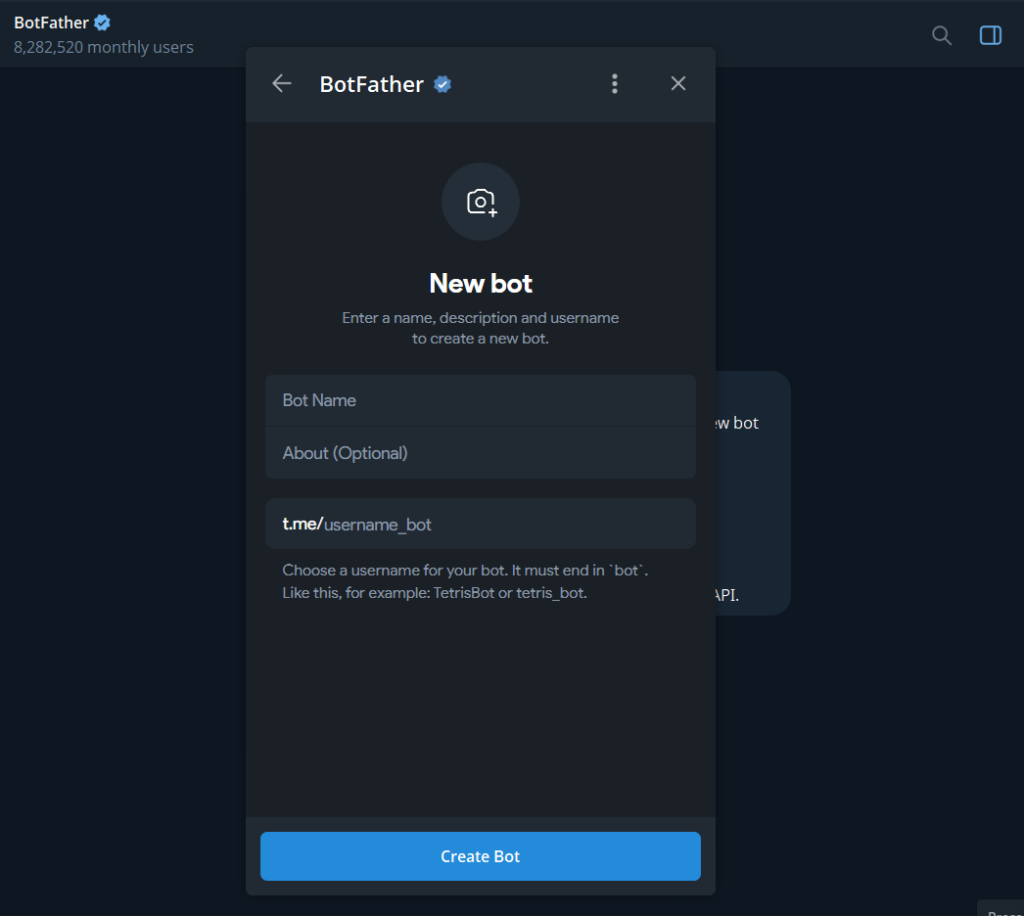
    BotFather will ask you two things

    creating a new telegram bot
    • A display name – This is what users see in the chat header. Can be anything. Example: My n8n bot
    • A username – must be unique across all of Telegram and must end in bot. Example: my_n8n_alerts_bot
    verifying bot username

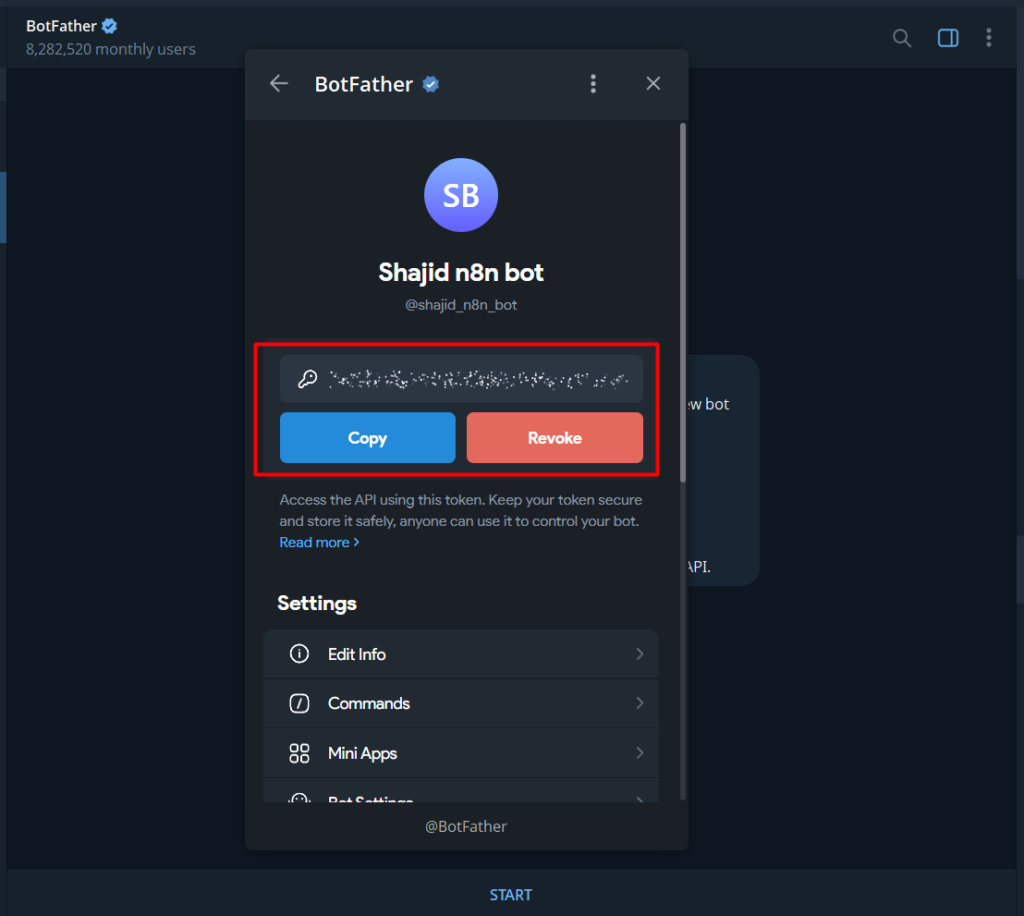
    Once you confirm both, BotFather sends you a bot token that looks like this

    Generating the telegram bot token

    7512938401:AAFx9Kd2mNpQrTvWxYzAbCdEfGhIjKlMnO – This is for just an example.

    Copy that token and keep it somewhere safe. You’ll paste it into n8n in the next step.

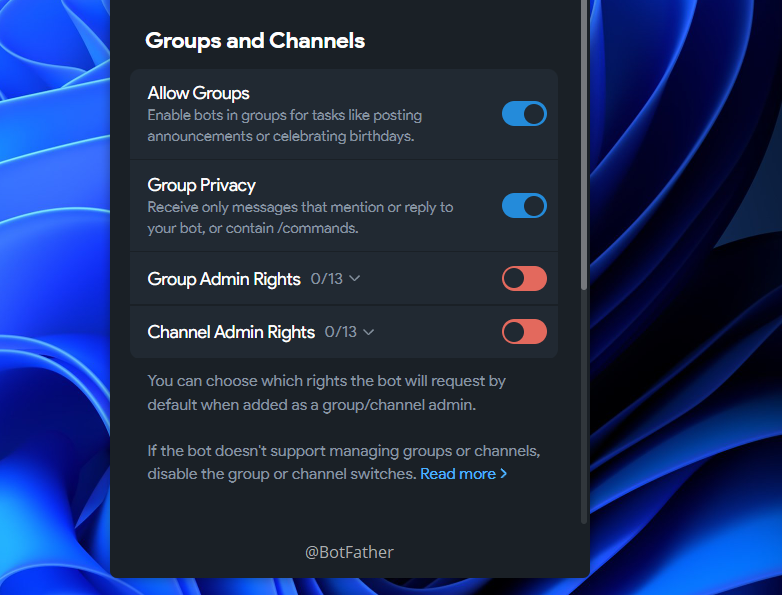
    If you’re building a bot for group chat, do one more thing before leaving BotFather. Send /setprivacy, select your bot, then choose Disable. By default, Telegram bots in groups only receive messages that directly mention them. Disabling privacy mode lets the bot see all messages in the group, which is almost always what you want when building automation workflow.

    Or else, you can directly to the Thread settings and just toggle it. Simple as pie. We cover all the methods 🙂

    Editing bot group privacy in telegram

    Step 2: Connect Telegram to n8n

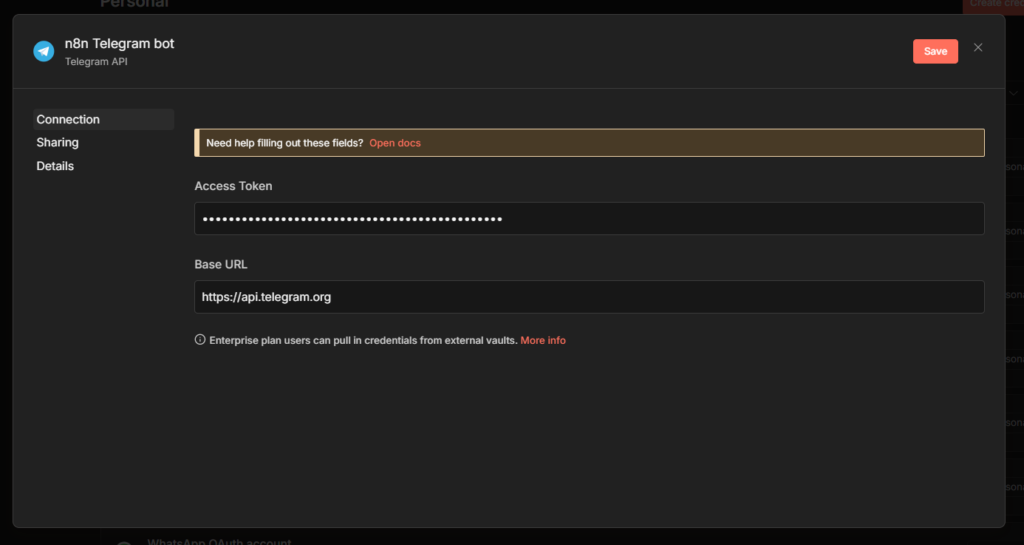
    In n8n, Go to credentials, and add credentials – search for Telegram API.

    Connecting telegram to n8n

    Paste your bot token into Access Token field. Give the credentials a clear name like My Telegram Bot so you can identify it later across multiple workflows. Save it, n8n tests the connection automatically.

    Getting Your Chat ID

    Almost every telegram node configuration requires a Chat ID. This is the unique identifier for the conversation your bot will send messages to. Your personal chat with the bot, a group or a channel.

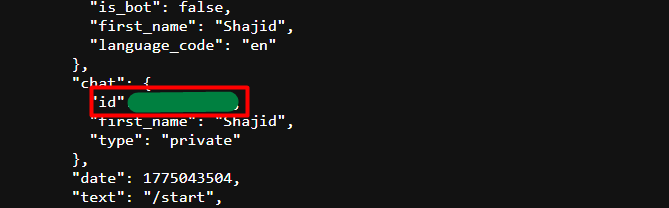
    The easiest way to get it, send your bot any message in Telegram, then open this URL in your browser (replace with your actual token)

    https://api.telegram.org/bot<YOUR_TOKEN>/getUpdates

    Look for the chat object in JSON response. The id field inside it is your Chat ID. For personal chats it’s positive number. For groups, prefix it with a - when you use it in n8n.

    retrieving the chat ID from the telegram chat in n8n

    The other way is use the Telegram trigger node in n8n (Already covered in the Use Case 2) When a message comes in, it automatically provides the Chat ID in the output – no manual lookup needed though.

    For more on setting up credential across different services. The n8n credentials guide covers the full process.

    Use Case 1 – Sending Notification to Telegram

    This is the most common setup. Something happens in another app, n8n sends you a Telegram message about it.

    The example here is a Google Sheets row being added > Telegram alert. The trigger doesn’t matter much – you can swap it for a Schedule trigger, a Webhook, a Gmail trigger, anything. The Telegram node at the end works the same way regardless.

    Step 1: Add Your Trigger

    For this example, use simply manual trigger.

    Step 2: Add the Telegram Node

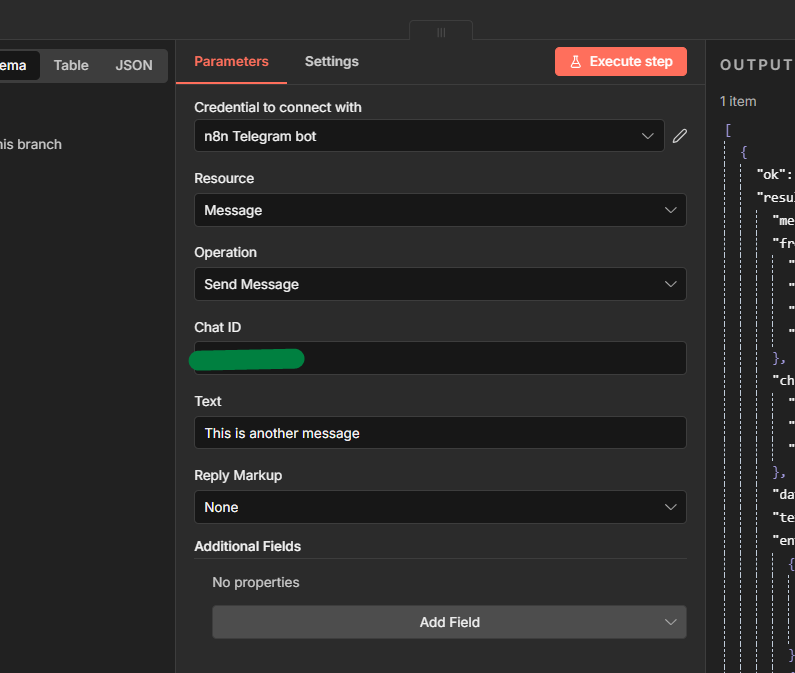
    Click + after the trigger and search for Telegram. Select Send a Text Message.

    connecting a send message telegram node in n8n

    Configuration:

    • Select the Telegram credential you created
    • paste your Chat ID (the number you retrieved above)
    • Write your message or maybe you can just pull the data from anywhere else.

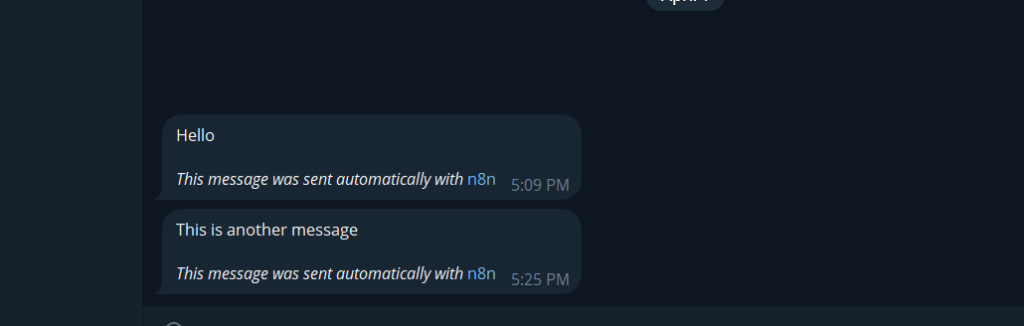
    Now you send messages to your bot.

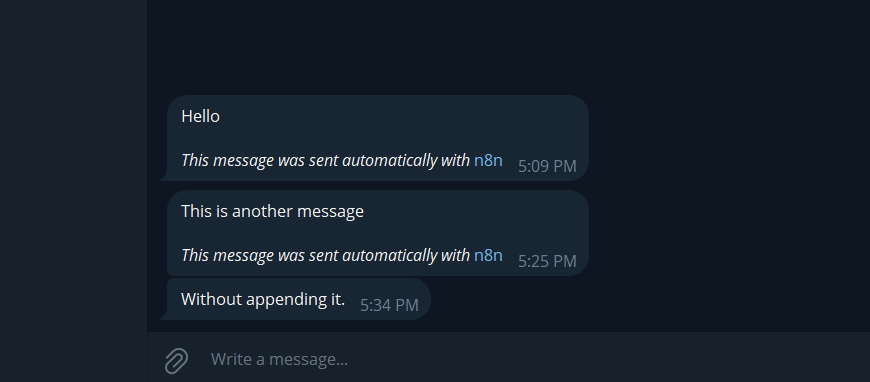
    showing the telegram output with n8n

    Step 3: Turn Off the n8n Attribution

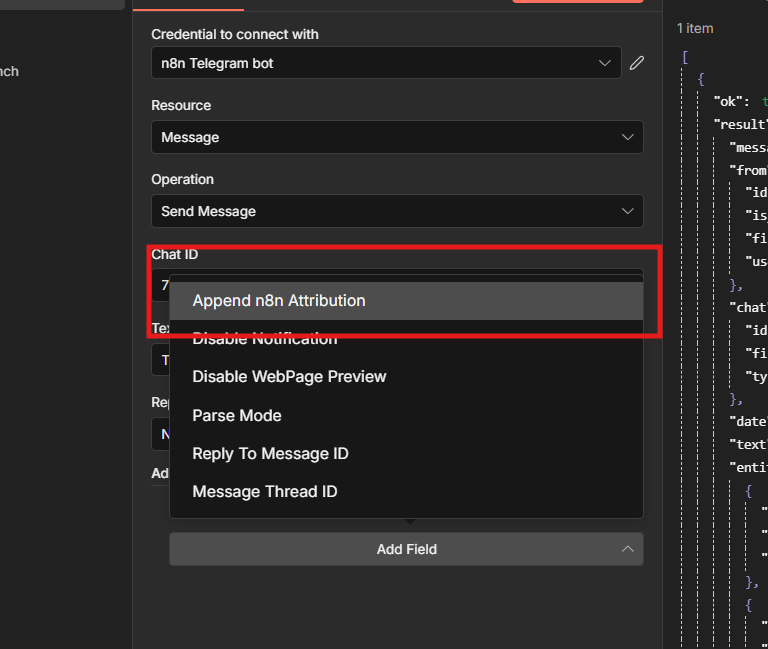
    By default, n8n appends a small “This message was sent automatically via n8n” line to every telegram message. Most people don’t want that in production.

    removing the attribution for telegram messages

    To remove it: Additional Fields > Add Field > Append n8n Attribution > toggle off.

    removed n8n attribution in n8n

    That’s the full outbound notification workflow. Trigger > Telegram Send message > done. Test it by executing the workflow manually and checking your telegram chat.

    Use case 2 – Receive Messages and Respond

    This flips the direction. Instead of n8n pushing messages out, Telegram messages come in and trigger your workflow. The Telegram trigger node listens for incoming messages via webhook that n8n registers automatically when you activate/publish the workflow.

    One important catch: If you’re using n8n cloud or self-hosting on a VPS, webhook works out of the box. But if you’re running n8n locally, Telegram can’t reach your machine from the internet. To solve this, you need to expose your localhost using a tool like ngrok, which creates a secured public tunnel. Just set the ngrok HTTPS URL as your webhook URL when starting n8n and the Telegram Trigger will work normally.

    Read here: Webhooks in n8n explained

    Here’s the configuration if you’re using locally hosted n8n with docker to expose Telegram Trigger.

    • Make sure to read the Webhooks in n8n explained and understand the context of how Webhooks working in n8n
    • Start ngrok in your terminal ngrok http 5678
    • Copy the HTTPS forwarding URL (e.g., `https://xxxx.ngrok-free.dev`)
    • Stop your current n8n container
    • Restart it with the WEBHOOK_URL environment variable added docker run … --env=WEBHOOK_URL="https://xxxx.ngrok-free.dev" … n8nio/n8n

    Once restarted, your Telegram Trigger webhook will register successfully. The free ngrok plan gives you a new URL every time you restart it. That means you need to update WEBHOOK_URL and restart your container each time.

    Part A – Simple Reply Bot

    This is a foundation workflow. Get this working first before we add any logic to it.

    Step 1: Add the Telegram Trigger

    Create a new workflow. Add a Telegram trigger node as first step.

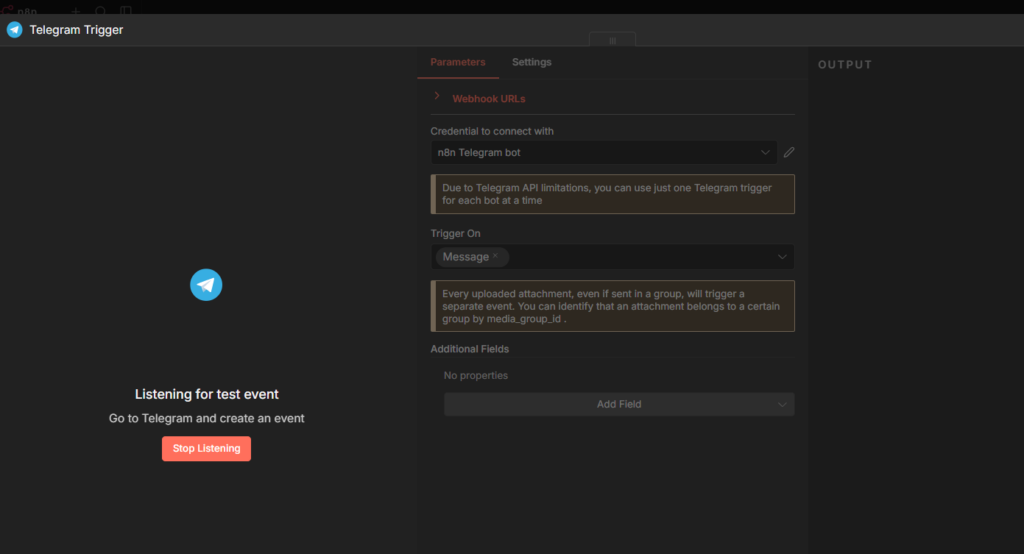
    listening to telegram trigger webhook

    Configuration:

    • Your telegram credentials
    • Updates to watch, select Message

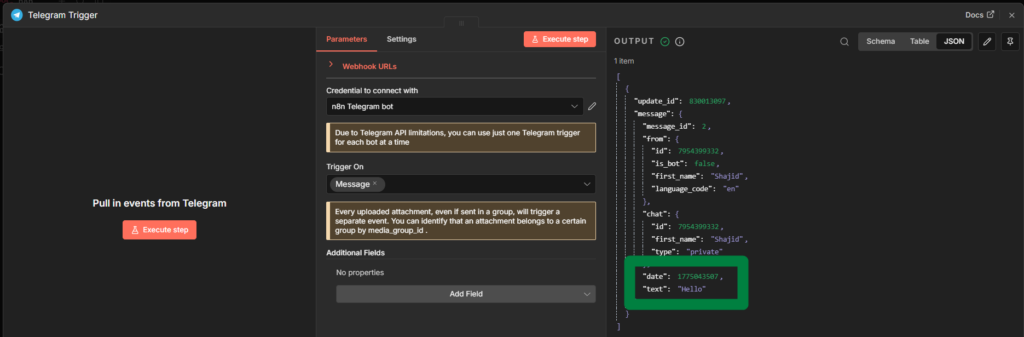
    Click Listen for Test Event, then open telegram and send your bot any message, something like hello. The Telegram Trigger node will show the incoming payload in the output panel.

    telegram webhook payload in n8n

    the two fields you’ll use constantly

    chat.id – the chat ID of whoever sends the message

    text – the actual message text they typed

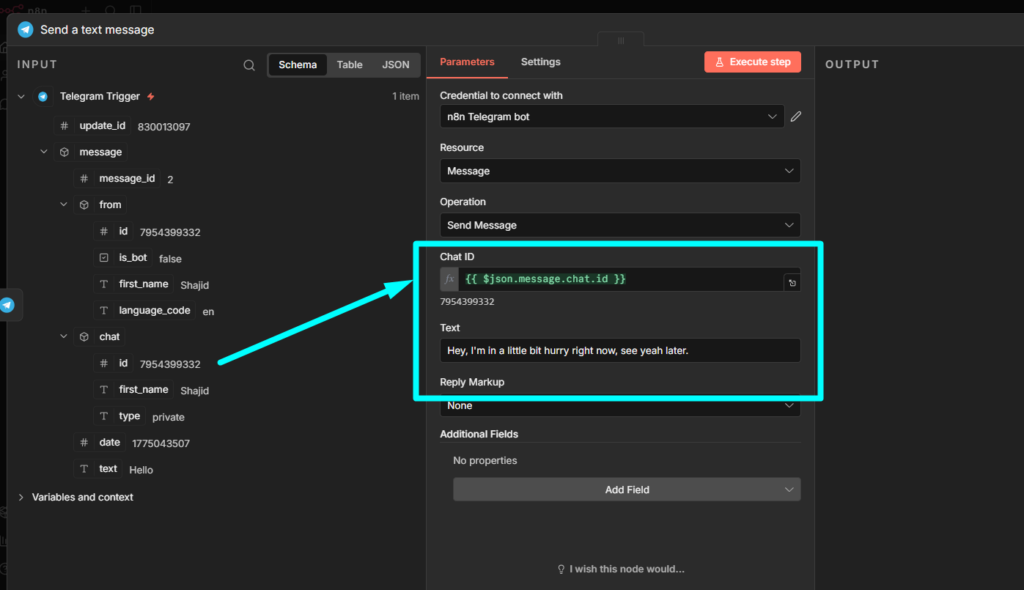
    The Chat ID from the trigger is dynamic – it automatically point back to the person who sent the message. You never need to hardcode Chat ID in a reply workflow.

    Step 2: Add the Telegram Send Message Node

    Click + after the trigger and add Telegram > Send message node.

    Configuration:

    • Your telegram credentials.
    • Chat ID
    • Text: whatever you want the bot to reply.

    For a simple echo bot that repeats what user said

    mapping chat ID to telegram node

    You said: {{$json.message.text}}

    or a fixed response maybe, like “Thanks for your message, I’ll reply shortly”

    Execute the workflow, send your bot a message in Telegram, and you should see the reply come back within a second or two. That’s the full loop. Receive, Process, Reply

    Publish the workflow when you’re ready to go live. n8n registers the Telegram webhook automatically at that point.

    testing telegram bot in n8n

    Part B: Command Based Bot

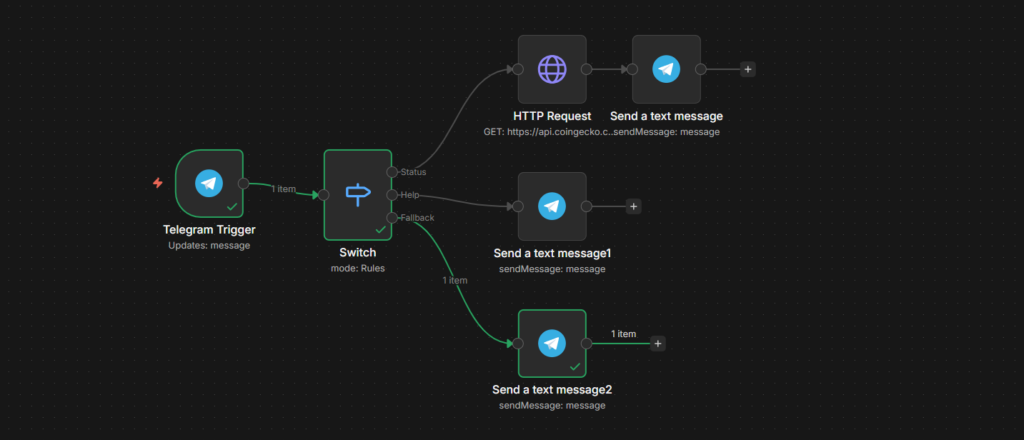
    command based telegram bot in n8n

    Now that part A works, extend it with a Switch node to route different commands to different actions. This is the pattern behind most real Telegram bots.

    The idea: user sends /status or /help, the bot does something different for each.

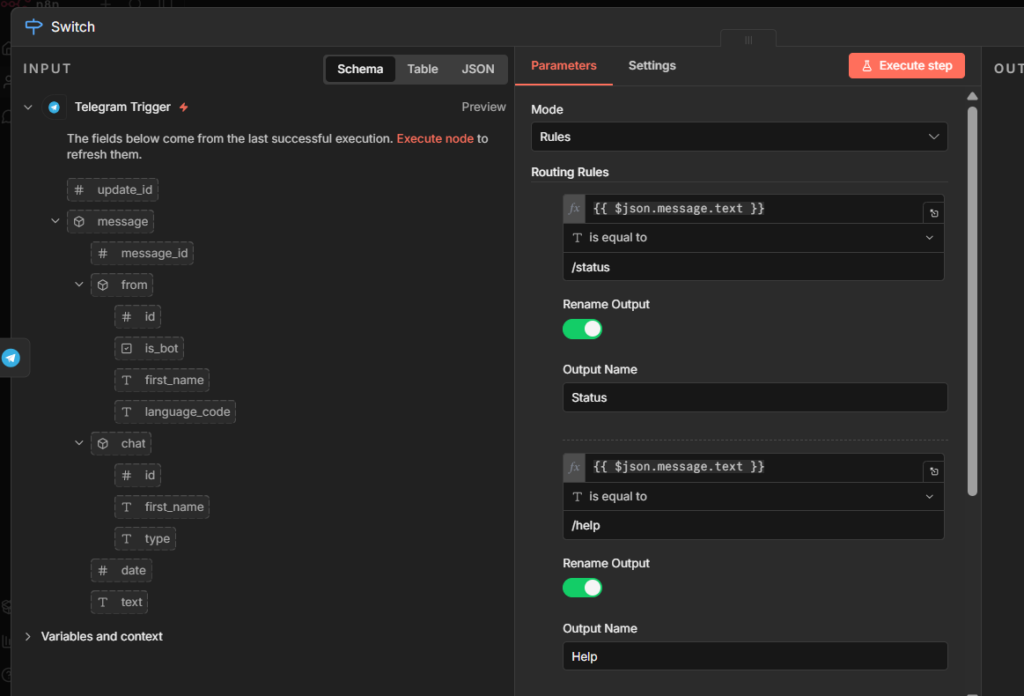
    Step 1: Add a Switch Node

    Insert a Switch Node between telegram trigger and send message node.

    configuring the expression rule in n8n for telegram bot

    Set Mode to Rules – Add two rules.

    • Rule 1: {{ $json.message.text }} equals /status – Output 1
    • Rule 2: {{ $json.message.text }} equals /help – Output 2
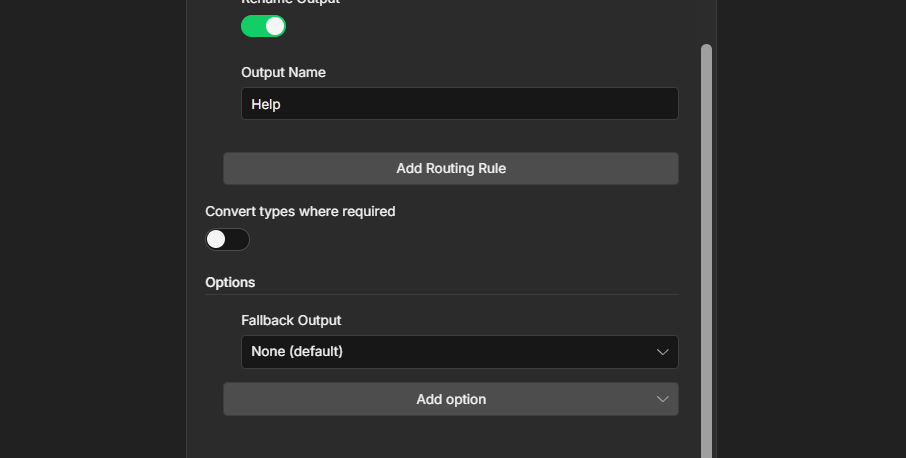
    adding fallback output in switch node

    Add a third output for anything else. Set it as Fallback output. This catches messages that don’t match any command.

    Read more

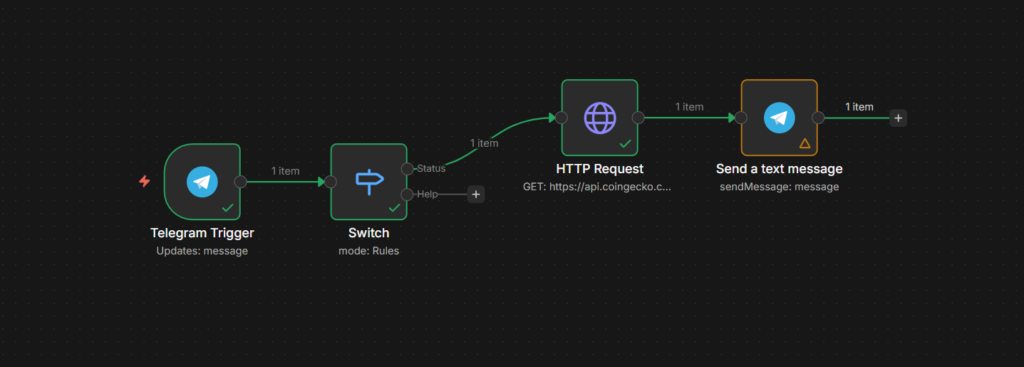
    Step 2: Build the /status Route

    adding statuses for switch node

    On the /status output, add an HTTP Request node. Point it any public API that returns useful data. A simple example – current bitcoin price.

    testing telegram bot in n8n

    Step 3: Build the /help Route

    On the /help output, skip the HTTP request. Just add the Telegram send message node directly.

    • Chat ID:
    • Parse Mode: HTML
    • Format your text
    <b>Available commands:</b>
    
    /status — get the current BTC price
    /help — show this message
    telegram bot

    Step 4: Build the Fallback Route

    On the fallback route, add a final Telegram send message node.

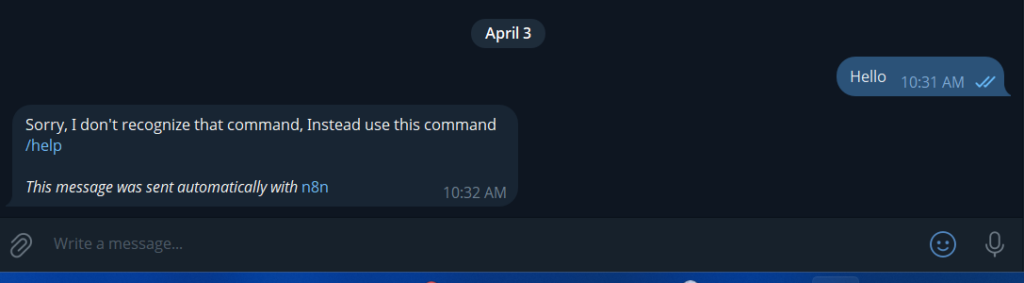
    • Text: Sorry, I don't recognize that command Send /help to see what I can do

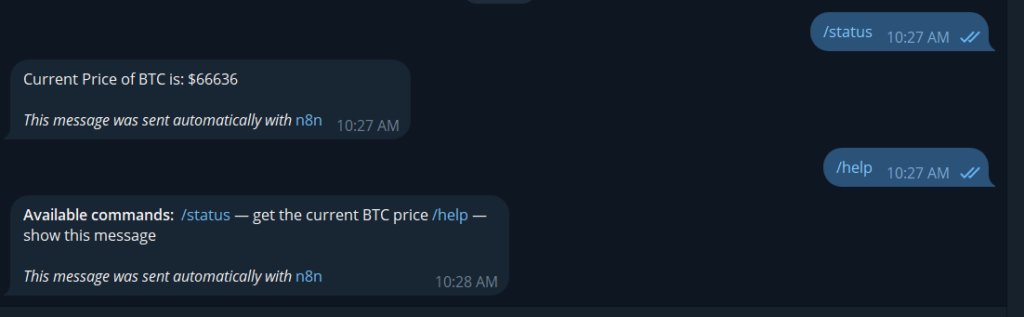
    Publish the workflow now, send /status to your bot – It should definitely respond with the price. Send /help – it should reply with the command list. Send anything else besides these commands, then it will send I don’t recognize it based on what you’re prompted on the fallback route.

    telegram bot command based in n8n

    That’s working command-based bot. From here you can replace HTTP request with anything, a google sheet maybe, a database query or AI agent’s response. The Switch route – reply pattern will be same. If you want to just wire an LLM into one of the routes, check it out our AI Agent guide here – Shows exactly how to set that up

    One Bot, One Active Webhook

    • Telegram only allows one Webhook URL per bot at a time
    • Two workflows using the same bot token = only the latest activated one receives the messages, other silently stops without any errors
    • As a fix: Use a single active Telegram Trigger and route logic inside it using IF or Switch nodes.
    • Need separate workflows? Create separate bots in BotFather, each with it’s token.

    Telegram Trigger Stuck or Not Firing (self-hosted n8n)

    • Telegram Trigger uses webhooks; Telegram’s servers must reach your n8n instance via a public HTTPS URL
    • Running locally or behind a reverse proxy without HTTPS/Websocket support = Trigger silently fails or get stuck
    • This is a network config issue, not Telegram one. Check your webhook setup and ensure HTTPS is properly configured

    Let’s Wrap This Up,

    Telegram and n8n is one of those combinations that just works. You get a free, reliable messaging layer on top of any automation you build, without dealing with email deliverability, app push notification complexity, or paid SMS services.

    Start simple. Get the outbound notification working first, send yourself an alert from a trigger you actually use. Then move to the reply bot once that feels solid.

    The command based pattern in Part B scales further than it looks. Most production bots are just that same Switch node pattern with more routes and smarter logic behind each one.

    The only real friction is the webhook setup on localhost, and now you know exactly how to handle that with ngrok and the Docker environment variable approach.

    From here, the natural next step is wiring an AI agent into one of your bot routes so it can handle freeform questions, not just fixed commands. That turns a simple command bot into something that feels genuinely intelligent to whoever is using it.

  • How to Use the Simple Memory Node in n8n (Beginner’s Guide)

    How to Use the Simple Memory Node in n8n (Beginner’s Guide)

    You built your first AI Agent in n8n. It responded well, sounds smart, and handles questions exactly how you configured it.

    Then you type “What did I just tell you?

    And it says “I don’t have information about that

    That’s not a prompt problem. Your agent has no memory of it. Every single message it receives feels like the first one, a completely fresh conversation with no context of what came before.

    The Simple Memory fixes this. Here’s how to set it up correctly, what the settings actually mean, and the two mistakes that will silently break your workflow if you skip this post.

    What the Simple Memory Actually Does?

    When you send a message to an AI Agent in n8n, the request goes to an LLM like Claude or Gemini. The LLM processes that one message and sends back a response. That’s it. No memory of previous turns each API call is completely independent by design.

    The Simple Memory sites between your chat trigger and your AI Agent and solves this by keeping a rolling of log of recent conversation exchanges.

    Before each new message goes to the LLM, n8n injects the recent chat history into the request automatically. The LLM now has context.

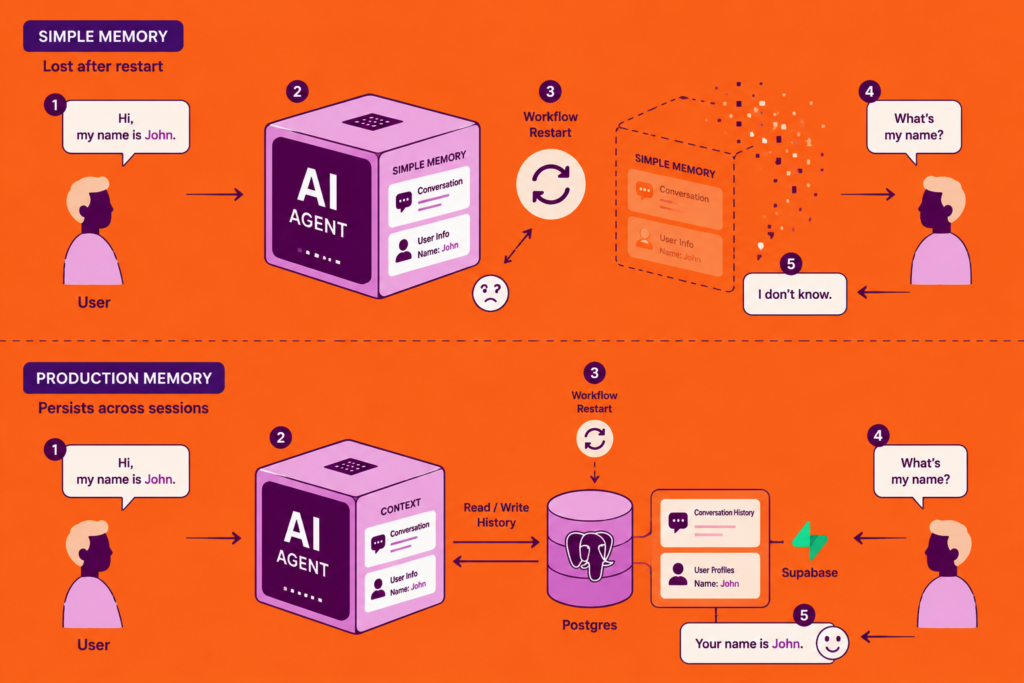
    One important thing to understand upfront is, This memory lives inside your n8n instance’s process. It’s not saved to a database. If your n8n instance restarts, all conversation history clears. For prototyping and internal tools, that’s usually fine. For production chatbots with real uses, I’ll cover that at the end.

    How to Add Simple Memory to an AI Agent

    If you already have a workflow with an AI Agent node set up, adding memory takes less than 5 seconds.

    Step 1

    connecting AI Agent to n8n

    Open your workflow on the canvas. Find your AI Agent node.

    Step 2

    Connecting simple memory node to n8n workflow

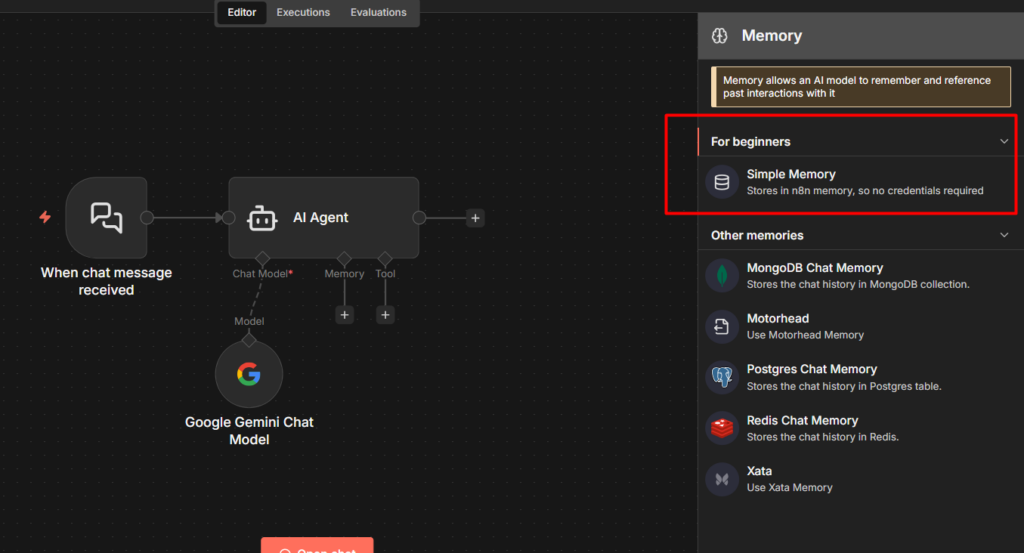
    At the bottom of the AI Agent node, you’ll see a connector labeled Memory. Click it.

    Step 3

    A panel opens with available memory nodes. Select Simple Memory

    A new node appears connected to your AI Agent via the memory connector.

    Step 4

    Configuring simple node in n8n

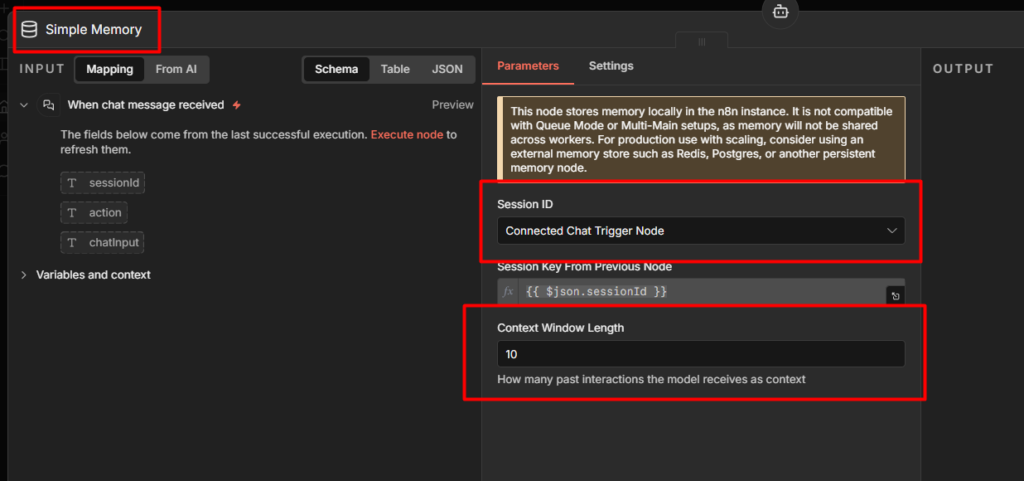
    Click into the Simple Memory node to configure it. You’ll see two things

    • Session Key: The identifier that groups messages into a conversation. When you’re using the On Chat Message trigger, n8n fills this automatically from the sessionId passed in the request. You don’t need to touch it.
    • Context Window Length: How many recent exchanges to keep in memory. The default is 5.

    Step 5

    Save your workflow and test it. Open the chat, tell the agent your name, send a few more messages, then ask it to recall something you said earlier.

    It will remember.

    If you don’t have an AI Agent workflow yet. Start here: How to Build an AI Agent in n8n

    What “Context Window Length” Actually Means?

    This setting trips up almost everyone at the first time.

    Context Window Length counts exchanges, not individual messages. One exchange = one message from you + one reply from the AI. That’s two messages stored.

    If you set it to 5, the agent keeps the last 5 exchanges – 10 messages total in the memory.

    Context Window LengthExchanges RememberedMessages in Context
    112 (1 user + 1 AI)
    5 (default)510
    101020

    Why does this matter? Because every message in the context window gets sent to the LLM on each new request. A window of 10 means 20 messages worth of tokens on every call. At scale, that adds up fast in both cost and response latency.

    For most use cases, the default of 5 works well. If your conversations are short and task-focused (book an appointment, answer a product related questions), you can drop it to 3. If you’re building something more conversational where users reference things from much earlier, bump it up to 8 or 10 – just know you’re trading off token cost for context depth.

    2 Common Errors and How to Fix Them

    “No sessionId” error

    This one shows up when you’re triggering your AI Agent from something other than On Chat Message trigger, a Webhook, a Scheduled trigger, or a manual test run.

    This Simple Memory node expects a session identifier to know which conversation it’s working with. The On Chat Message trigger provides this automatically. Everything else doesn’t.

    How to fix it for testing? Open the Simple Memory node and manually type a static value into the Session Key field – something like my_test_session. This tells the node to treat all requests as part of one conversation. It works fine for building and debugging.

    How to fix it for production? If you’re triggering your agent from a webhook, you need to pass session identifier in the request and map it to the Session Key field. For a customer support bot, that might be the user’s email address or account ID. For a telegram bot, It’s the chat ID. Whatever uniquely identifies a conversation for your use case.

    {{ $('Webhook').item.json.body.userId }}

    Map that expression to the Session Key field and every user gets their own isolated memory. See how to handle errors in n8n if you want to add proper error handling around sessions that fail to resolve.

    Two memory nodes reading from the same session

    If you add more than one Simple Memory node to the same workflow without changing their Session Keys, they both read from and write to the exact same memory. This causes weird behavior, one part of your workflow may overwrite context that another part needs.

    The fix is simple, give each Simple Memory node its own unique Session Key. Something like workflow_a_session and workflow_b_session keeps them separate.

    One Limitation You Must Know Before Going Live

    Simple Memory does not work if your n8n instance runs in queue mode.

    Queue mode is a self-hosted setup where multiple worker processes share the load. When a workflow executes, n8n routes it to whichever worker is free. The Simple Memory node stores data inside the worker’s process memory, not in a shared database. If two consecutive messages from the same user land on different workers, the second worker has no idea what the first one stored.

    The result isn’t an error. The agent just loses memory mid-conversation, silently with no warning.

    Who this affects: If you’re running self-hosted n8n with Redis and multiple workers enabled, this is your setup. If you’re on n8n Cloud or a Single-instance self-hosted setup, you’re fine.

    What to do instead: Switch to the Postgres Chat Memory node. It stores conversation history in a database that every worker can access.

    When to Replace The Simple Memory

    Simple Memory is the right starting point. Zero configs, nothing to provision, works immediately.

    But there are two situations where you’ll need to replace it.

    You’re going to production with real users. Simple Memory clears on restart. If your n8n instance ever updates, redeploys, or crashes, every active conversation loses it’s history. Users will notice. For anything facing real users, migrate to the Postgres Chat Memory node before you launch.

    You’re running in queue mode. As covered above, Simple Memory and queue mode don’t work together. Postgres is the standard replacement here too (or Redis Chat Memory).

    The migration is straightforward. Set up a Postgres database, add your credentials to n8n, and swap the Simple Memory node for the Postgres Chat Memory node. n8n creates the required table structure automatically on first run.

    Redis Chat Memory is also an option if you need very fast read/write performance for high-traffic real-time applications. For most teams, Postgres is the simpler and durable choice though.

    Once you have memory working correctly, the next thing worth exploring is what happens when you need the agent to manage that memory – Injecting system context, clearing history on demand, or inspecting what’s currently stored. That’s what the Chat Memory Manager node is for, and it connects to whichever memory node you’re already using.

    Check it out here: Building a Rate Limiter in n8n with Upstash Redis

    Final Thoughts

    None of this requires being an expert. It requires being willing to build something, break it, understand why, and built it better.

    The developers who create genuinely useful AI agents aren’t the ones who read the most about AI. They’re the one who ship something working, notice where it falls short, and keep iterating.

    You now know how memory works in n8n. You know the tradeoffs, the failure modes, and when to upgrade. That puts you ahead of most people who just drop a node and assume it works.

    Go build something worth remembering

  • How to Build an n8n AI Agent Workflow (Step-by-Step 2026)

    How to Build an n8n AI Agent Workflow (Step-by-Step 2026)

    An AI agent in n8n is a workflow that can think through a task, decide what to do, and act without defining every steps in advance.

    A normal n8n workflow follows a fixed path. If X happens, do Y. If Z happens, do W. Every branch has to be anticipated and built by you. That works well for structured, predictable tasks, syncing rows from a spreadsheet, sending a confirmational email, posting a Slack message.

    But a lot of real work isn’t structured. Incoming support messages don’t fit neat categories. Research tasks depend on what you find along the way. Lead qualification depends on context that’s different for every prospect.

    AI agents handle that kind of work. You give the agent a goal and a set of tools, and it figures out the steps. It reads the input, decides which tool to use, uses it, reads the result, and keep going until it has a complete answer.

    Concretely, an n8n AI agent can,

    • Answer questions by searching a knowledge base before responding
    • Triage incoming messages and decide whether to reply, escalate or log them
    • Research a topic by querying APIs and summarizing the findings
    • Enrich CRM records by pulling data from external services and writing it back
    • Draft content, check it against rules you define, and revise until it passes

    This post walks you through building your first one from scratch. By the end you’ll have a working agent, understand how memory actually works (and why Simple Memory burn you in production), and know about two features from early 2026 that most tutorials haven’t caught up to yet.

    Before You Start

    This tutorial assumes you have n8n running and atleast one AI API credentials ready. If you’re not setup yet, here’s what to sort first.

    An n8n instance. You have two options

    A language model API key. This tutorial uses Gemini (free tier available via Google AI Studio). You can also use Anthropic Claude or ChatGPT. Well, all work the same way. (However, we have listed the steps below that you could take to obtain an API key)

    Basic n8n familiarity. You should know what a node is and how to connect them. If you haven’t built anything in n8n yet, start with Your First Workflow in n8n – It takes about just 10 minutes or less.

    Let’s discuss a little bit about what is AI agent, and what makes AI agent feels more powerful than just a n8n workflow.

    What Makes an AI Agent Different From a Regular n8n Workflow

    A normal n8n workflow is like a recipe. Every step is predefined. If email contains “refund” > send template A. If it contains “Invoice” > send template B. The moment something lands outside those rules, the workflow either fails or does the wrong thing.

    An AI agent understand a goal and figures out the step itself.

    The same support inbox handled by an agent looks like this.

    • Read the message
    • Understand the actual issue
    • Check the customer’s history
    • Decide whether to respond directly, look something up or escalate

    The agent adapts. You don’t have to anticipate every edge case in advance.

    The tradeoff is real though, agents are less predictable than fixed workflows. For anything that needs deterministic, auditable results every time, like payroll processing ,database writes – a standard workflow is still the right tool. Agents shine when the input is unstructured and the right action depends on context.

    The 4 Components Every n8n AI Agent Needs

    Every AI agent in n8n built from the same four-part structure, regardless of what the agent actually does.

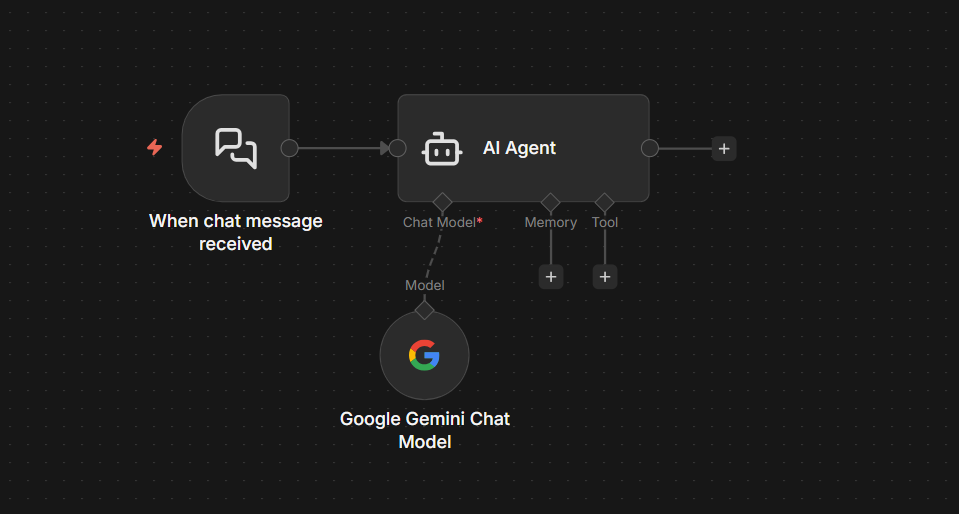
    1. Trigger – What starts the agent. This could be a Chat Trigger (for conversational agents), a Webhook (for integrating with external systems), a Scheduled Trigger, or even a form submission. The trigger passes the initial input to the agent
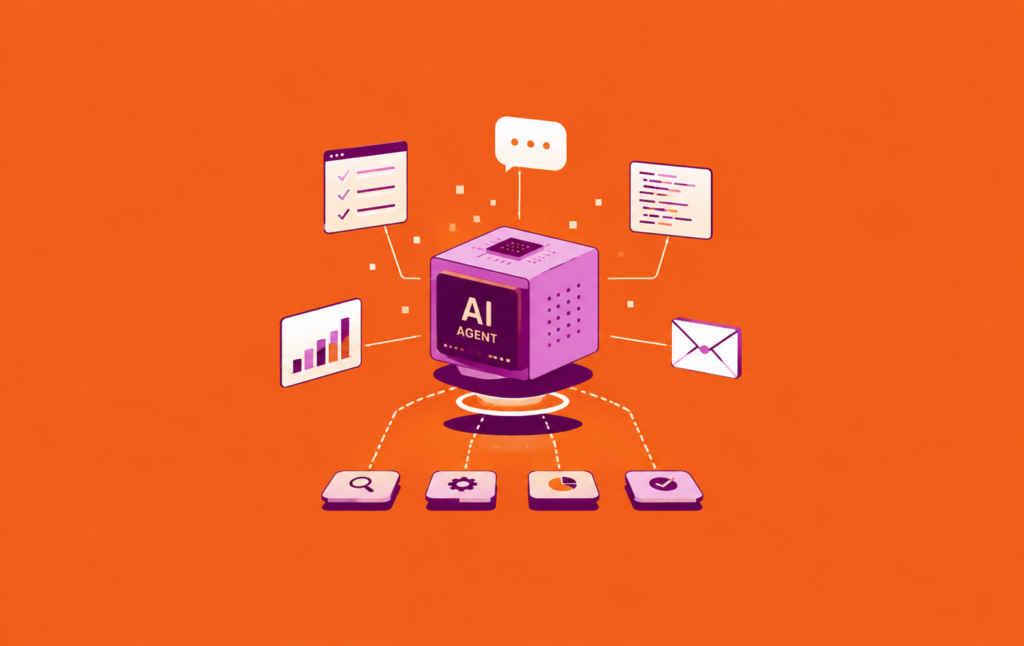
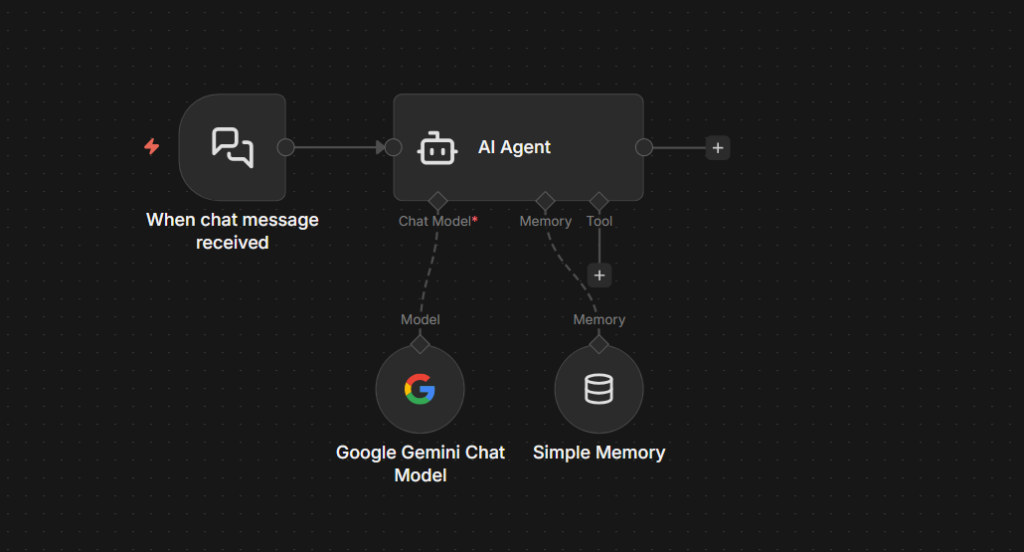
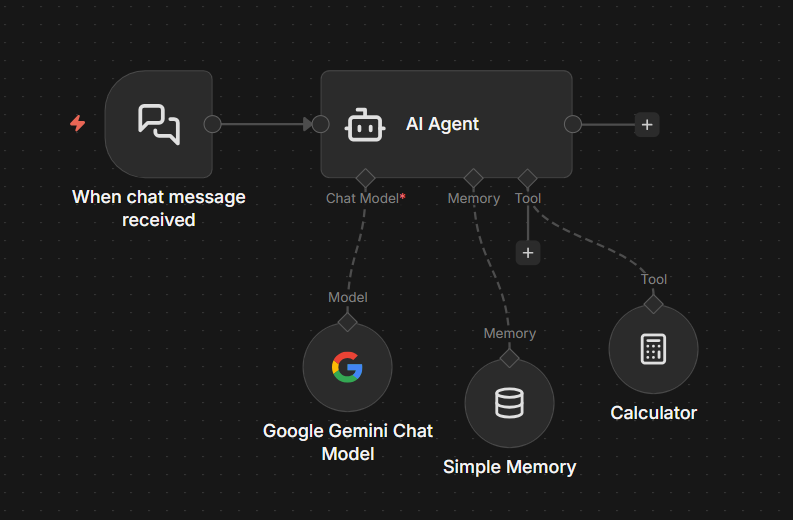
    2. AI Agent node – The orchestration layer. This node receives the input, sends it to your chosen language model, reads the model’s response, decides which tool to call (if any), calls it, checks the results, and loops until it has a complete answer. It’s the brain.
    3. Sub-nodes – The three types that connect directly to the AI Agent node.
      • Chat Model – The actual LLM (OpenAI GPT, Anthropic Claude, Google Gemini, Kimi K2.5, etc)
      • Memory – How the agent retains context across messages
      • Tools – What the agent can do (Call an API, search the web, run a calculation, query a database)
    4. Output – Where the results goes. This could be a reply in the chat interface, a Slack message, a row appended to Google Sheets, or anything else n8n’s integration library.

    This structure doesn’t change. Whether you’re building a simple Q&A bot or multi-step research agent, these four part are always there.

    Building Your First AI Agent (A Support Triage Bot)

    I’ll use a support triage agent as the example

    • It reads incoming messages.
    • Decides whether to answer directly or escalate, and responds.

    It’s practical, easy to understand, and shows exactly how the agent make decisions.

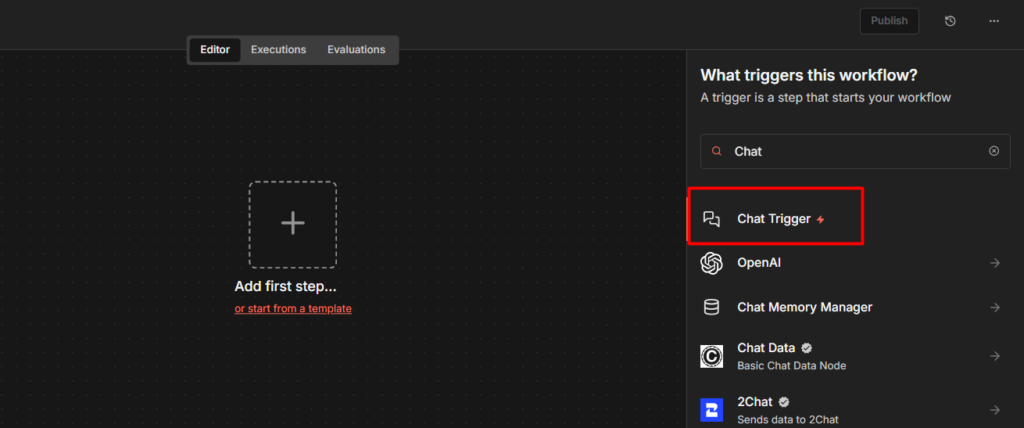
    Step 1: Add a Chat Trigger

    Adding a chat trigger in n8n

    Create a new workflow and add a Chat trigger node. This is the easiest way to start with agents because it gives you built-in chat interface to test with. No external services or webhooks needed while you’re learning the setup.

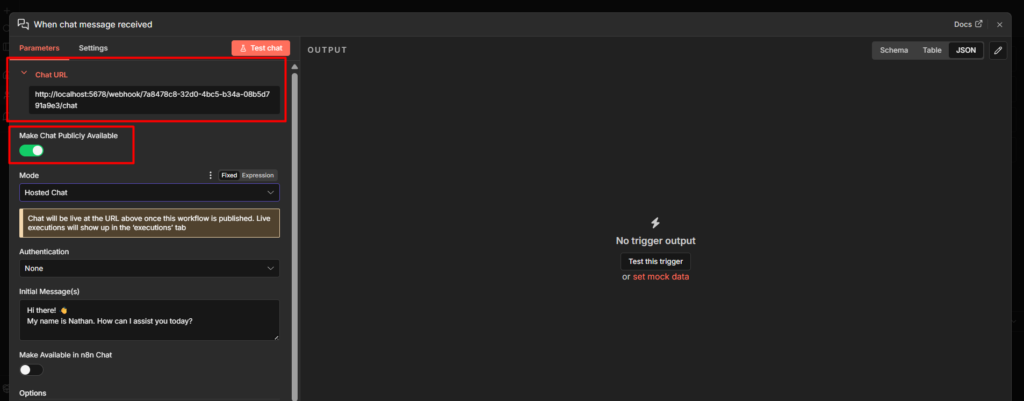
    Chat trigger creates a Chat URL

    The Chat Trigger creates a simple URL where you can open a chat window and send a test messages directly to your agent.

    Step 2: Add the AI Agent Node

    Add the AI Agent node to the Chat trigger

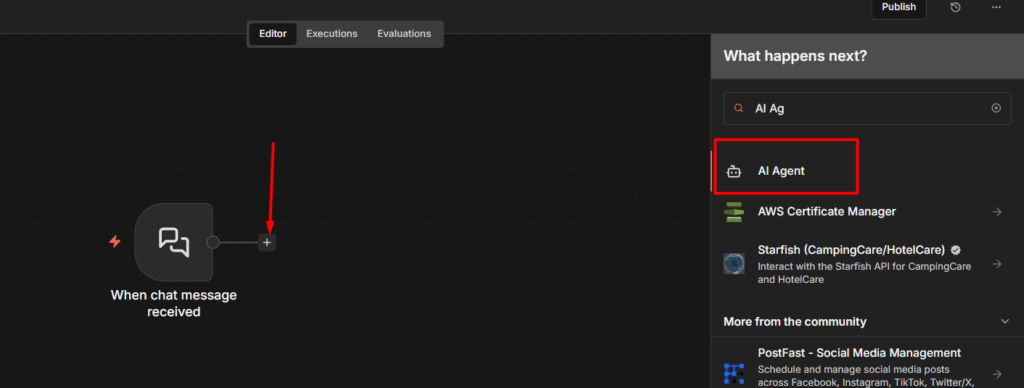
    Click the + button after the Chat trigger and search for AI Agent. Add it to the canvas and connect it to your trigger.

    Adding system message to n8n AI agent

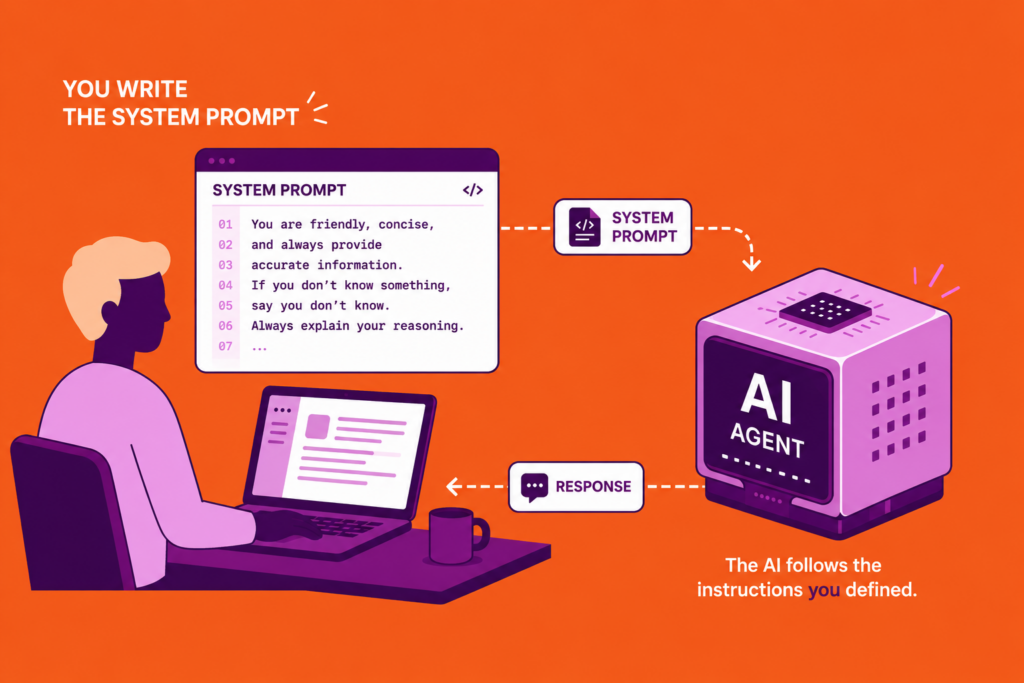
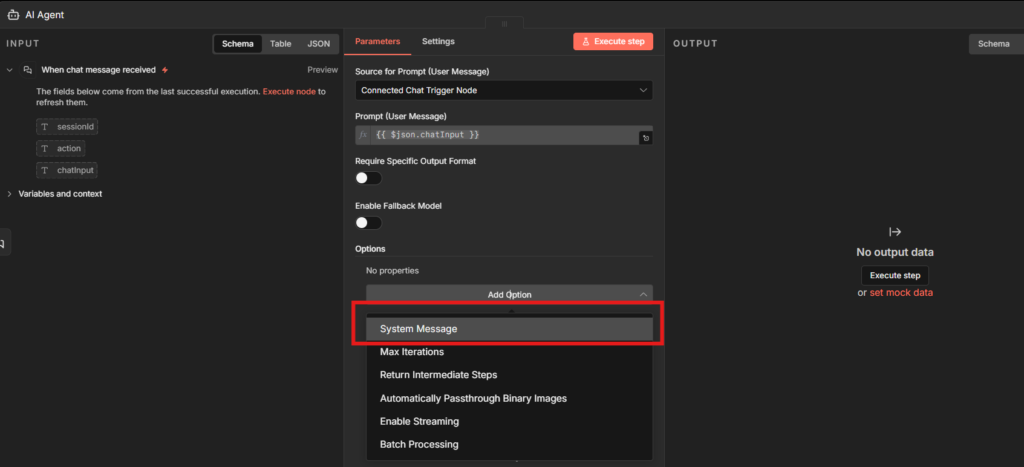
    Open the AI Agent node. The most important field here is the System Message. This is where you define who the agent is and what it’s supposed to do.

    Here’s a real example for the support triage agent

    You are a support agent for a SaaS product. Your job is to:
    
    1. Answer common questions directly if you can (password resets, billing basics, plan information)
    2. If the issue requires account-specific information you don't have, let the user know you're escalating to the team
    3. Always be concise. Don't pad responses with unnecessary filler.
    4. If the user seems frustrated, acknowledge it briefly before answering.
    
    You do NOT have access to account data unless a tool provides it. Don't make up information.

    The last line matters. Without explicit instructions about what the agent doesn’t know, it will sometimes hallucinate account details. Tell it what it can and can’t do.

    Step 3: Connect a Chat Model

    Connect the Chat Model to AI Agent in n8n

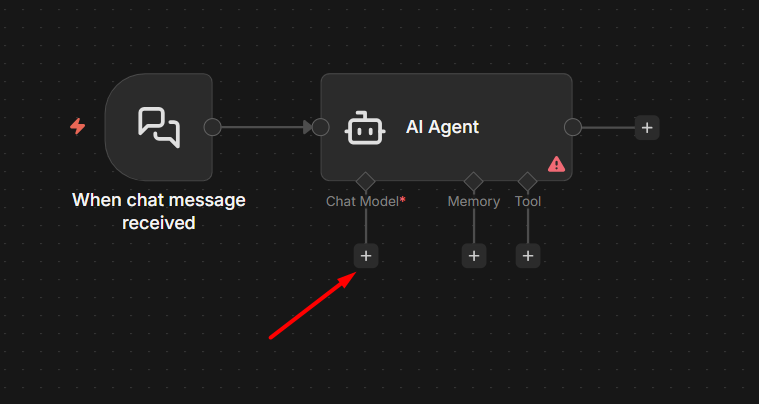
    The AI Agent node won’t do anything without a language model. Hover over the bottom of the AI agent node – you’ll see sub-node connector. Click the Chat Model connector and add a model node.

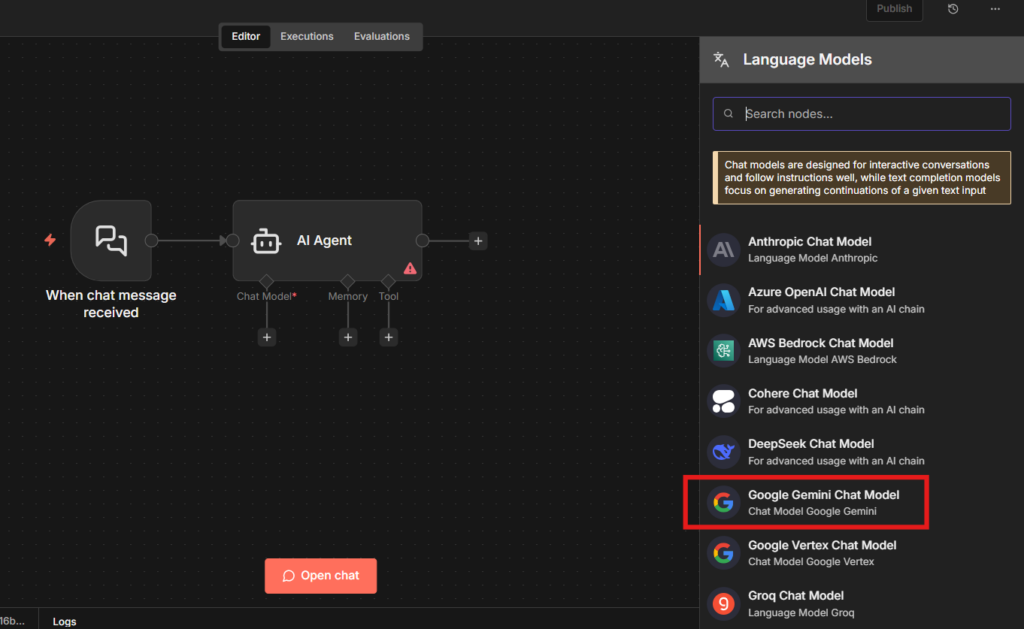
    Connect Google Gemini Chat Model

    For most use cases, I use Gemini, and for starting point Gemini, and Anthropic Claude are good.

    How to obtain Gemini API Key

    You don’t need to manually create a Google Cloud Console project to get a Gemini API key, one will be created automatically when you generate the key.

    If you don’t have the credentials setup yet, the credentials setup guide walks through exactly how to add them (For Google Cloud Console)

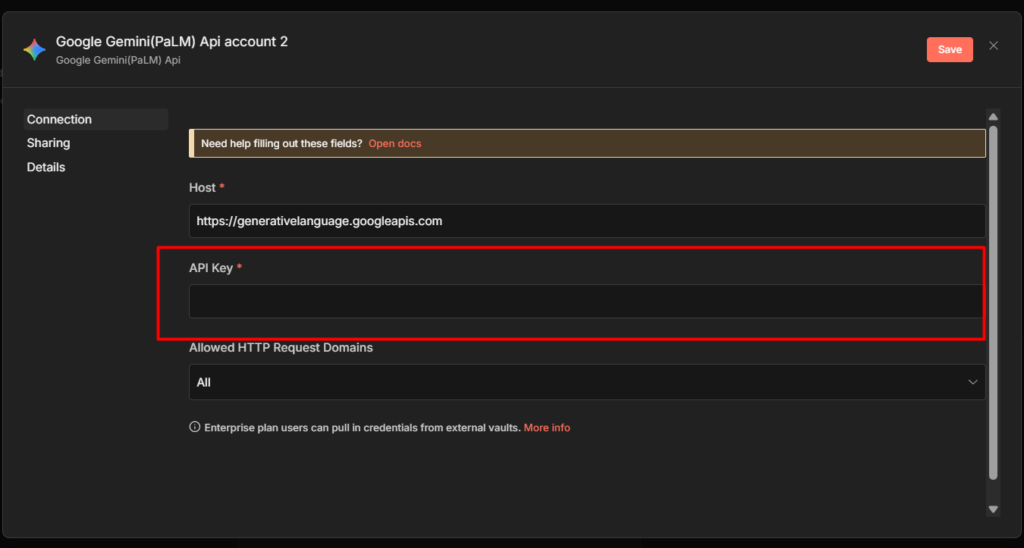
    Place your API Key here

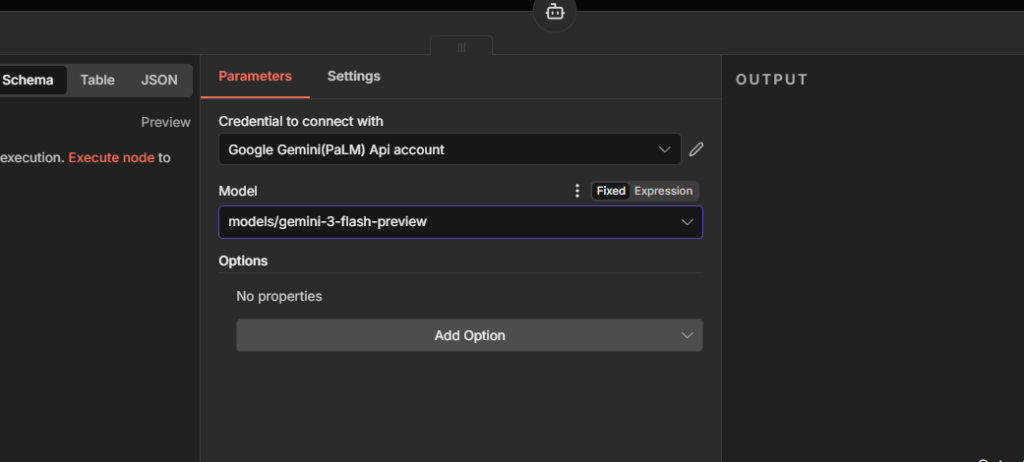
    Paste the Google Gemini API key here to complete the credentials. That’s it and then you will be needed a model though, for this tutorial I go with models/gemini-3-flash-preview

    adding google gemini model to the AI agent

    Connect your chosen model to the AI Agent node’s chat model input.

    Finally connected a chat model to an AI agent in n8n

    Step 4: Add a Simple Memory (for Testing)

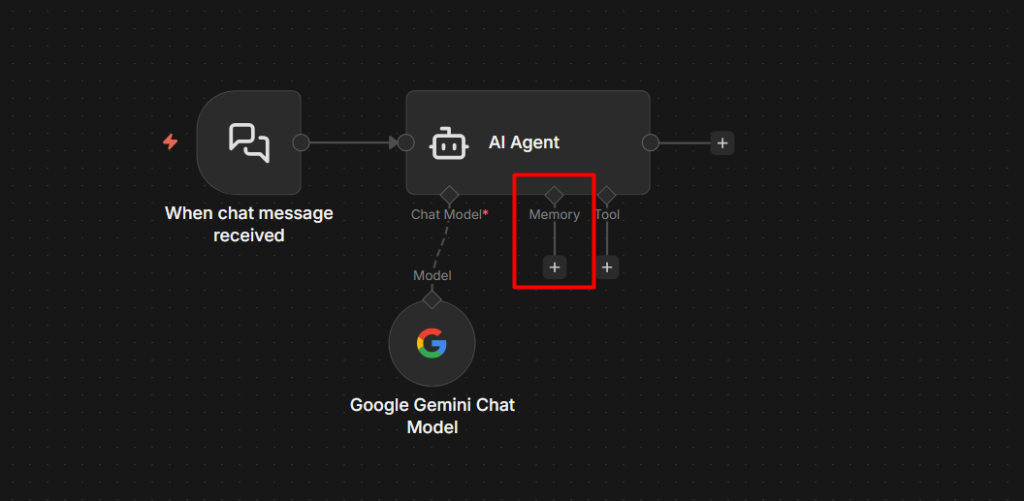
    Adding a memory to AI agent in n8n

    Still on the sub-node area, connect a Simple Memory node to the Memory input.

    Adding simple memory to AI agent in n8n

    Simple Memory keeps the conversation history in RAM during the current workflow session. This means your agent will remember what was said earlier in the same conversation – but only until the workflow restarts or the session ends.

    This is perfectly fine for testing, I’ll cover what to use in production in the next section, because this is exactly where most people get burned.

    Configuring the context window length in simple memory

    Leave the Context Window Length at 10 messages for now. That’s enough for most conversation without overloading the model’s context window.

    Check it out here to learn more about How to Use Simple Memory Node in n8n

    Added simple memory

    Step 5: Add a Tool

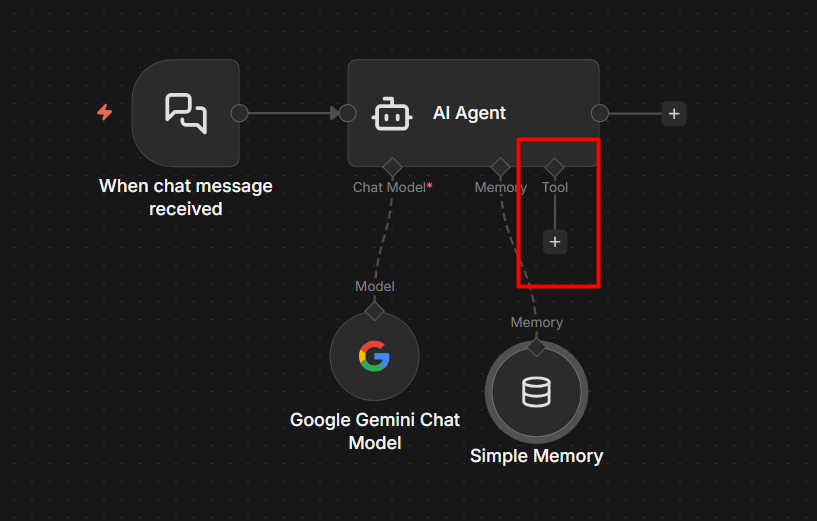
    Adding a tool to AI agent in n8n

    Tools are how the agent takes actions beyond just generating text. For this example, add the built-in Calculator tool, It’s already in n8n, no setup required, and it lets you see the agent’s tool-calling behavior immediately.

    Connecting a calculator tool to AI Agent

    Connect it to the Tools input on the AI agent node.

    Here’s what actually happens when a user asks “What’s 15% of $340 for a tip?” – The agent recognizes it needs to calculate something, calls the calculator tool with 340 * 0.15, gets 51 and includes that in its response. You can watch this happen step by step in the execution logs.

    Step 6: Test It and Publish It

    Click the Chat button in the Chat Trigger node (or the Open Chat button that appears in the UI). A chat window opens

    Send a message: “Hey, I’m locked out of my account

    You should see the agent respond. But here’s the important part, click the execution that appeared in your workflow. Open it and look at the AI Agent node’s output. You’ll see the reasoning steps, What the model decided, which tool it chose (or didn’t), and why.

    This is the execution log view, and it’s one of n8n’s biggest strengths for working with agents. You can see exactly what the agent was thinking at each step. When something goes wrong, this is where you debug it.

    When you’re ready to use this in production, toggle the workflow to Publish in the top right corner.

    Choosing The Right Memory for Your Agent

    Simple Memory works perfectly in testing. The moment you deploy and restart your n8n instance, it forgets everything. Every conversation starts from scratch. Users have to re-explain their context every single time.

    Memory TypePersistsUse Case
    Simple Memory❌ NoTesting only, local development
    PostgreSQL memory✅ YesLong-term context, production chatbots
    Redis Memory✅ YesHigh-volume, fast session-based agents

    Motorhead Memory is deprecated as February 9, 2026. The Motorhead project is no longer maintained. n8n has hidden it from the nodes panel for new workflows.

    For production, use PostgreSQL Memory. It stores conversation history in a database table, survives restarts, and works with n8n’s native PostgreSQL integration. If you’re already self-hosting n8n with PostgreSQL as your n8n database, you can point the memory node at the same database.

    There are two things to get right with any persistent memory setup

    Session IDs must be unique per user. If you hardcode a session ID or leave it as a default, every user shares the same memory. Your agent will get confuse one user’s conversation history with another’s.

    Generate session IDs dynamically from a user identifier – their email, a user ID from your system, or a UUID.

    Set a reasonable context window. Storing 500 messages of history and sending all of it to the model on every request is expensive and often counterproductive. Most agents work well with the last 10-20 exchanges anything beyond that and you’re paying for tokens that don’t meaningfully improve responses though.

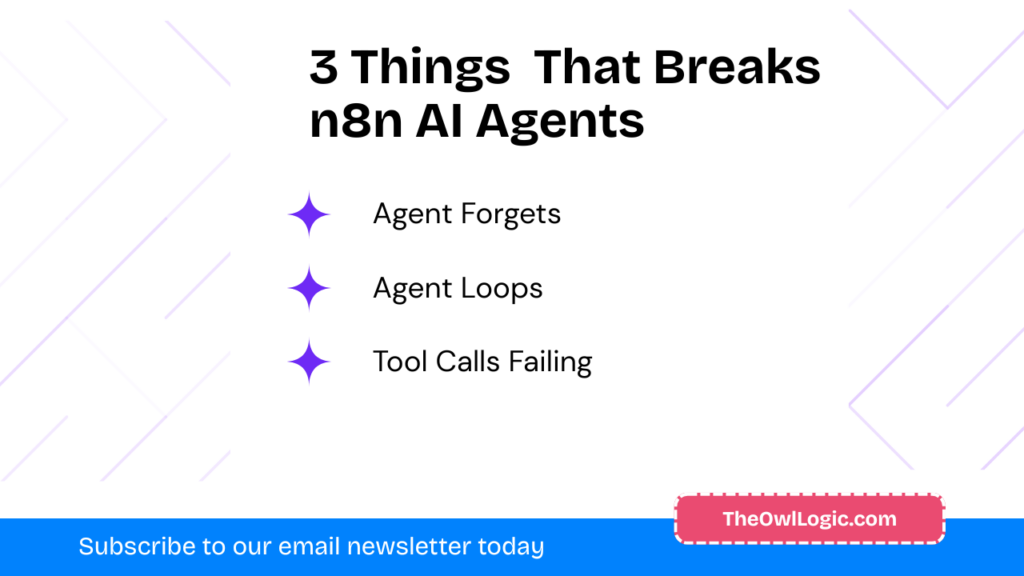
    3 Things That Break n8n AI Agents

    3 things that breaks n8n AI agents

    1. Agent “forgets” everything after deployment

    Conversations work perfectly in testing. In production, the agent has no memory of previous messages.

    You’re using Simple Memory and the workflow restarted (due to a deploy, update, or n8n instance restart).

    As a fix, Switch to PostgreSQL or Redis memory before going live. This is not optional for any agent that needs to maintain context across sessions.

    2. Agent loops or keeps asking clarifying questions

    The agent send multiple messages, asks the same question repeatedly, or never produces a final answer.

    Your system prompt is too vague. The agent can’t determine when it’s done, so it’s keeps going.

    Add explicit stopping conditions to your system prompt

    When you have enough information to answer, respond directly.
    Do not ask more than one clarifying question per response.
    If you cannot find the answer using available tools, say so clearly and stop.

    Also check your context window length. If it’s too long and the agent is reading 50+ messages of history, it sometimes gets confused about what was already resolved.

    3. Tool calls failing

    The agent responds as if it used a tool, but the action didn’t actually happen. No error shown to the user.

    The tool node is failing (expired credentials, API error, wrong field mapping) but the agent is continuing anyway and generating a plausible-sounding response without real data.

    As a fix, Open the execution and click into the specific tool node that fired. The error will be there. This is almost always a credential issues – check our error handling guide for how to setup error notifications so these don’t go unexpected. Also, be explicit in the system prompt that the agent should acknowledge when a tool fails rather than guessing.

    HITL Approvals + MCP Trigger

    Two features shipped in early 2026 that change how you build agents. Most content out there hasn’t covered them yet.

    Human-in-the-Loop (HITL) Tool Approval

    You can now mark specific tool as gated. The agent cannot execute them until a human explicitly approves the action.

    This is a big deal for high-stakes operations. Before this feature, if you built an agent that could send emails or delete records, you were trusting the agent’s judgement entirely, or using fragil prompt-based guardrails (“only do this if you’re sure”). Neither was reliable.

    Now you can set specific tools – “send email”, “delete record”, “post to production slack” to require approval. When the agent decides to call one of those tools, the workflow pauses. The approval request get routed to whoever needs to review it. They approve or reject. The agent continues or stops.

    Approvals are not limited to one interface either. You can route them through slack, email, a webhook. Any standard n8n node. So a high-priority approval can interrupt the right person on the right channel.

    MCP Server Trigger

    n8n now supports Model Context Protocol (MCP), which means external AI systems – other agent, claude, GPT – can call your n8n workflows as tools. You build a workflow, expose it via the MCP Server Trigger, and it becomes available as a callable tool in any MCP-Compatible AI system.

    This opens up multi-agent architectures where n8n handles the automation side while a more capable reasoning model handles complex decisions. Worth exploring once you’re comfortable with single-agent workflows.

    My Final Thoughts

    The support triage example in this post is deliberately simple. Once you have this working, add a real tool, a HTTP Request node that checks your knowledge base, or a Google Sheets lookup for customer data. That’s when agents start to feel genuinely useful.

    I hope you made your first AI Agent, and don’t forget to subscribe to our weekly digest email newsletter. Good luck 🙂